
Every treatment on record, with photos and product.
PraticOS is the work order app for pest control companies. Schedule the visit, record what was applied and where in a checklist with photos, send the quote as a link for the client to approve and hand over the service PDF — all from your phone.
Start free · iOS and Android · paid plans in the app
- Client
- Village Kitchen Diner
- Areas
- Kitchen, storage room and exterior
- Target pest
- Cockroaches and rodents
- Treatment
- Gel bait along baseboards · 12 bait stations
- Photos
- 9 attached
- Total
- $240.00
- Quote
- Approved
- In progress
- Completed
Where a pest control company loses money
It's rarely a lack of calls. It's the paper ticket that never comes back, the tech who arrives without the history and the client asking for proof of what was applied.
-
Paper tickets that never come back
The ticket gets wet, torn or left in the truck, and what was done only gets written up days later.
In PraticOSYou fill in the work order on your phone, on site, with photos, and it's saved right away. If someone works with you, they see the same work order as soon as it's saved.
-
Clients asking for proof of treatment
A restaurant, building or school wants to know which product was used, in which areas and on what day.
In PraticOSBuild a checklist with product, lot, dilution, treated areas and photos. The work order PDF includes the completed checklist and the photos.
-
Techs arriving without the history
On a return visit, nobody knows where the activity was or what was applied last time.
In PraticOSSearch by client name and see every past work order, with checklists, photos and notes.
-
A schedule in a notebook
Two visits at the same time, a tech crossing town and a client waiting.
In PraticOSThe work order date puts the visit on the Schedule, with the week on top and the time of each visit. The phone sends a reminder before each one.
-
Quotes agreed over the phone
The price was said on a call and, when it's time to bill, the client remembers a different number.
In PraticOSThe client approves the quote by link, and the approval is recorded on the work order.
-
Closing the month without knowing what came in
Paid on the spot, buildings that pay at month-end and clients who pay next month, all in the same notebook.
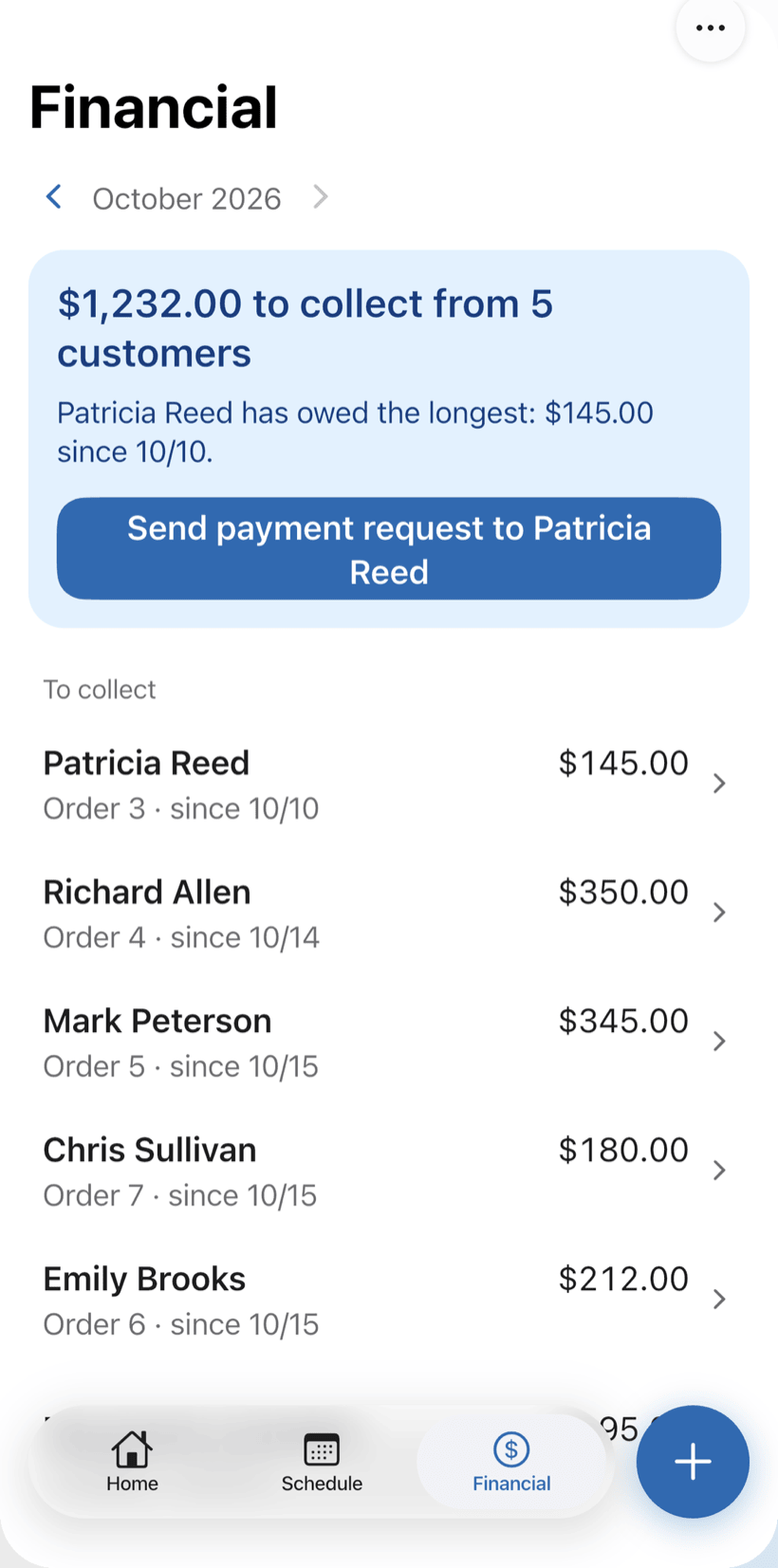
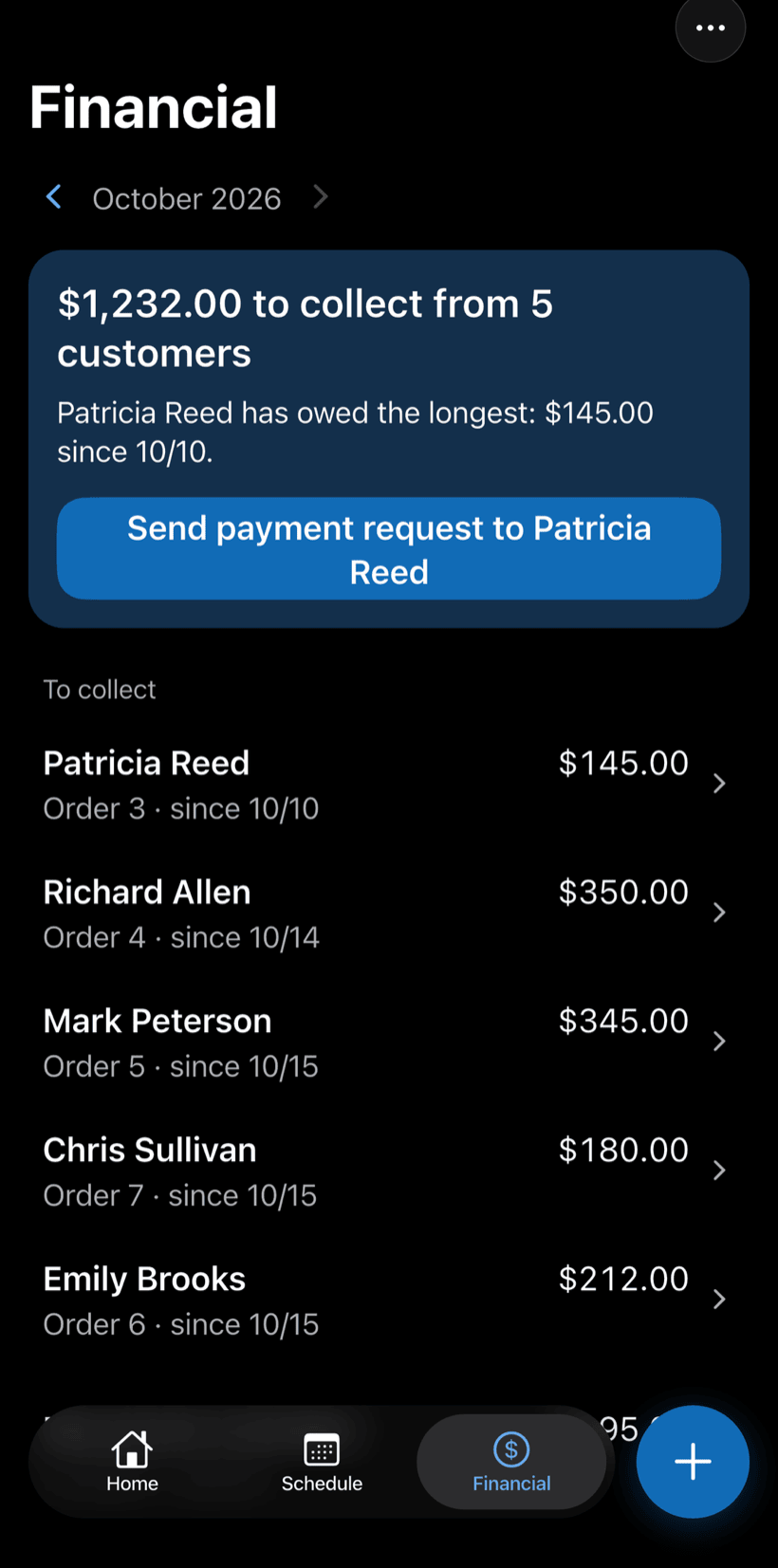
In PraticOSRecord full or partial payments. Financial shows what is still owed and by whom, and the monthly report shows what came in.
How a visit moves through PraticOS
From scheduling to payment, every step is recorded on the client's work order.
-
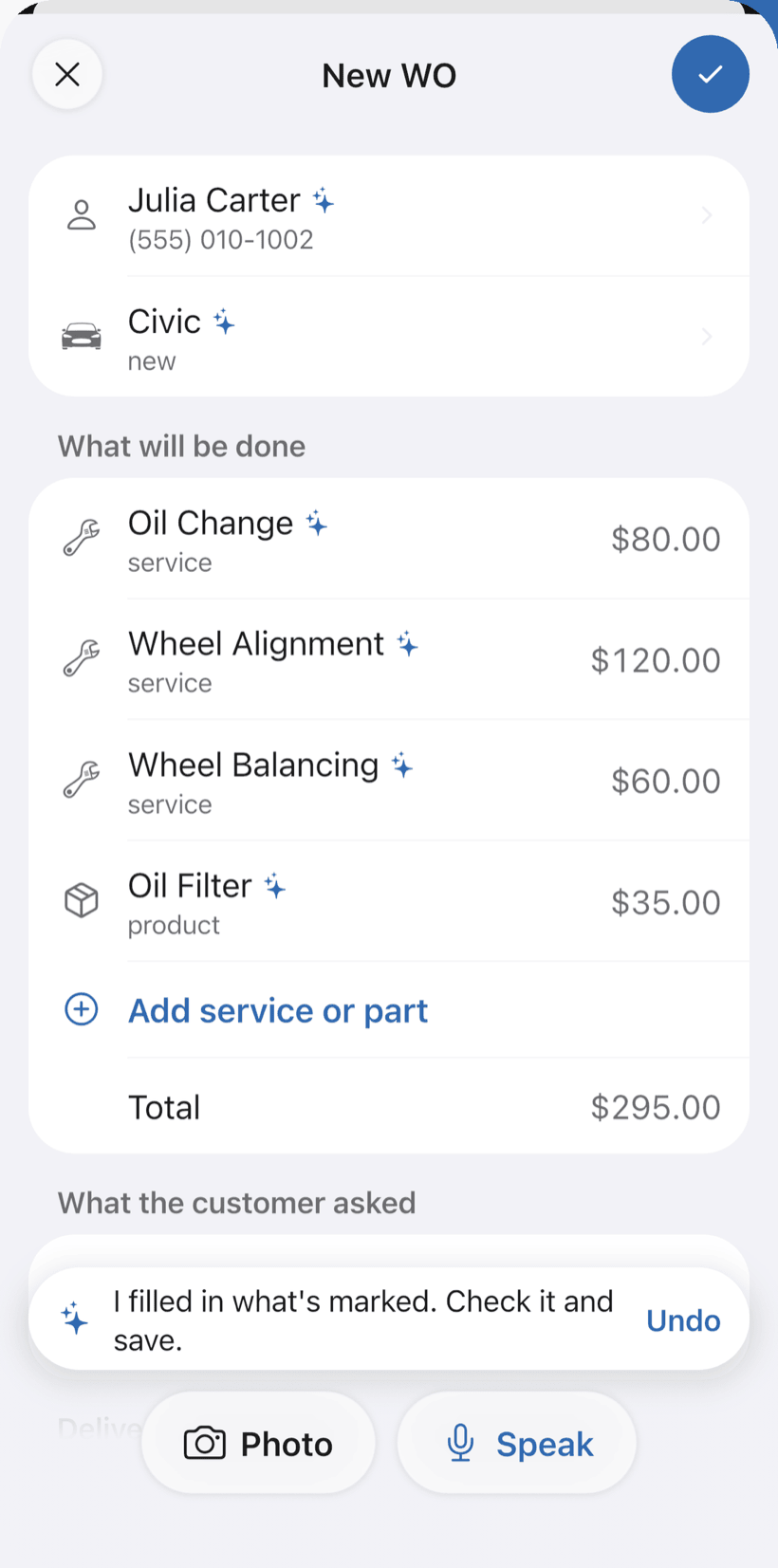
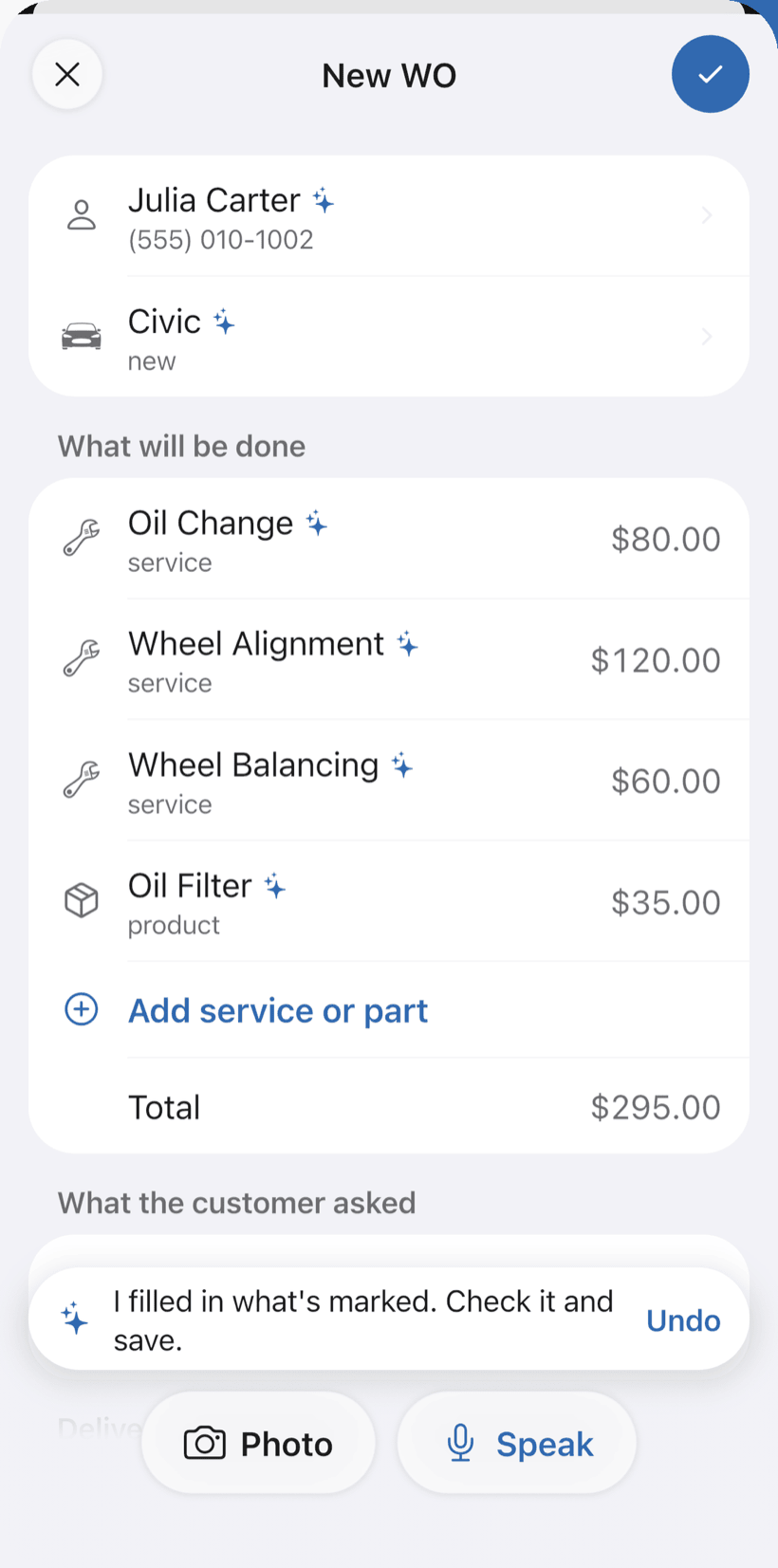
Say the job and the work order fills itself in
On New order, tap Speak and say “Paulo's restaurant, kitchen and storeroom treatment”, or take a photo of the written order. The AI fills in the client, services and prices from your catalog. You check it and save.
- Everything the AI filled in is marked with ✦, and you can undo it
- Fix it by speaking: “the storeroom is 200”
- Client, address and service on one work order
-
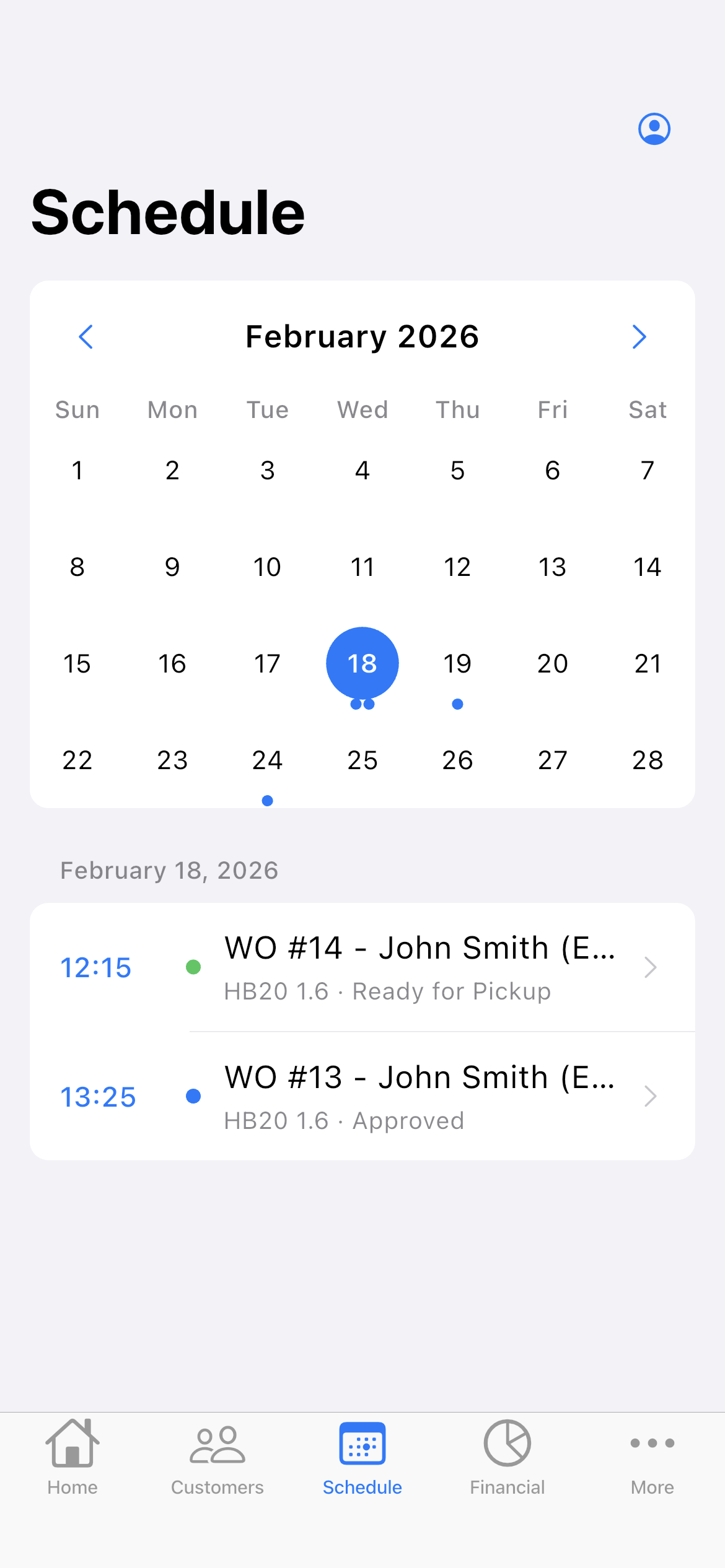
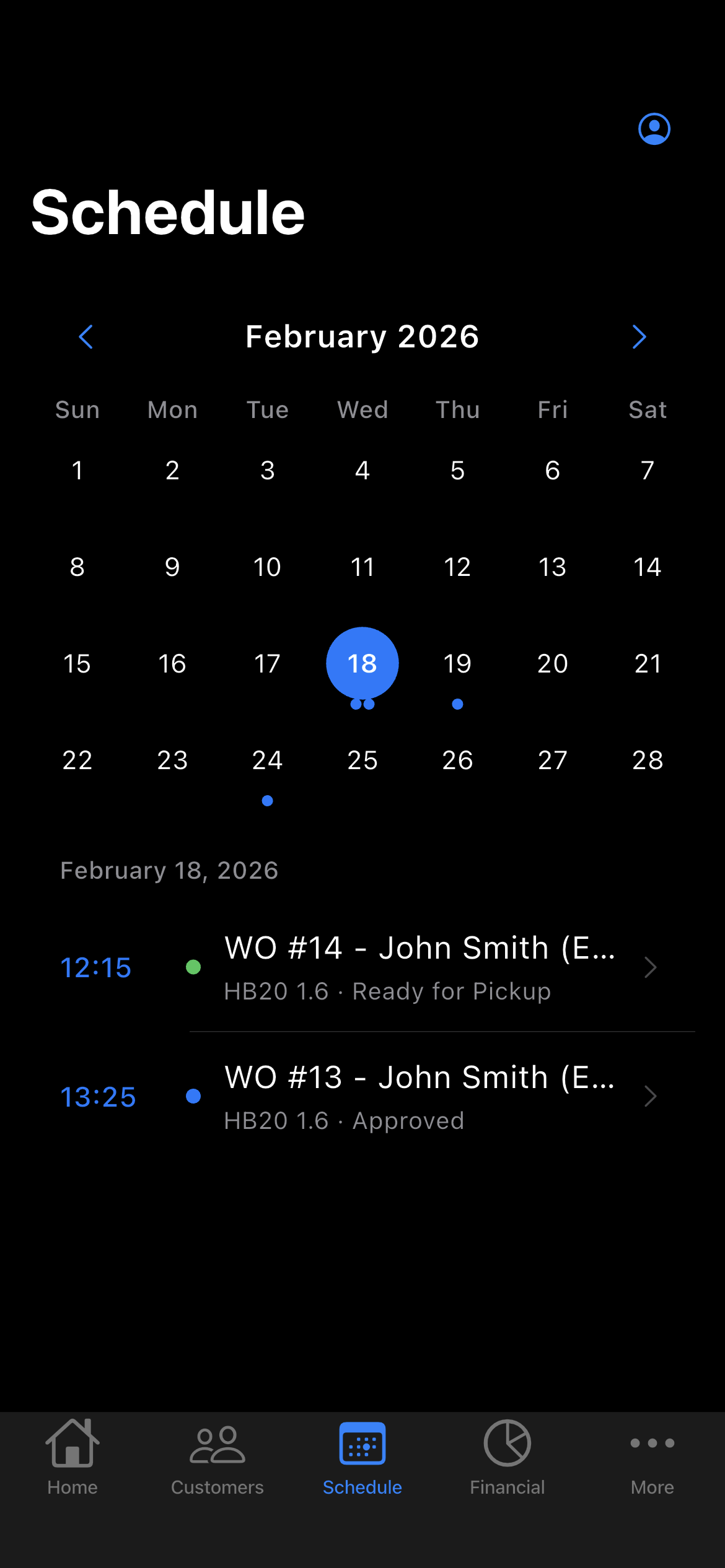
Schedule the visit
The work order date and time put the visit on the Schedule. You see the week on top and what is booked each day.
- The week on top and each day's appointments, with times
- Daily summary at 9 a.m., if you turn it on
- Phone reminder before each visit
-
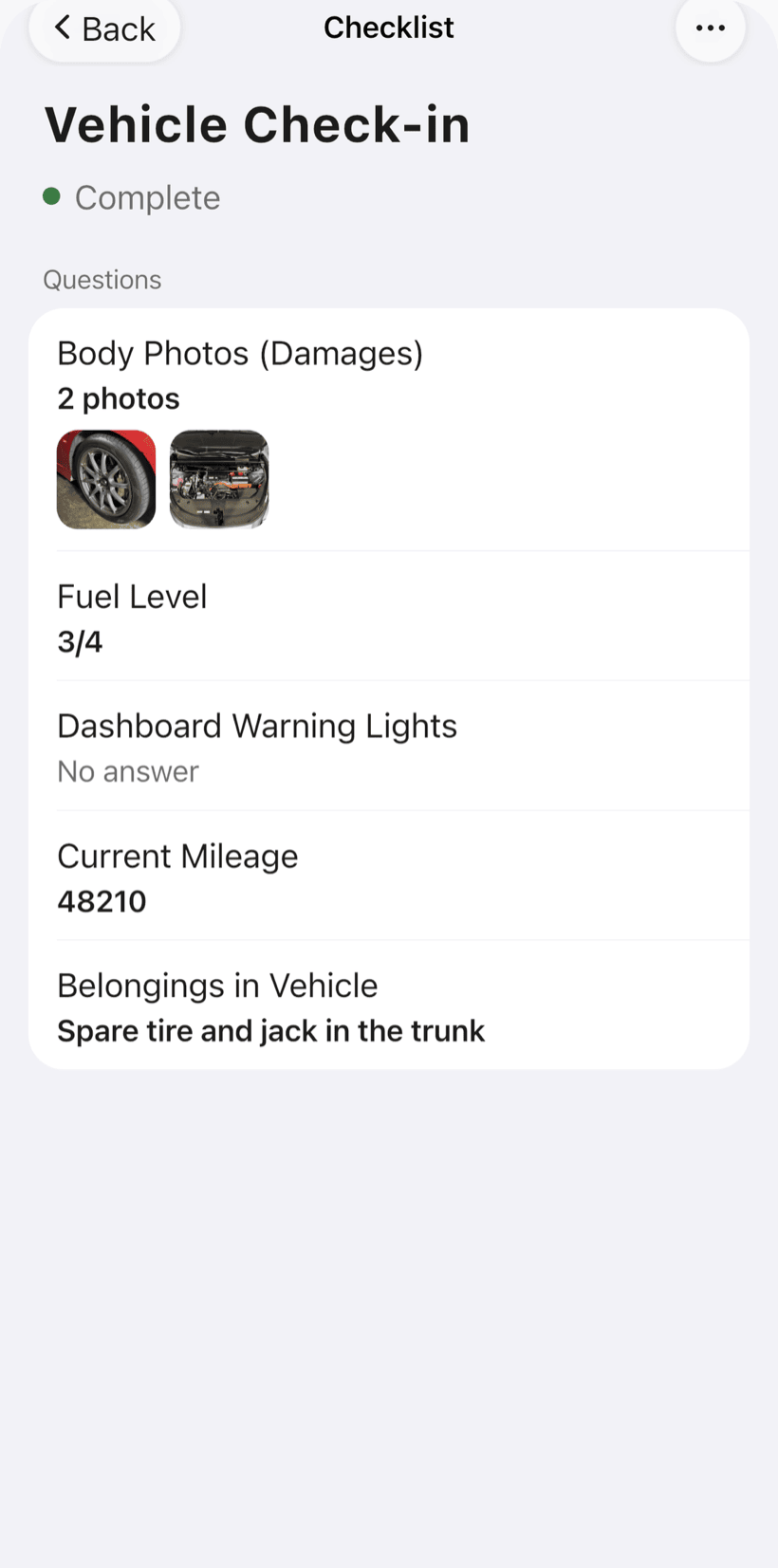
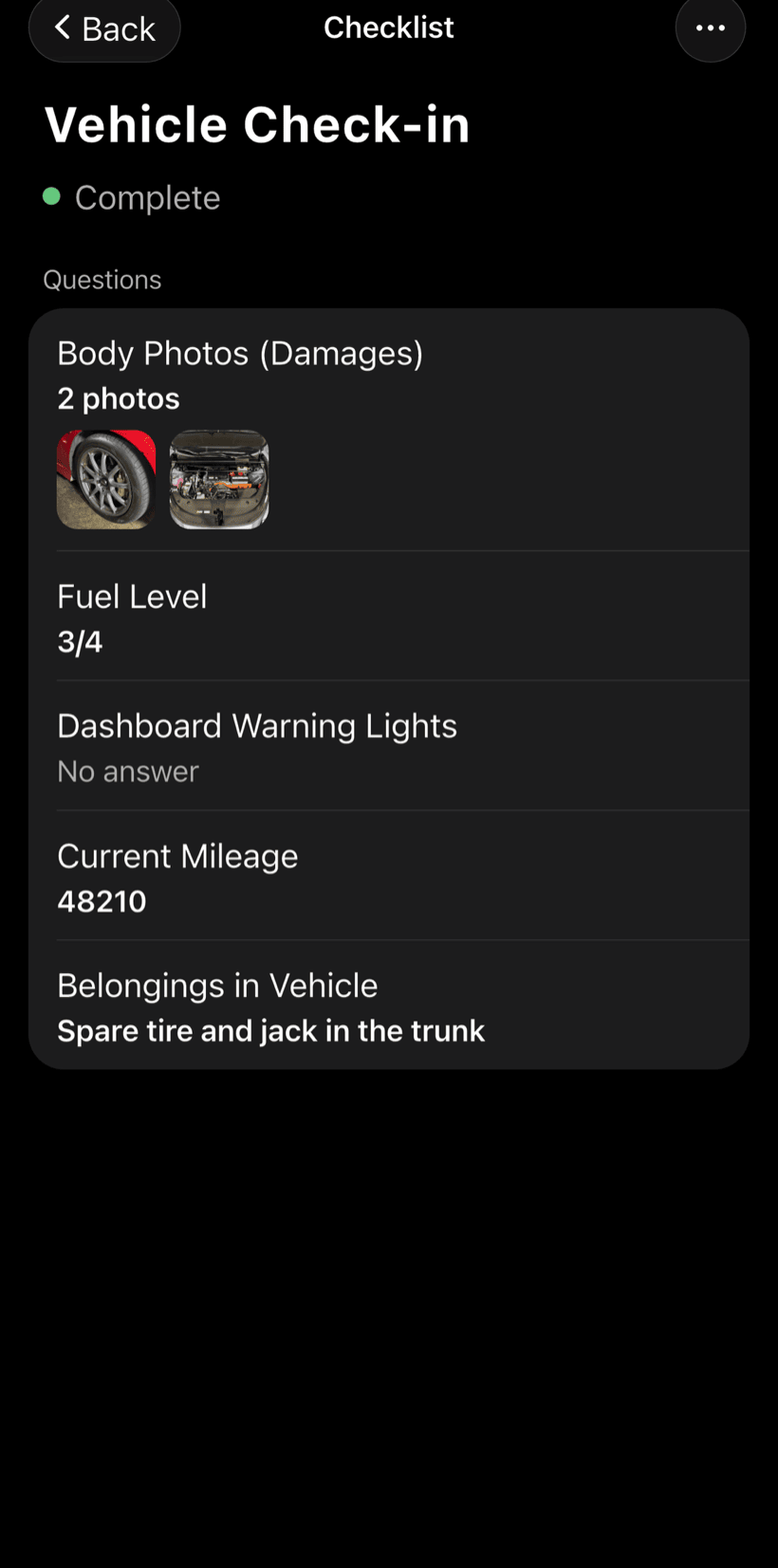
Record the treatment
Build the checklist the way you work — target pest, product, lot, dilution, treated areas, recommendations — and fill it in on site.
- Text, number, yes/no, list and photo fields
- Photos on every checklist item
- One template for every visit
-
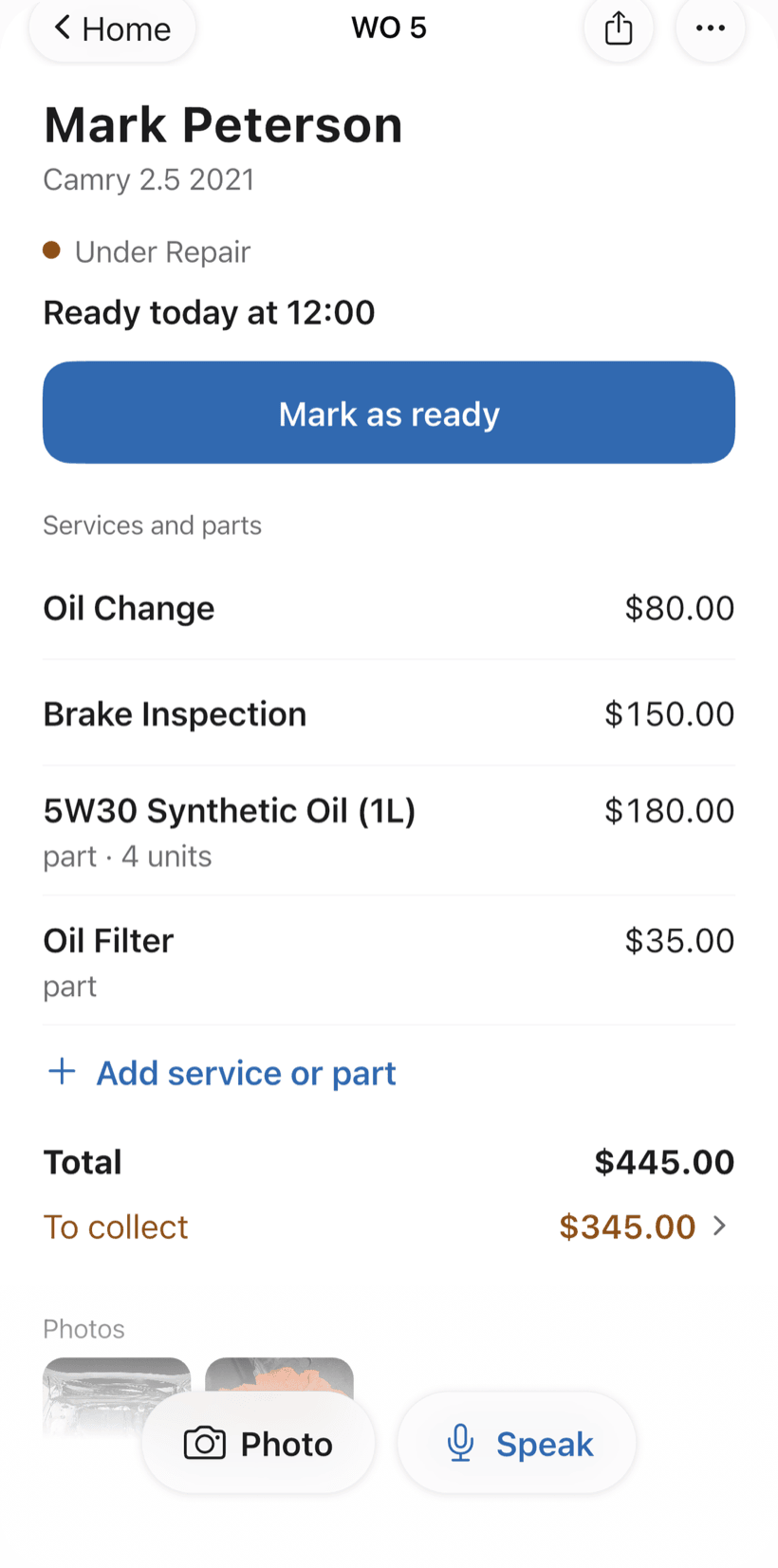
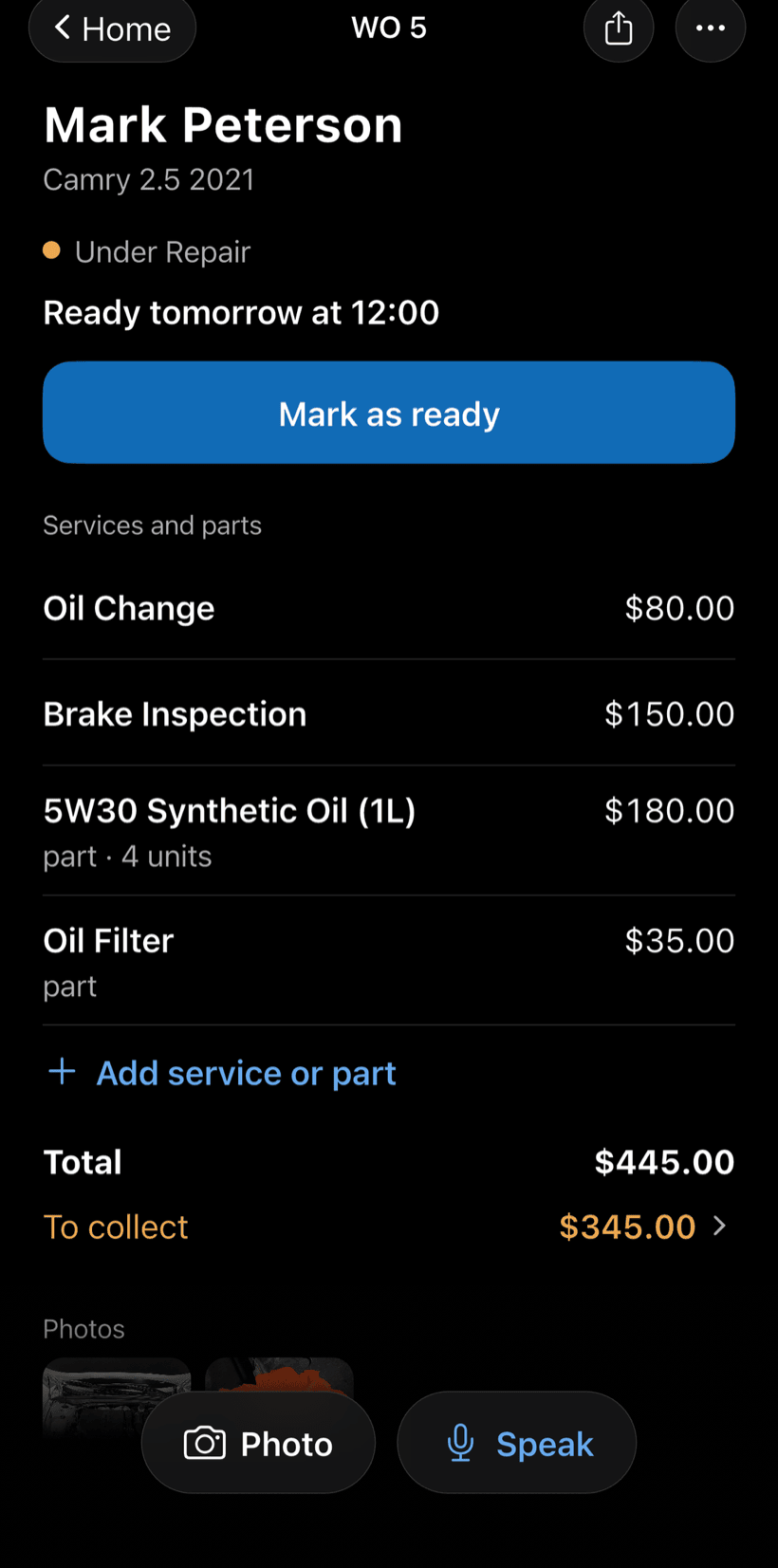
Send the work order to the client
The client opens the work order in a browser, nothing to install. They see services, photos and prices, approve it and leave comments.
- Approval recorded on the work order
- PDF with the completed checklist and photos
- Clients follow progress without calling
-
Get paid
Record the payment in full or in parts, with a discount if needed. The Financial tab shows who still owes you, and you can send the customer a payment request.
- Payment in parts and discount on the same work order
- Monthly report of what came in
- Everyone who still owes you, in one list
Questions from pest control companies
If yours isn't here, send us an email — the PraticOS team answers it.
Do I have to pay to use it?
Not to get started. You can use it free, with no limit on work orders or customers. The free plan has a monthly limit on photos and AI use, and one checklist template. Paid plans, with more of each and a team, are available in the app.
Is there a pest control segment in the app?
Not yet. You pick the “Other” segment, which comes with general checklists for service record and customer handover, and build your own treatment checklist.
Can the PDF be used as a service certificate?
The work order PDF includes the service details, the completed checklist and the photos. It is not an official certificate: check with your local health or licensing authority what a certificate must include and add those fields to your checklist.
Can my techs use it on their own phones?
If someone works with you, yes. Tap the profile button at the top of Home, go to Team and invite them with a code sent over WhatsApp, and they use the app on their own phone with a role, such as technician or manager. Inviting someone needs a paid plan, purchased inside the app.
Does the client need to install an app?
No. They get a link, open it in their phone's browser and see the work order with photos and prices. They approve the quote and leave comments right there.
Download it and open your first order today.
Start free. Paid plans available in the app.
Questions? Talk to us on WhatsApp praticos@rafsoft.com.br FAQ