
Every TV on the bench with photos and a deadline.
PraticOS is the work order app for electronics repair shops. Log the device with model and serial number, photograph how it arrived, send the quote as a link for the customer to approve and record the payment — all from your phone.
Start free · iOS and Android · paid plans in the app
- Customer
- Robert Lane
- Device
- 50″ smart TV · SN 7A3K0921
- Issue
- Powers on, sound but no picture
- Service
- LED backlight strip replacement
- Photos
- 4 attached
- Total
- $210.00
- Quote
- Approved
- In progress
- Completed
Where an electronics repair shop loses money
It's rarely a lack of devices on the bench. It's the quote nobody answered, the TV the owner never picked up and the scratch nobody photographed.
-
Devices left on the shelf
The TV was ready months ago, the customer never shows up and you're not sure what you can do with it.
In PraticOSWrite your pickup rules in Terms for the customer (from the profile button at the top of Home). The customer reads them before approving the quote, the approval is recorded and the terms print on the work order PDF.
-
Quotes with no reply
You opened the device, texted the price and the customer went quiet.
In PraticOSThe quote goes out as a link with photos and prices. You can see whether the customer opened it, and the app reminds you when a quote has sat for more than 7 days.
-
The scratch that was already there
The customer says the case or screen left your shop scratched.
In PraticOSPhotograph the device at check-in and record damage, accessories left and the reported issue in a checklist on the work order.
-
Two identical TVs on the bench
Same model, same color, and the paper tag fell off.
In PraticOSEach work order holds the device with brand, model and serial number. Search the work order list by serial number or customer name.
-
Different prices for the same repair
Every time someone quotes the same power board swap, the number changes.
In PraticOSBuild a catalog of services and parts with prices. On the quote, pick the items and the total adds up on its own.
-
Warranty claims argued from memory
The device comes back with a fault and nobody remembers what was replaced.
In PraticOSThe work order keeps services, parts, photos and dates. Open the customer, see their devices and recent orders, and check what was done and when.
How a device moves across the bench in PraticOS
From check-in to pickup, every step is recorded on the device's work order.
-
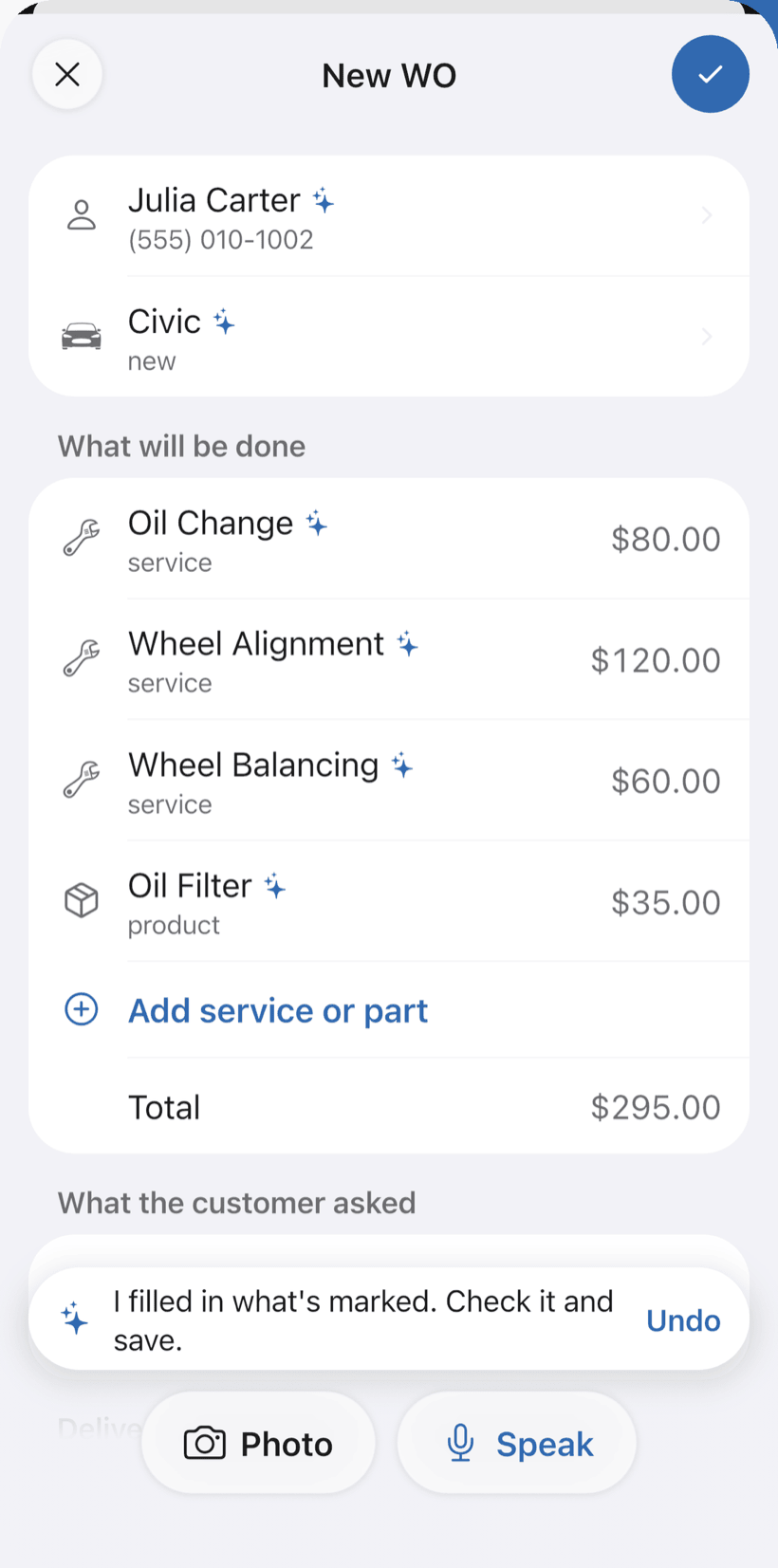
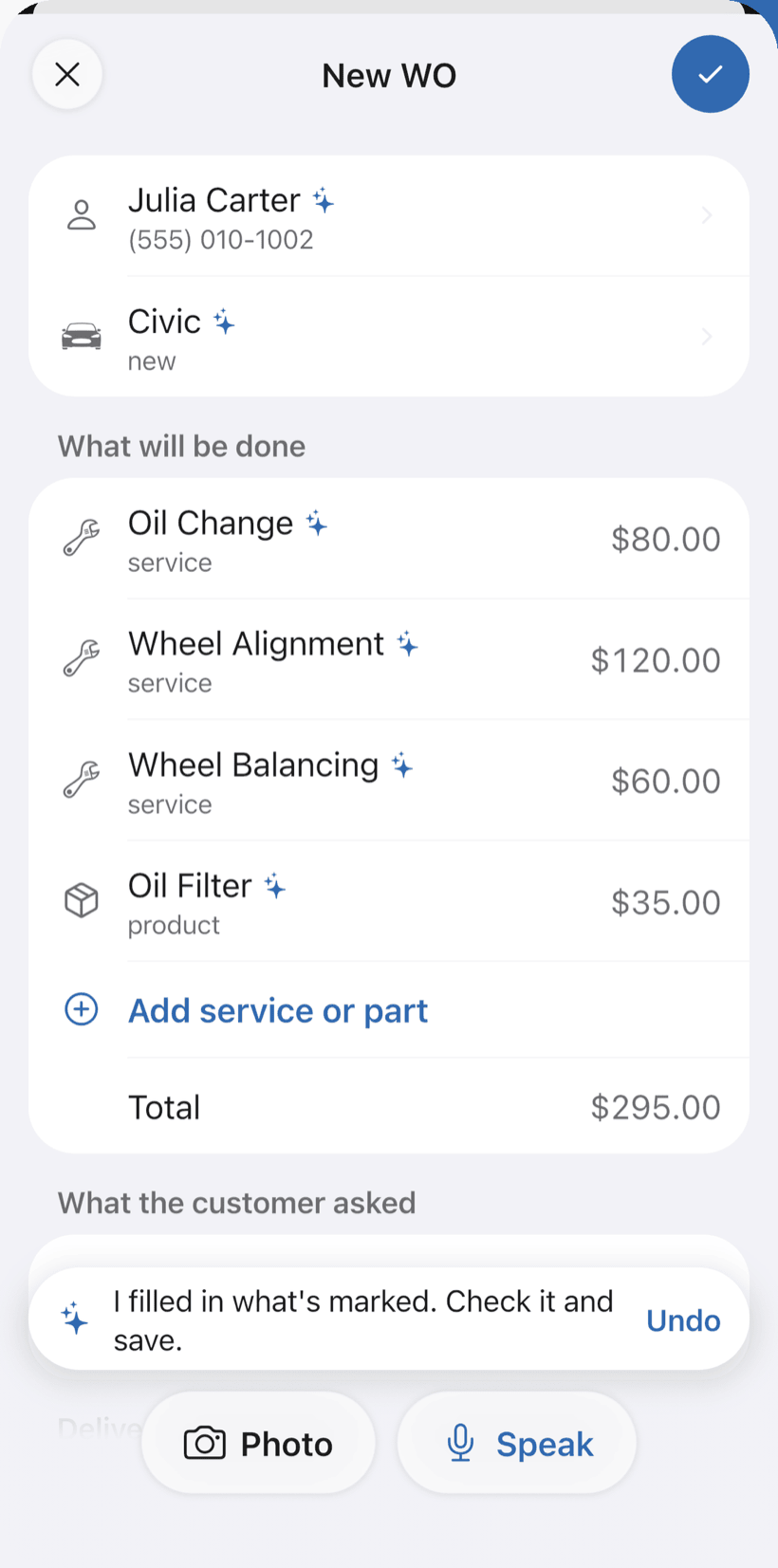
Say the device and AI opens the order
At the counter, tap Speak: “Carlos’s Samsung 50-inch TV, turns on and off, diagnostic quote.” AI fills in the customer, device, service and the price from your catalog. You check it and save.
- What AI filled in is marked with ✦
- Fix it by speaking: “the diagnosis is 80”
- Or take a photo of the label or the written request
-
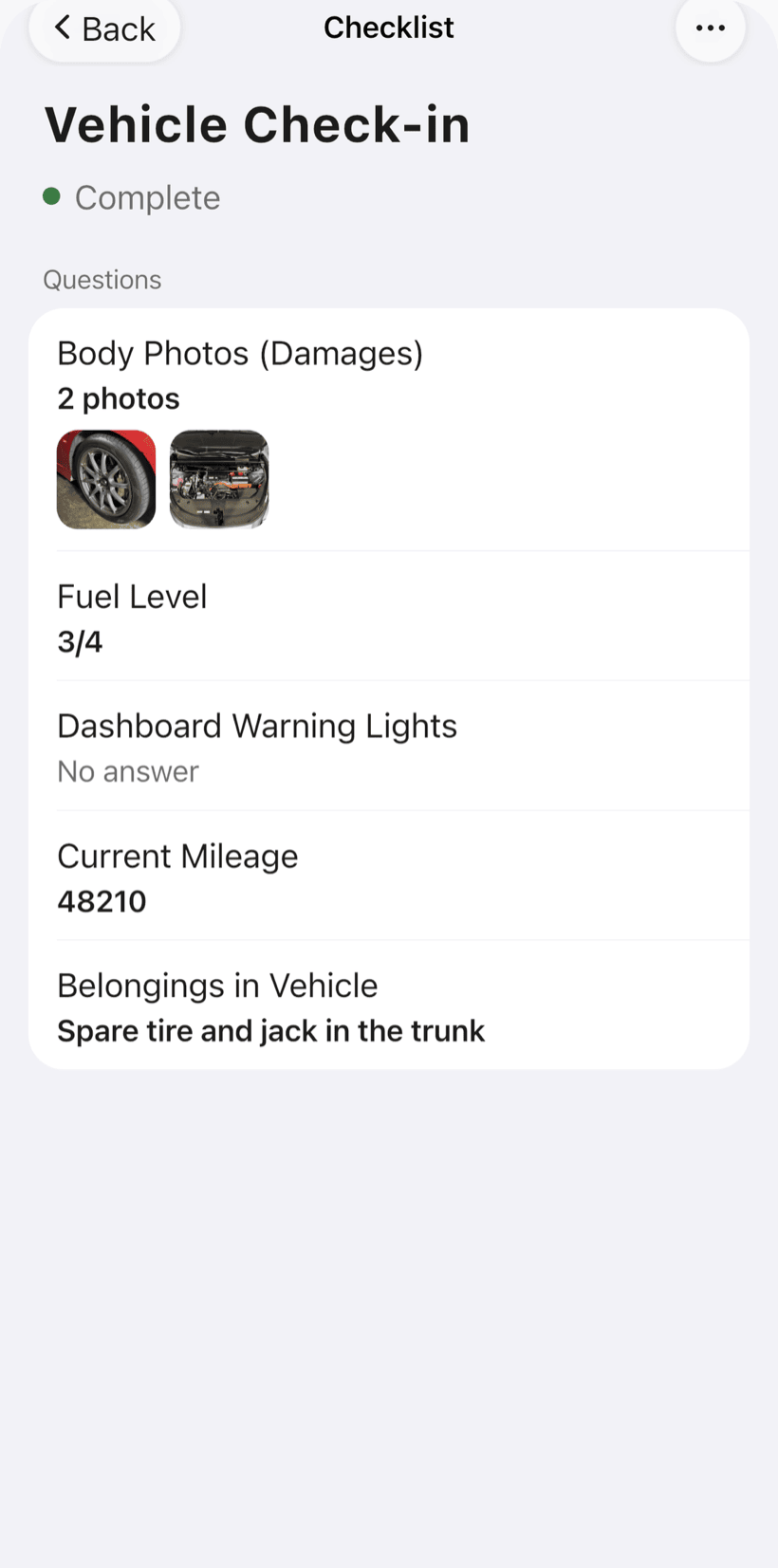
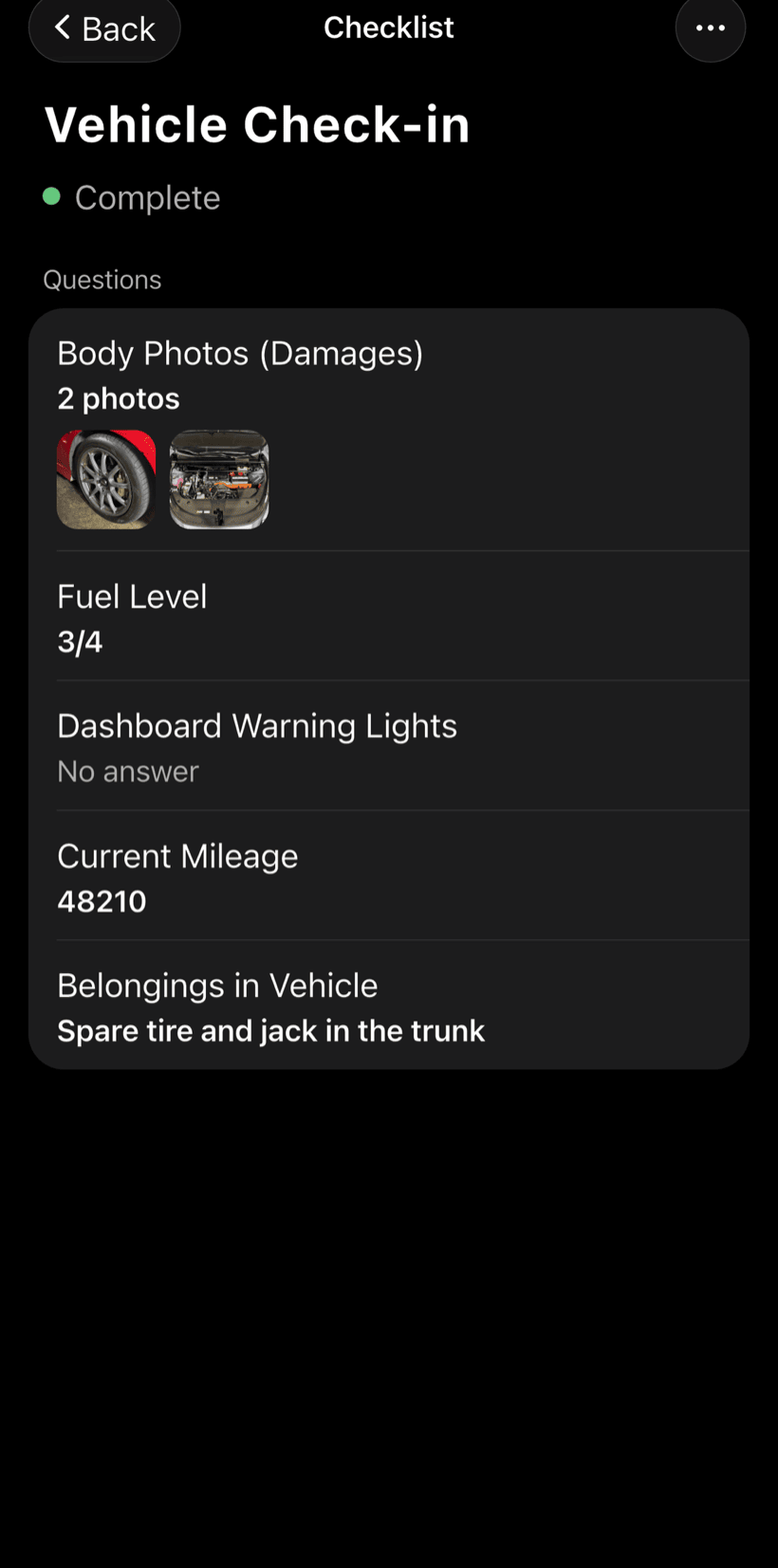
Log the check-in
Before opening the device, photograph and note how it arrived on the check-in checklist: brand, model, serial number, damage and accessories left with you.
- Photos and damage recorded on the order
- Reported fault and accessories left
- Checklists you adjust to your devices
-
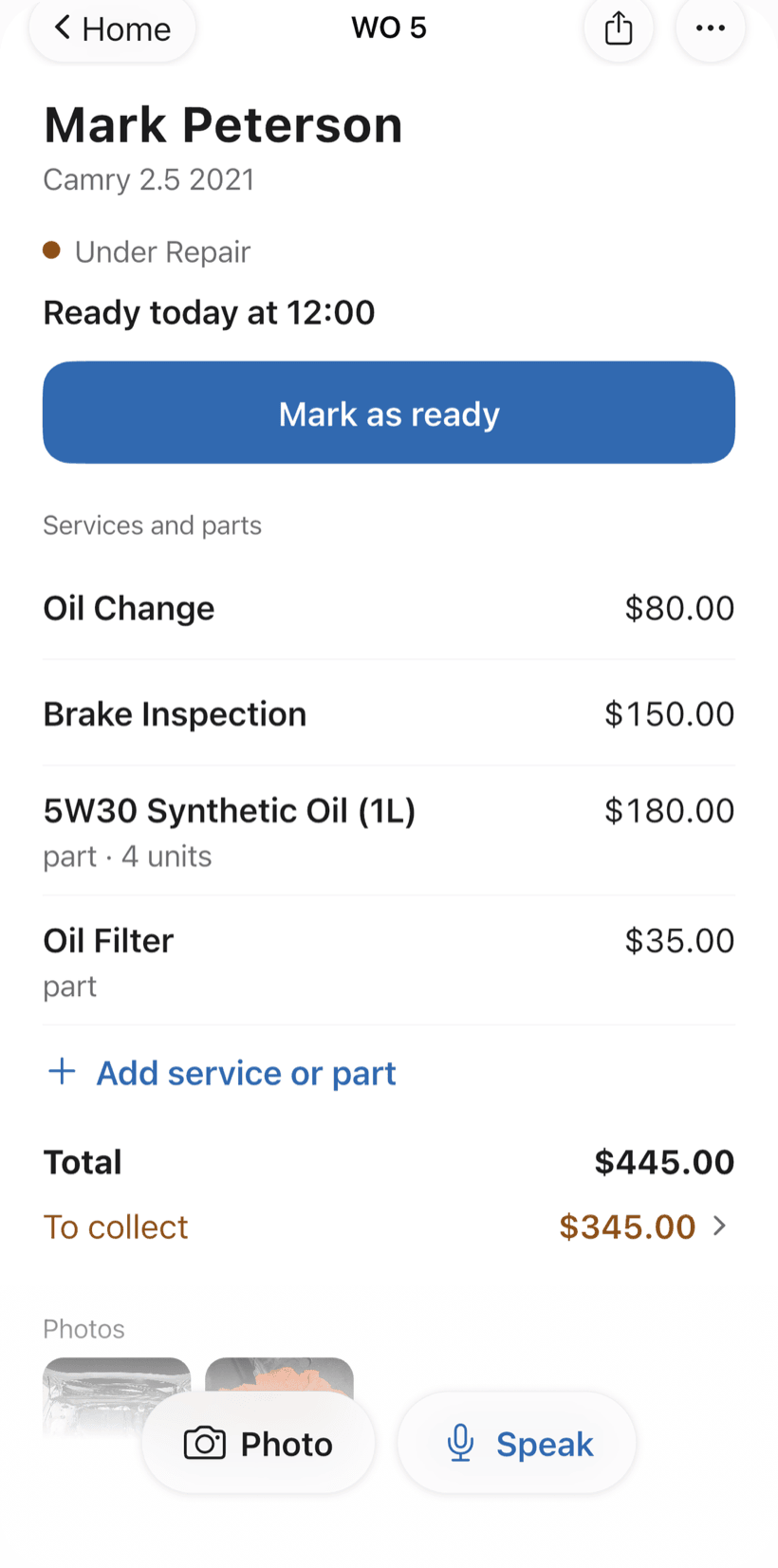
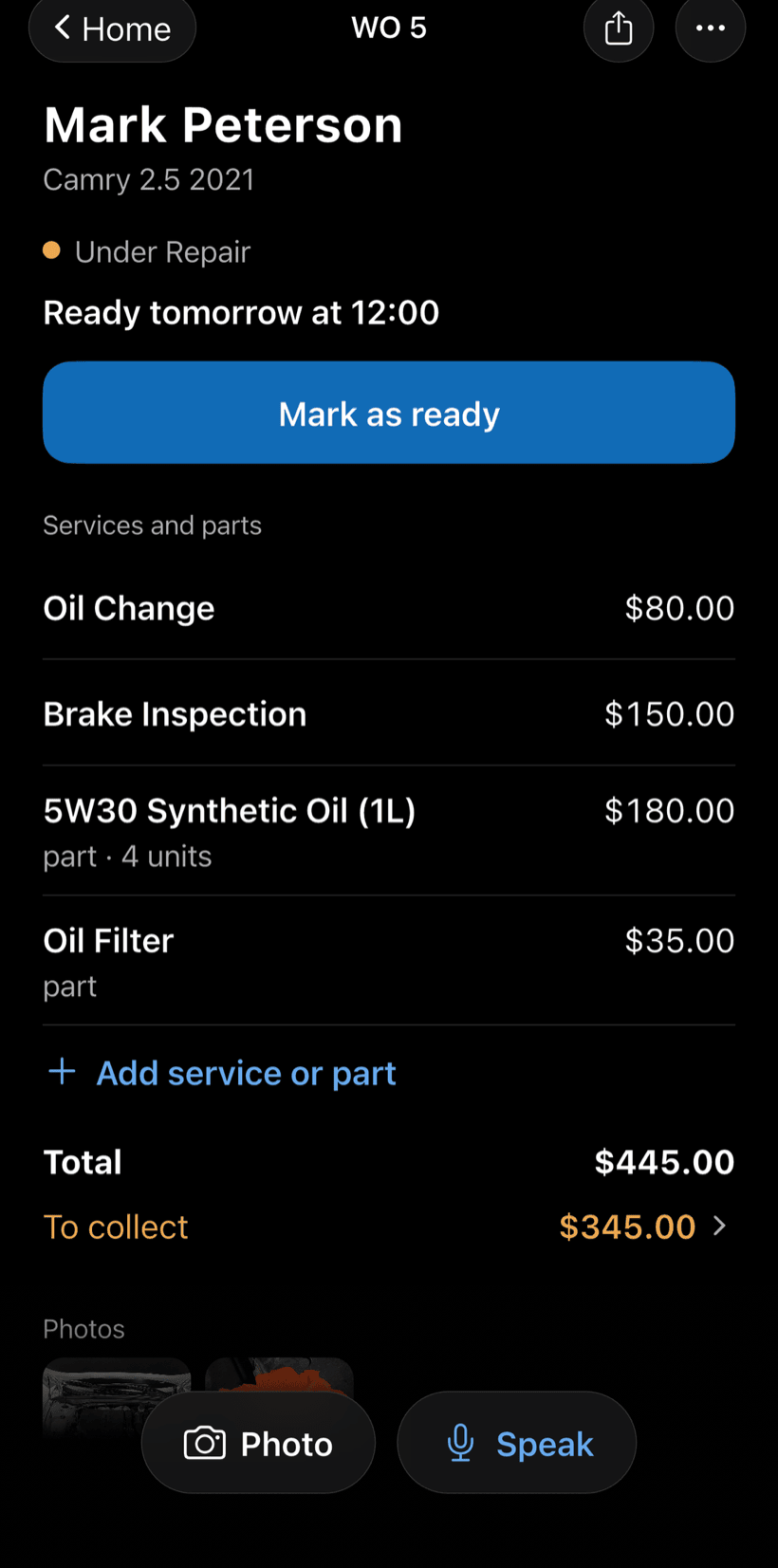
Send the quote by link
After the diagnosis, build the quote with services and parts from your catalog. The customer opens it in the browser, sees the photos, reads your terms and approves.
- Approval or rejection recorded on the order
- The customer comments right on the order, no call needed
- Work order PDF to print or send
-
Keep track of the bench
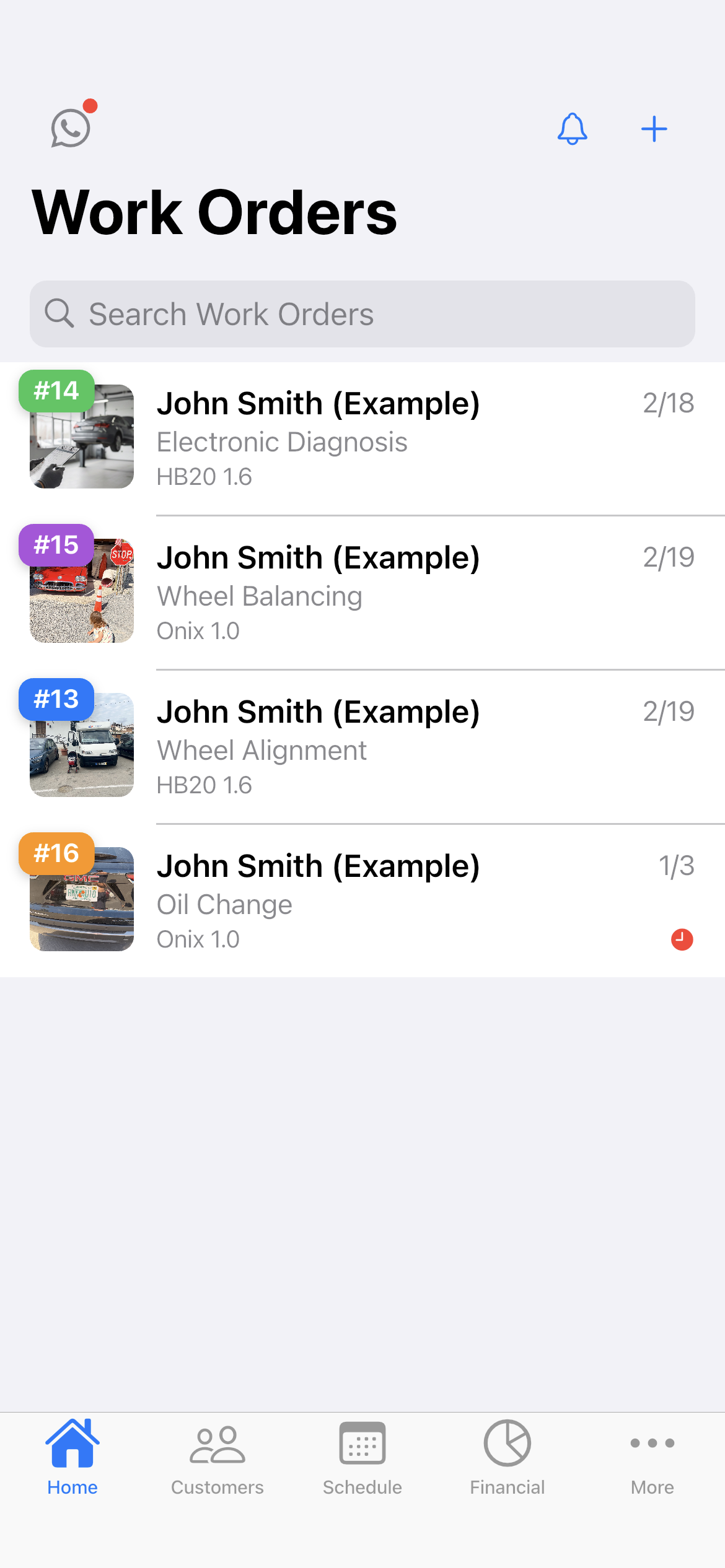
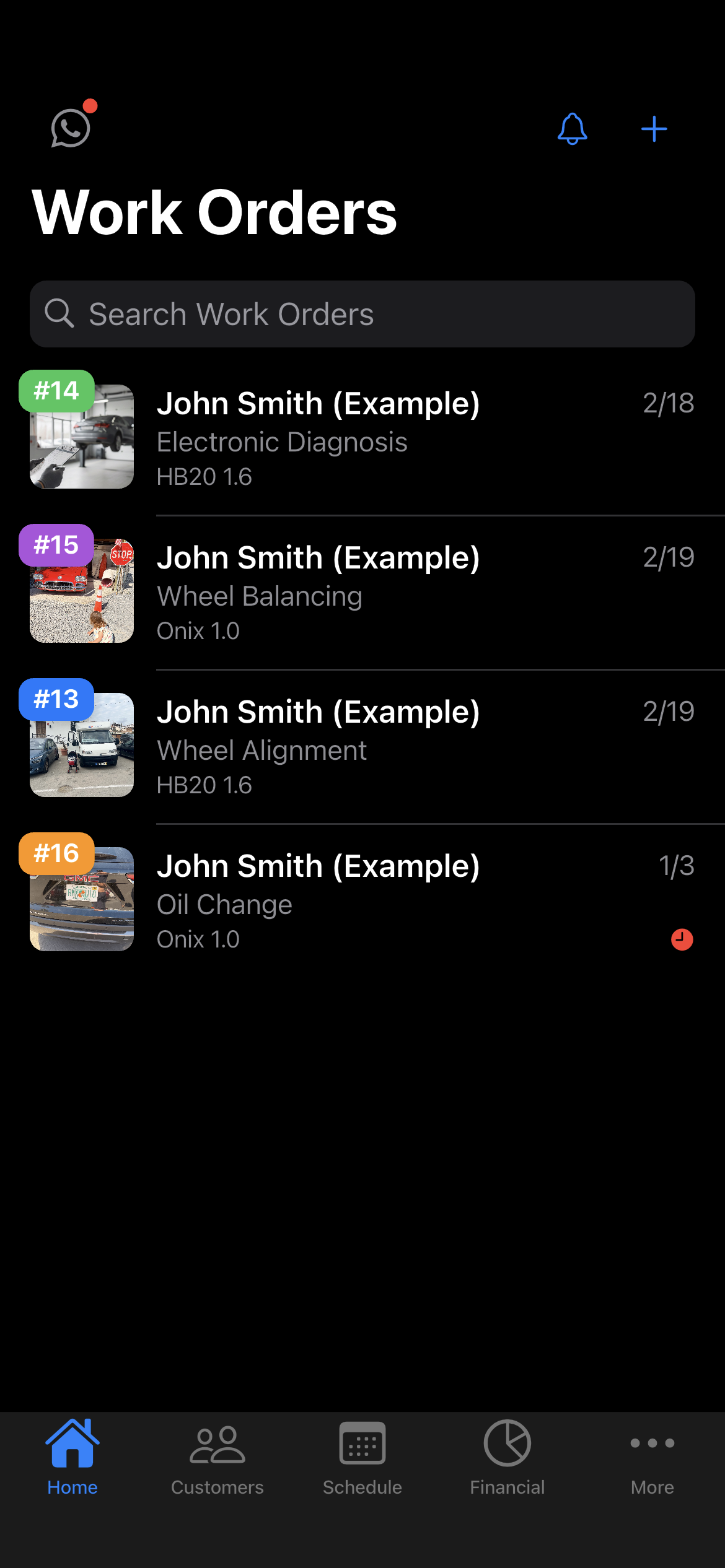
Home shows your open work orders, with customer, device, status and due date. The customer checks the status on the same link, without calling.
- Filters: Open, Completed, All
- Alert for quotes with no reply after 7 days
- Search by serial number or customer
-
Deliver and get paid
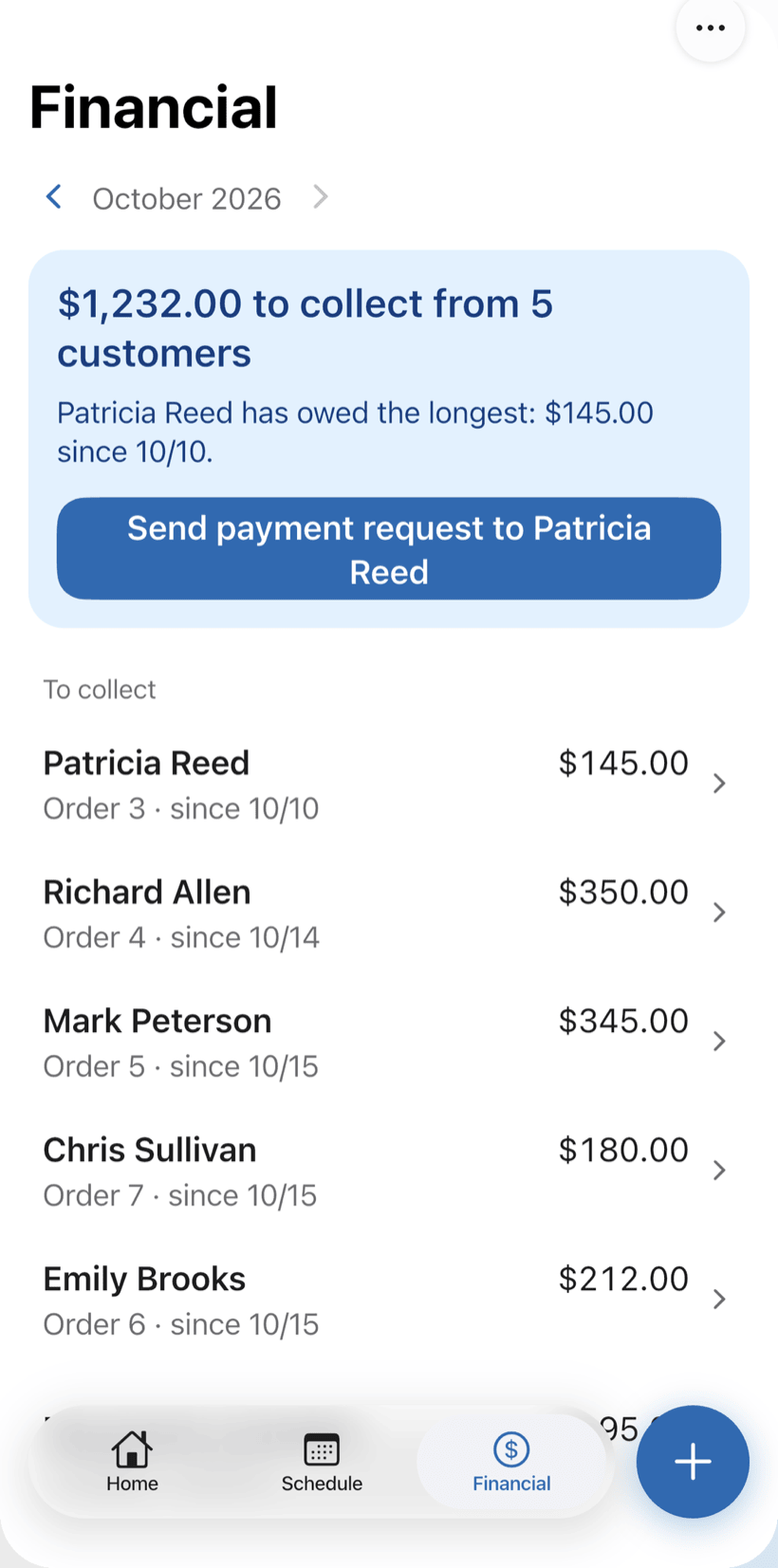
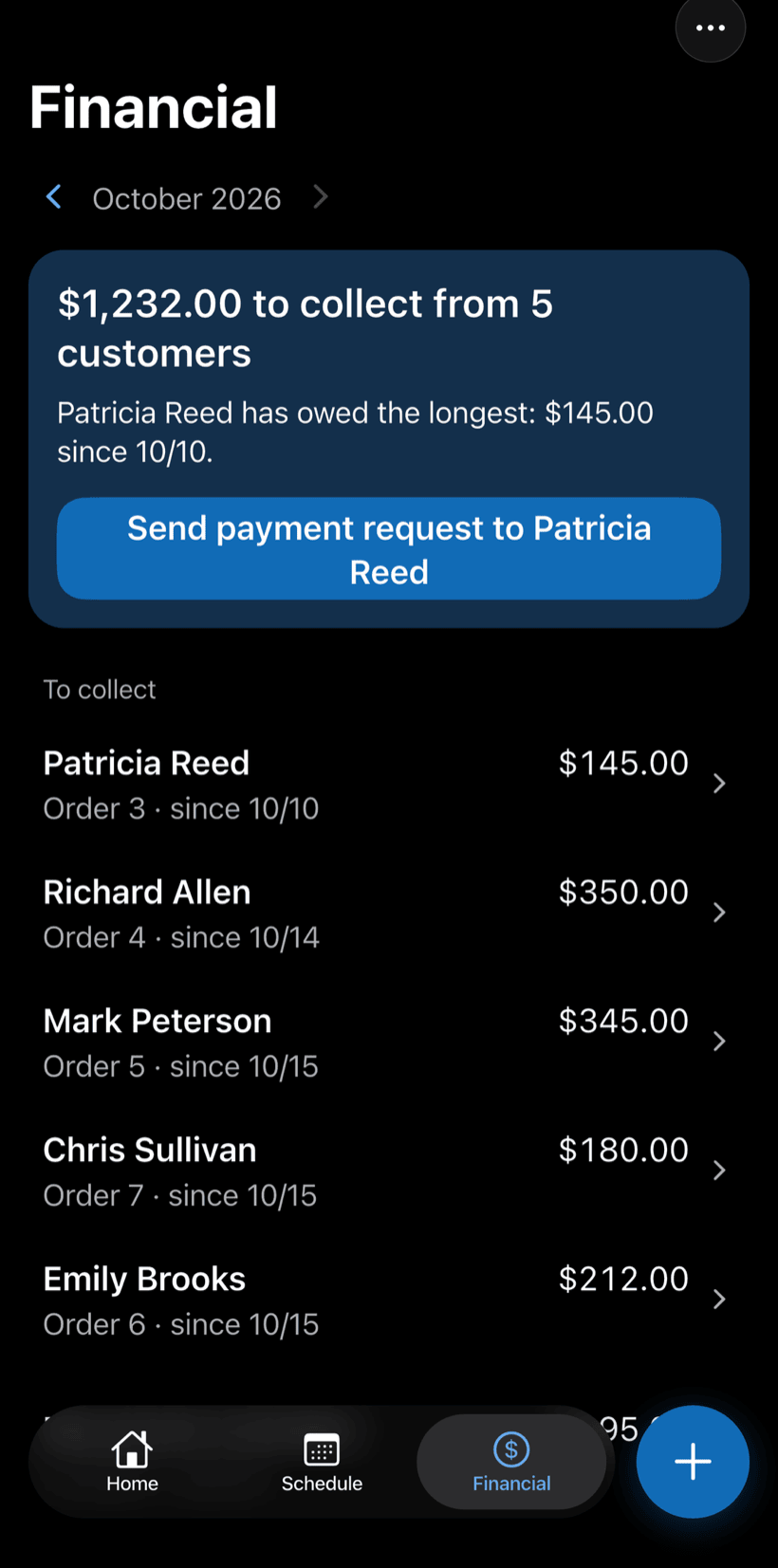
Receive the full amount or in parts, with a discount if needed. Financial shows how much is left to collect and from whom, with a button to send the payment request.
- Partial payments and discounts in the same order
- Whoever has owed the longest shows up first
- Monthly report of what came in
Questions from electronics repair shops
If yours isn't here, send us an email — the PraticOS team answers it.
Do I have to pay to use it?
You can start free, with no limit on work orders or customers. The free plan has a monthly limit on photos and AI use, and one checklist template. Paid plans, subscribed in the app, raise those limits and unlock your team.
Does it work for TVs, audio, monitors and game consoles?
Yes. A work order takes any device: you add brand, model and serial number and build checklists with the items you check at drop-off and pickup.
Can I set a pickup deadline for customers?
Yes. Tap the profile button at the top of Home and go to Terms for the customer. There you write your rules: pickup deadline, warranty, replaced parts. The customer sees the text before approving the quote, and it prints on the work order PDF.
Can my technicians use it on their own phones?
Yes, if someone works with you. Tap the profile button at the top of Home, go to Team and invite them with an invite code, which you can send over WhatsApp, and they sign in with their own account on their own phone, with a role such as Technician or Manager. Inviting someone requires a paid plan, subscribed inside the app.
Does the customer need to install an app?
No. They get a link, open it in their phone's browser and see the work order with photos and prices. They approve the quote and leave comments right there.
Download it and open your first order today.
Start free. Paid plans available in the app.
Questions? Talk to us on WhatsApp praticos@rafsoft.com.br FAQ