
Every request on the right unit.
PraticOS is the work order app for building maintenance. Log the request on the unit — development, building, floor and affected system —, take before and after photos, send the quote as a link and see the history of every apartment.
Start free · iOS and Android · paid plans in the app
- Customer
- Maple Court HOA
- Unit
- Building B · Apt 1204 · 12th floor
- Affected system
- Waterproofing
- Service
- Leak in bathroom ceiling
- Photos
- 5 attached
- Total
- $680.00
- Quote
- Approved
- Under repair
- Resolved
- Paid
Where building maintenance loses time and money
The repair is rarely the problem. It's the request that comes through the residents' group chat, the unit nobody wrote down properly and the leak that comes back with no history.
-
Requests lost in the group chat
A resident sends a photo, the manager forwards it, and a week later nobody knows if anyone went.
In PraticOSEvery request becomes a work order with a status: quote, approved, under repair, resolved. The list shows what's stuck.
-
Half a unit address
“Apt 302” — which building? Which development? The crew goes to the wrong door.
In PraticOSThe unit is on file with development or property, building or tower, number, floor and type: apartment, garage, storage, office or common area.
-
The same leak, for the third time
The water comes back and nobody knows what was already done in that apartment.
In PraticOSSearch for the unit in the work order list and see every past request, with photos and materials used.
-
Warranty claims argued without data
On builder warranty service, a resident asks for a repair and nobody checks when the unit was handed over or which system failed.
In PraticOSThe unit's handover date and the affected system — plumbing, electrical, structure, waterproofing, windows — are on the work order.
-
Repair done, resident unhappy
With no before photo, the resident says the problem was something else or the fix made it worse.
In PraticOSBefore and after photos are attached to the work order. The resident or manager opens the link and follows progress without calling.
-
A schedule kept in your head
Two developments, urgent calls in between and visits booked by text. Someone ends up waiting.
In PraticOSEvery order with a date and time goes on the Schedule and your phone reminds you before the visit. If someone works with you, they see the visit too.
How a request moves through PraticOS
From the resident's request to a resolved repair, everything stays on the unit's work order.
-
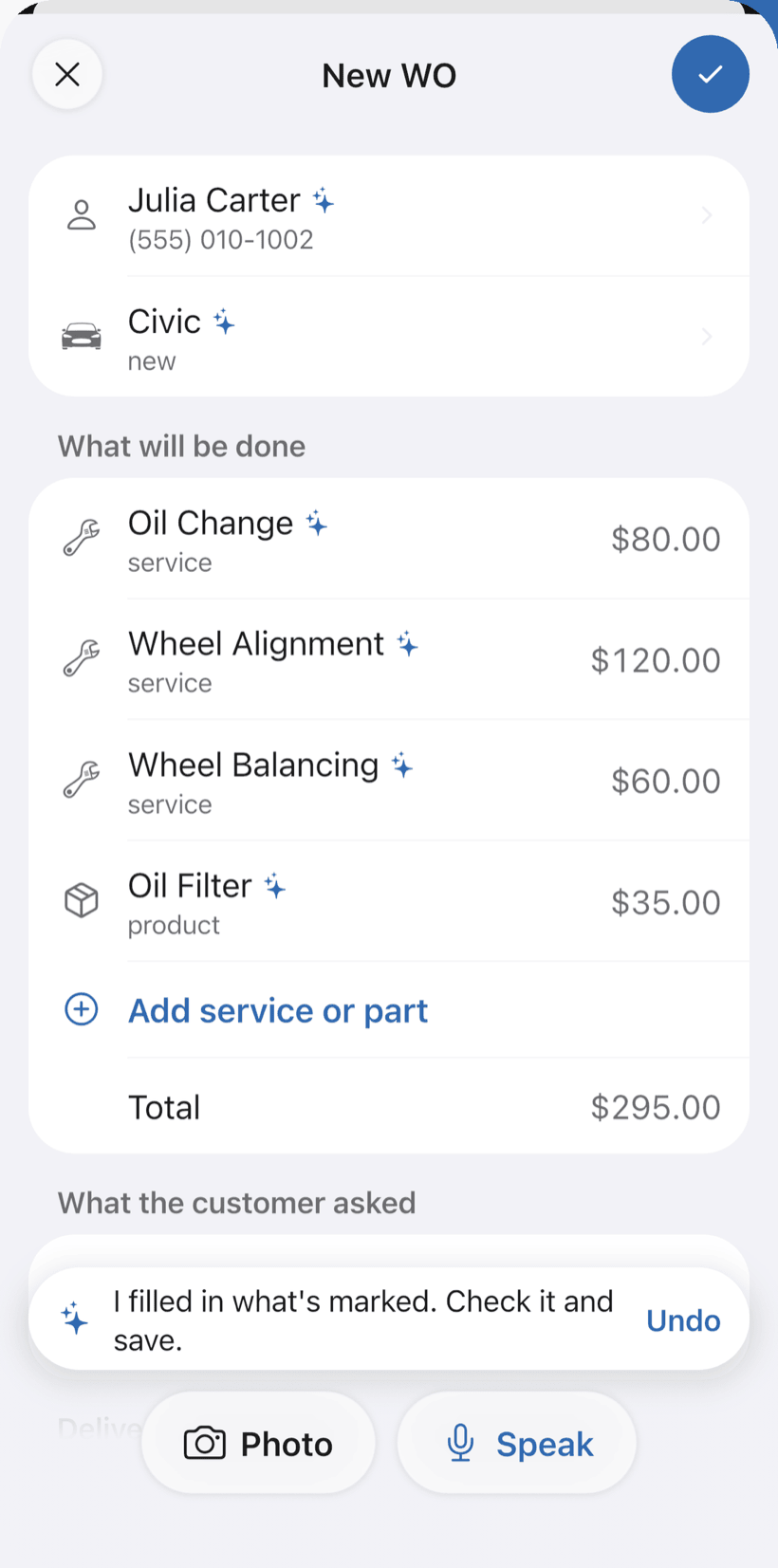
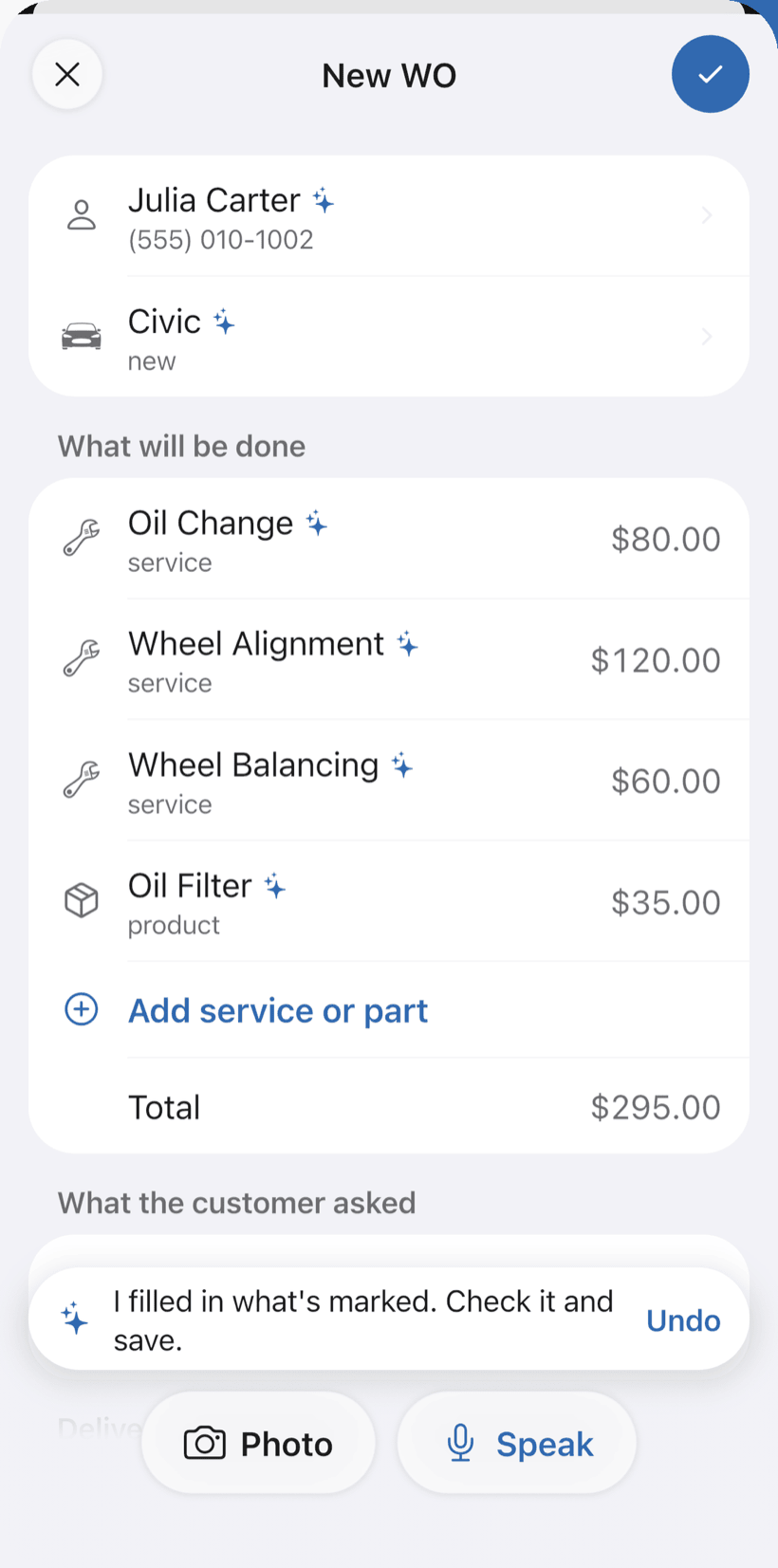
Say the request and the AI opens the order
Tap Speak and say something like: “Jardim das Flores condo, tower B, unit 1204, leak in the bathroom ceiling”. Or photograph the written request. The AI fills in customer, unit and services with your catalog prices and marks what it filled with ✦.
- Development, building or tower, number and floor
- Affected system and unit handover date
- Nothing is saved until you check it
-
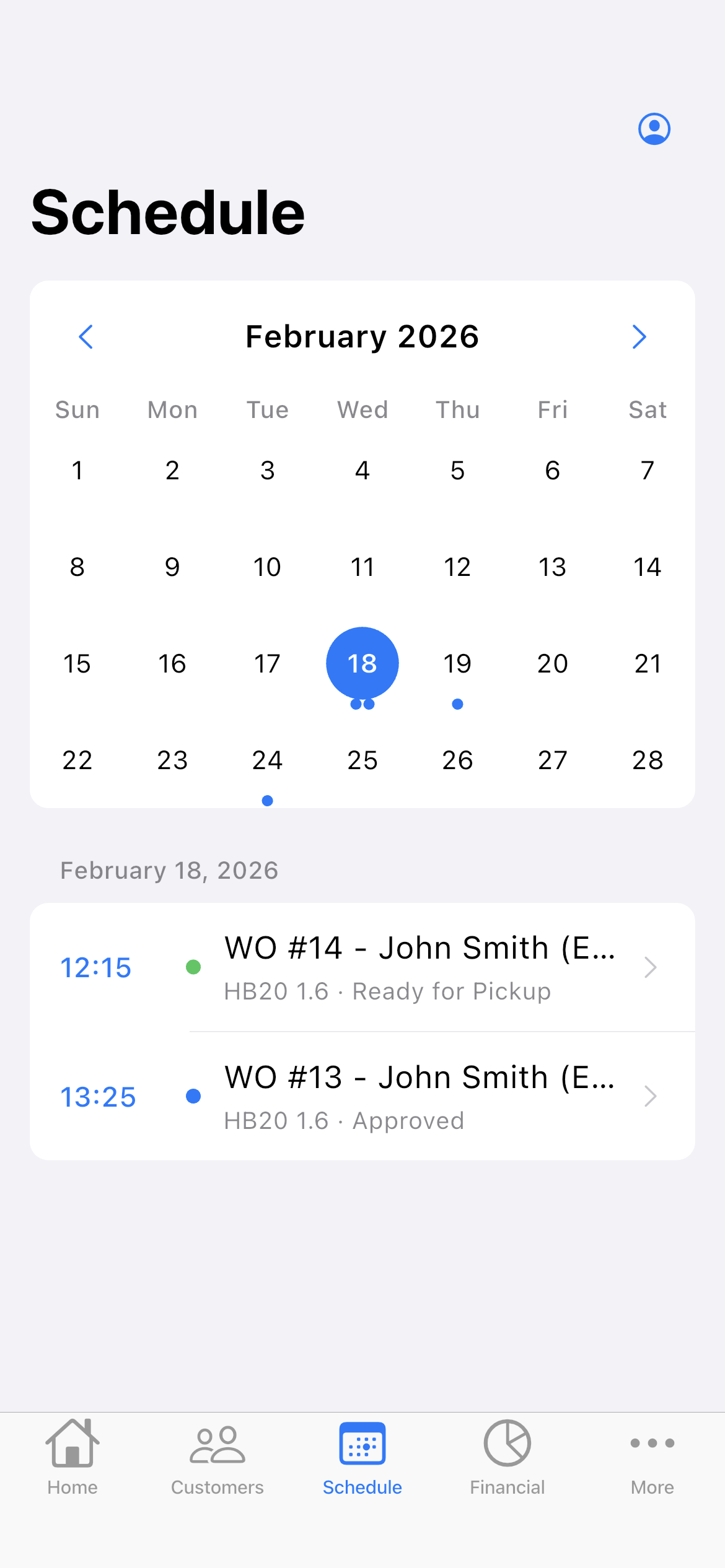
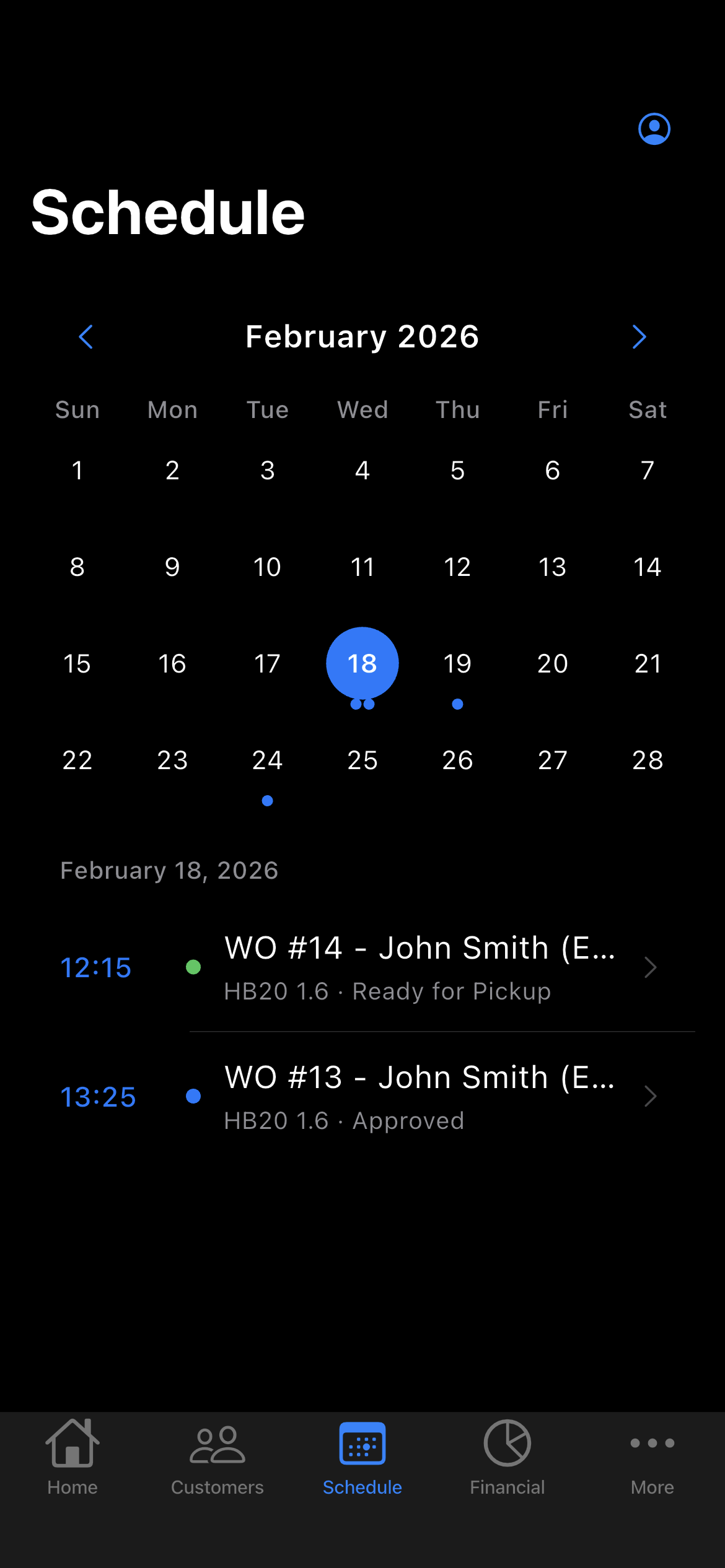
Schedule the visit
Set the day and time on the order. It shows up on the Schedule on that day and your phone reminds you before the visit.
- The week on top and the day's visits
- Daily summary at 9am, if you want it
- Reminder before the visit, even with the app closed
-
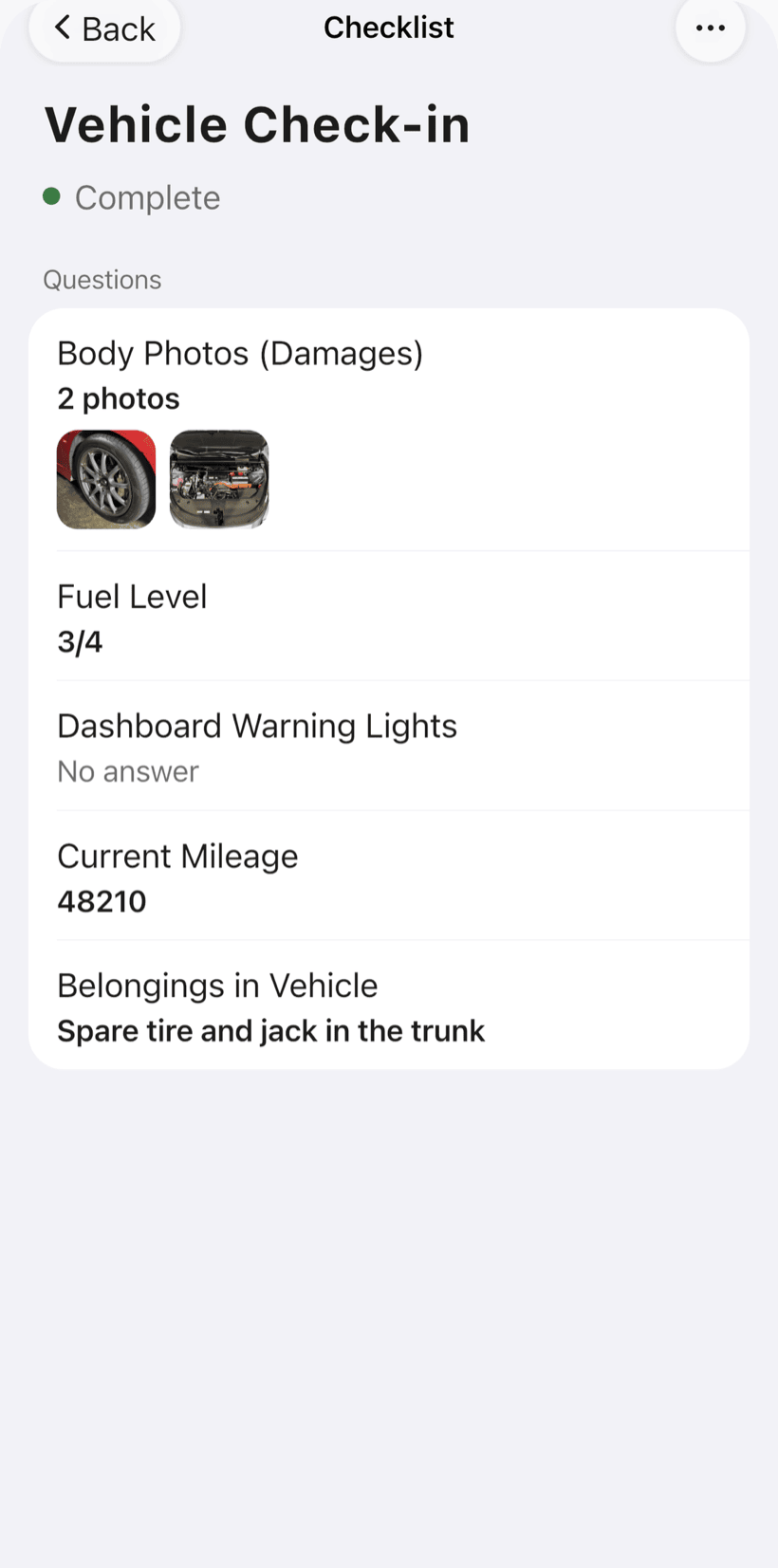
Document with photos and a checklist
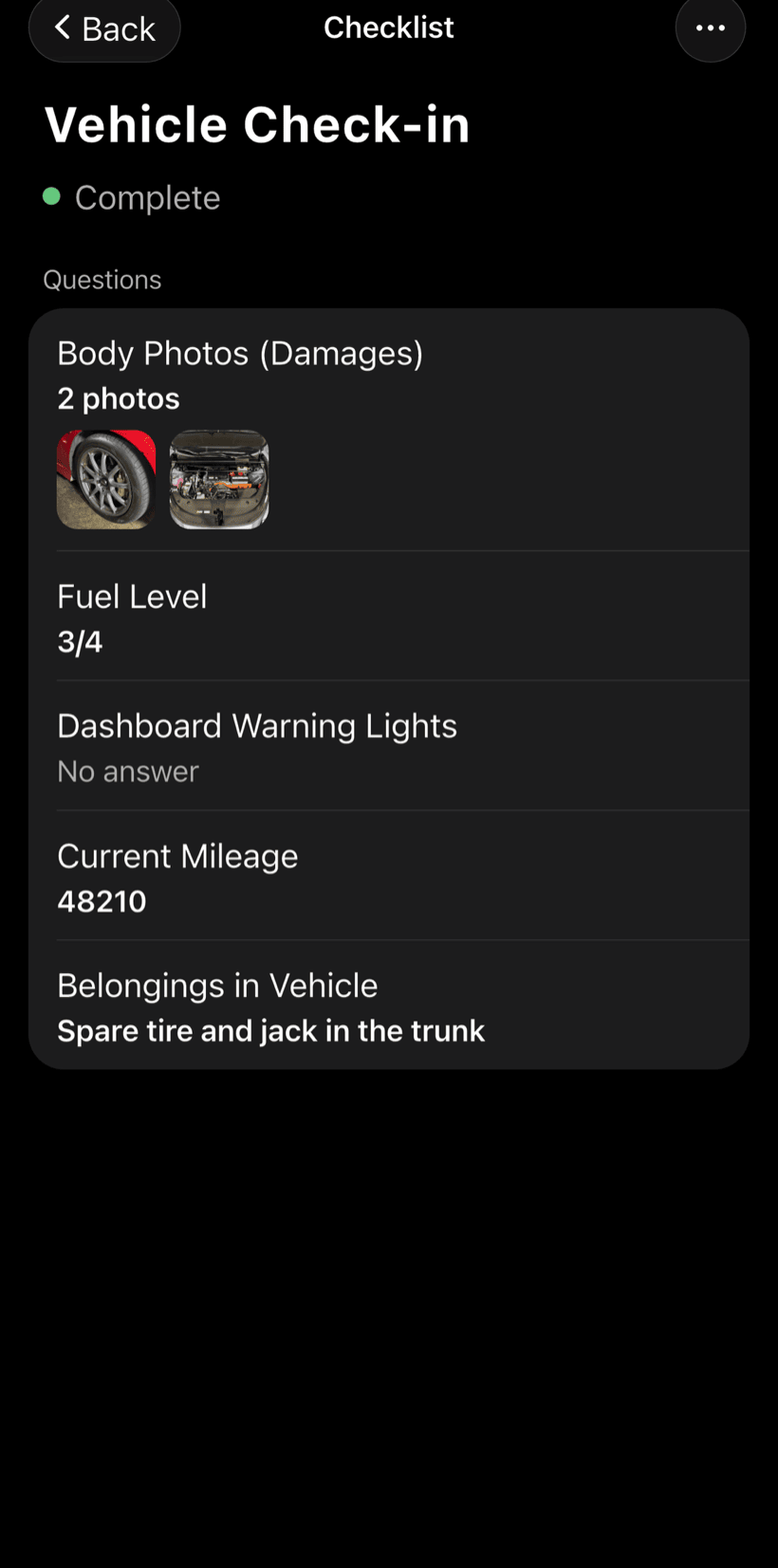
Build checklists with your inspection items — plumbing, electrical, waterproofing — and fill them in on site, with photos on each item.
- Yes, no or N/A items, text and photo
- Before and after photos on the same work order
- Work order PDF to send to the manager or builder
-
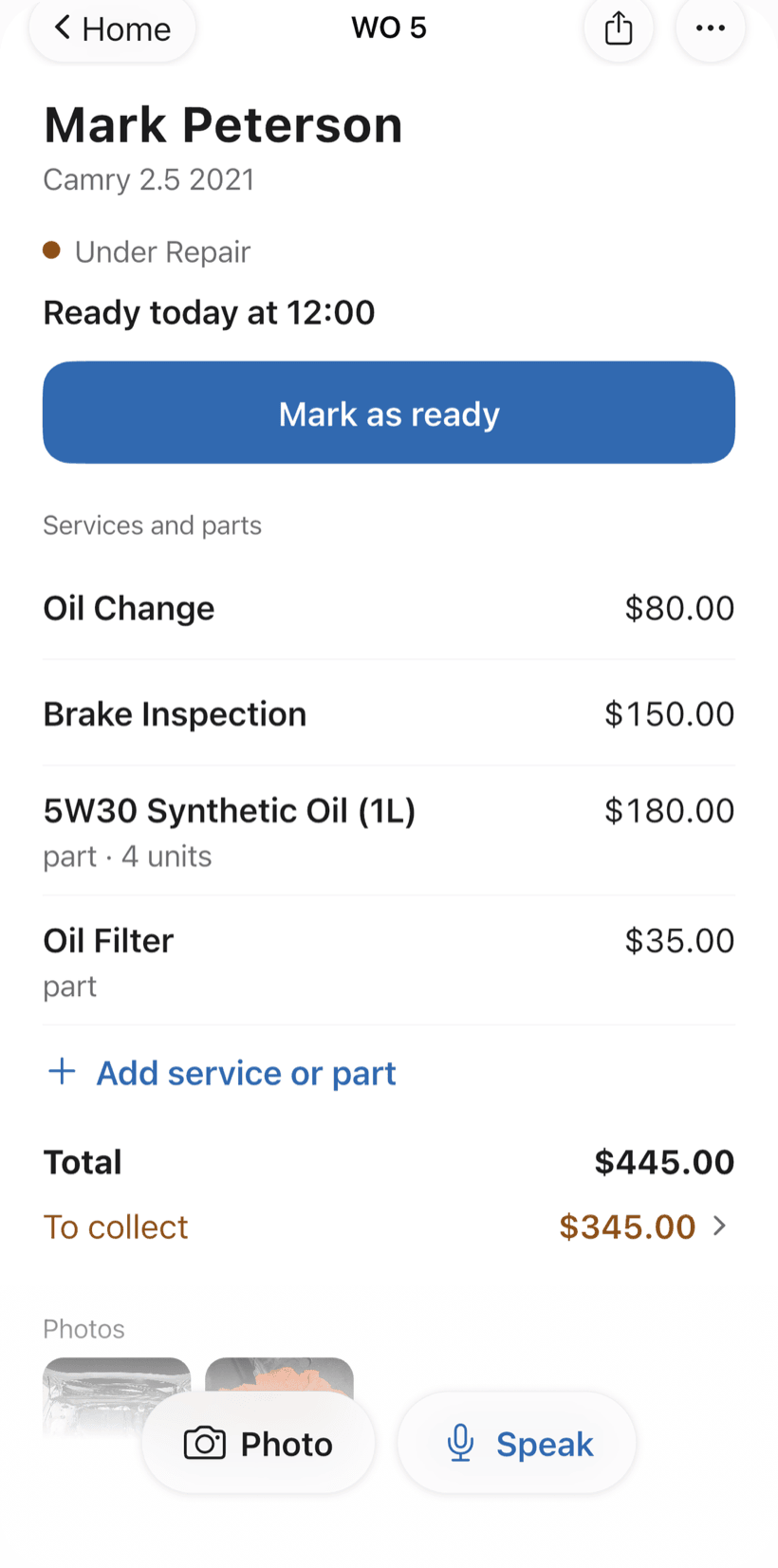
Approve, resolve and bill
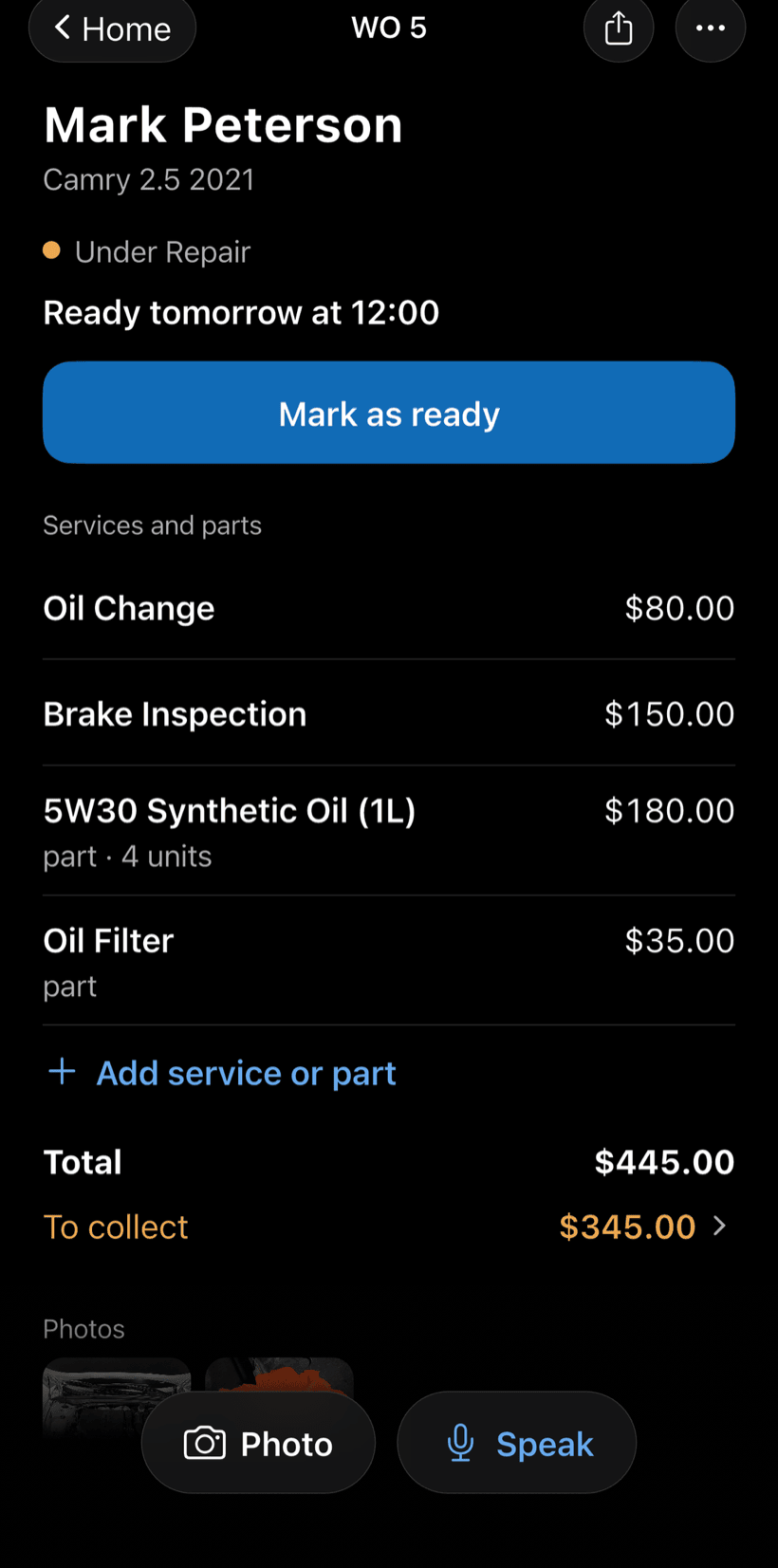
Send the quote as a link for approval. Once the repair is done, record the payment in full or in parts.
- Approval recorded on the work order
- Partial payment and discount on the same work order
- What each customer still owes, in Financial
Questions from building maintenance teams
If yours isn't here, send us an email — the PraticOS team answers it.
Do I have to pay to use it?
You can start free, with no limit on work orders or customers. The free plan has a monthly limit on photos and AI use, and one checklist template. Paid plans, subscribed in the app, raise those limits and unlock your team.
Does it work for builder warranty service?
Yes. The building maintenance segment covers post-handover warranty, corrective and preventive maintenance and common areas. The unit keeps its handover date and the work order records the affected system.
Can I see everything done in an apartment?
Yes. Search for the unit in the work order list and every request for that apartment shows up, with photos and services.
Does the app come with inspection checklists?
For building maintenance you build your own: choose the items, the answer type and where to ask for photos. Then apply the same checklist to any work order.
Do residents or managers need to install an app?
No. They get a link, open it in their phone's browser and see the work order with photos and status. They can approve the quote and leave comments right there.
Download it and open your first order today.
Start free. Paid plans available in the app.
Questions? Talk to us on WhatsApp praticos@rafsoft.com.br FAQ