
Before, after and checklist on every job.
PraticOS is the work order app for people who do cleaning and janitorial work. Schedule the job, follow a room-by-room checklist with before and after photos, send the quote as a link for the customer to approve and record the payment — all from your phone.
Start free · iOS and Android · paid plans in the app
- Customer
- Bright Family Dental
- Location
- 120 Elm St · Suite 200
- Scheduled
- Sat, Oct 18 · 7:00 AM
- Service
- Post-construction clean · 1,900 sq ft
- Photos
- 16 attached · before and after
- Total
- $680.00
- Quote
- Approved
- In progress
- Completed
Where a cleaning company loses money
The job got done. The losses come from the complaint with no photo to answer it, the price agreed over a voice note and the extra clean nobody billed.
-
Complaints you can't answer
“The bathroom wasn't cleaned.” Without a photo, it's your word against the customer's.
In PraticOSEvery checklist item takes photos. The crew records each room before and after, and the photos stay on the work order.
-
Everyone cleans their own way
The new hire doesn't know the standard that customer expects.
In PraticOSBuild a checklist for each type of job — residential, commercial, post-construction — and use it on every work order. Each item is marked yes, no or not applicable.
-
Schedule lost in the group chat
Who's going where tomorrow? The answer is buried under a hundred messages.
In PraticOSEach job is a work order with a date, time and customer address. The Schedule shows the week and the day, your phone reminds you before the job and, if someone works with you, you can see each person’s schedule.
-
Prices agreed over a voice note
The customer remembers one price, you remember another.
In PraticOSSay the job and AI builds the work order with the items and prices from your catalog. The customer approves by link and the approval is recorded.
-
Work done but never billed
The extra Saturday clean never made it onto the monthly invoice.
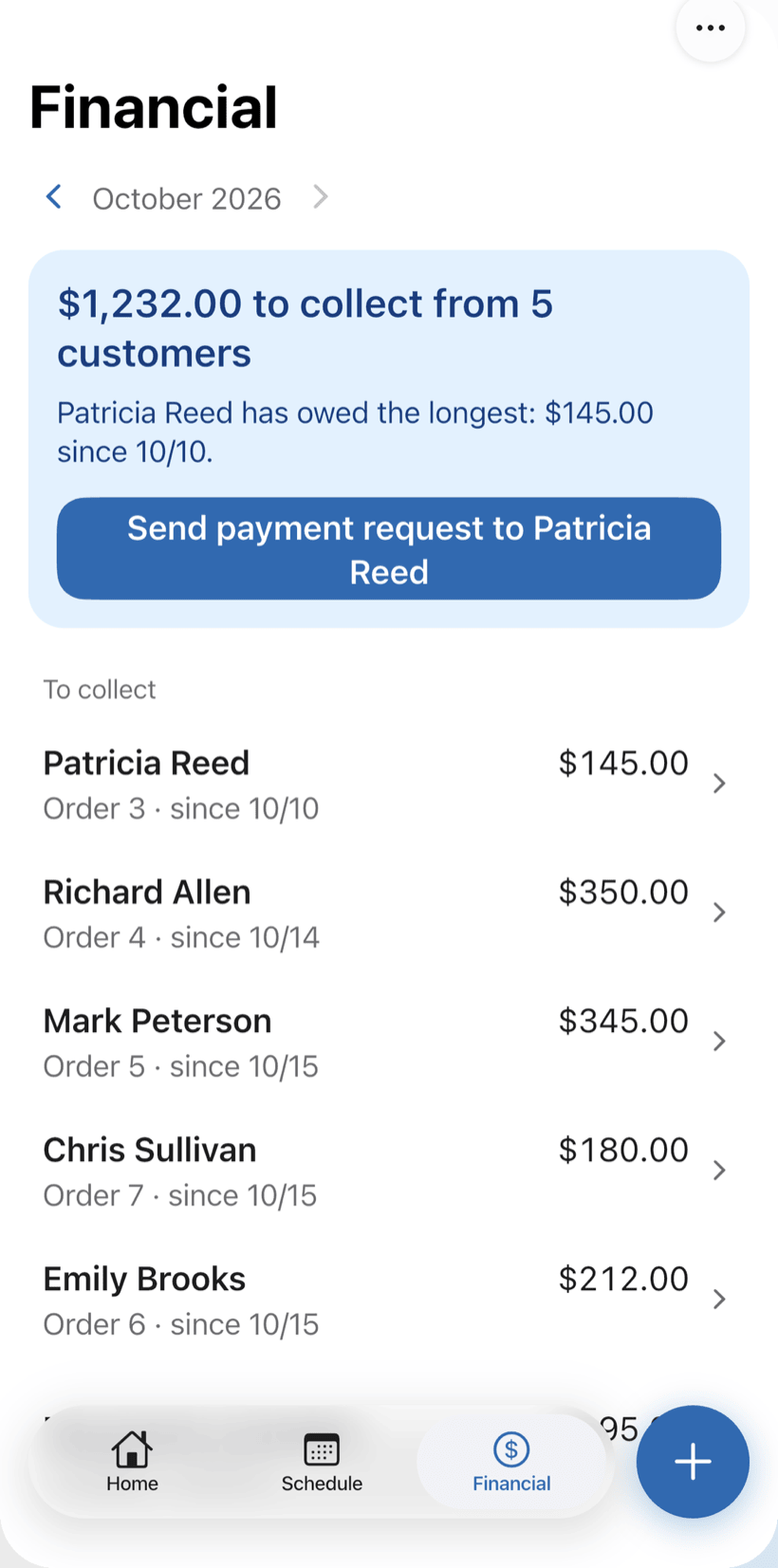
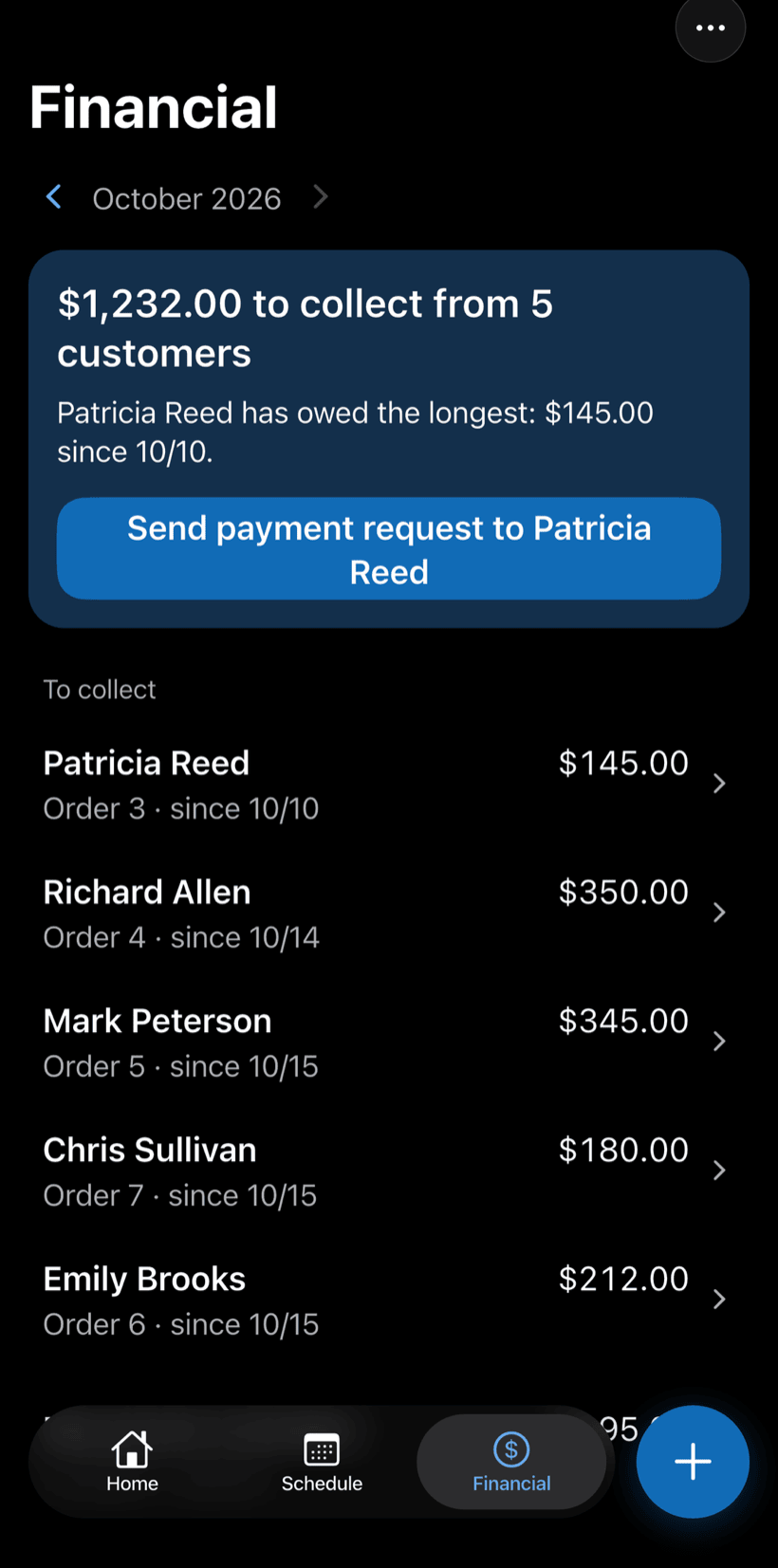
In PraticOSEvery job goes on the work order with a price. Receive in full or in parts, and Financial shows who still owes, with a button to send the payment request.
-
Customers asking if the crew showed up
The office manager calls to check whether last night's clean happened.
In PraticOSThe customer opens the work order from a link and sees the status and photos without calling.
How a cleaning job moves through PraticOS
From quote to payment, every job is recorded on the customer's work order.
-
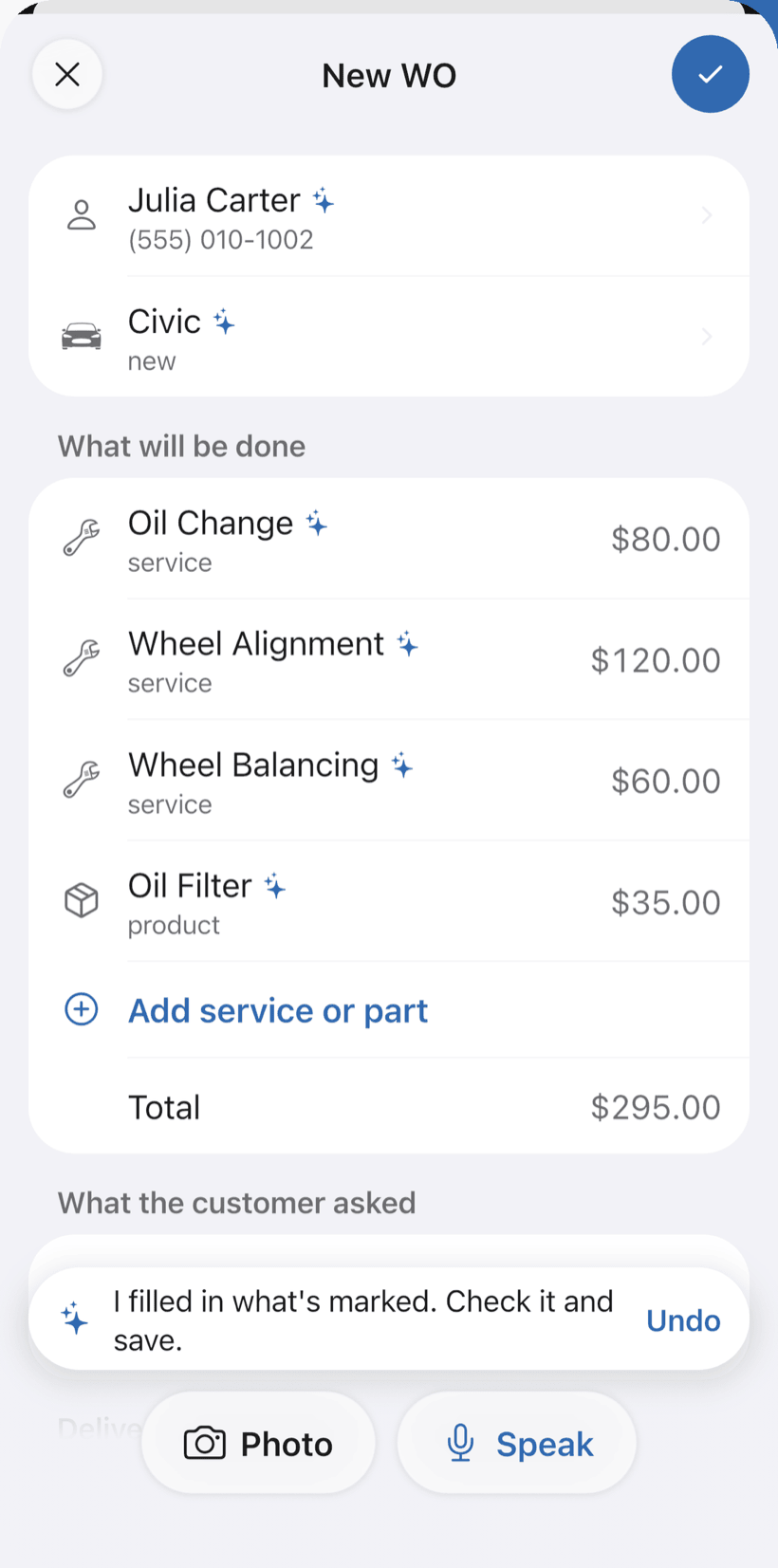
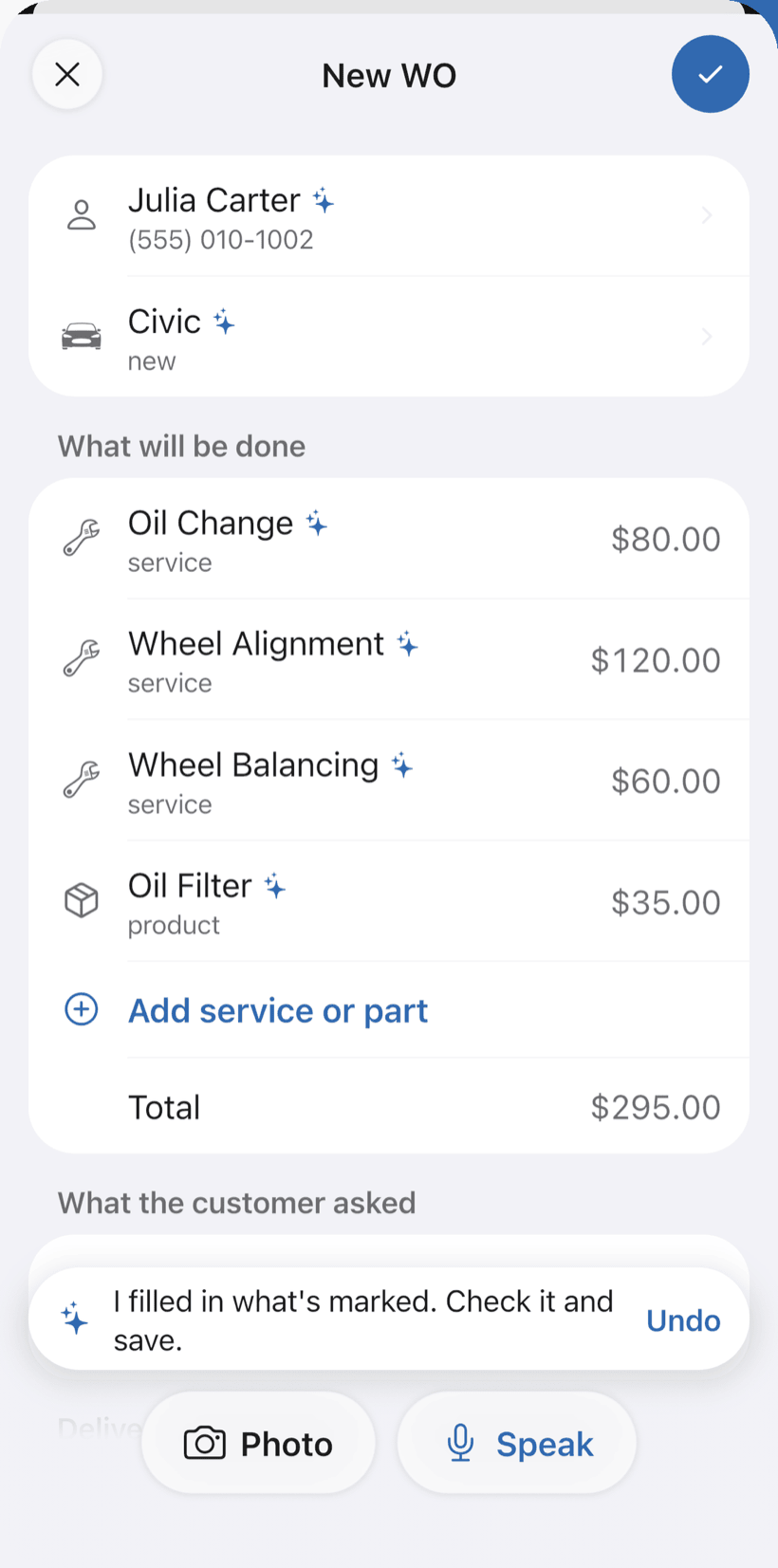
Say the job and AI opens the order
Tap Speak: “Post-construction clean at Luciana’s apartment, Saturday at 8, with window cleaning.” AI fills in the customer, services and prices from your catalog. You check it and save.
- What AI filled in is marked with ✦
- Fix it by speaking: “the windows are 180”
- Or take a photo of the written request
-
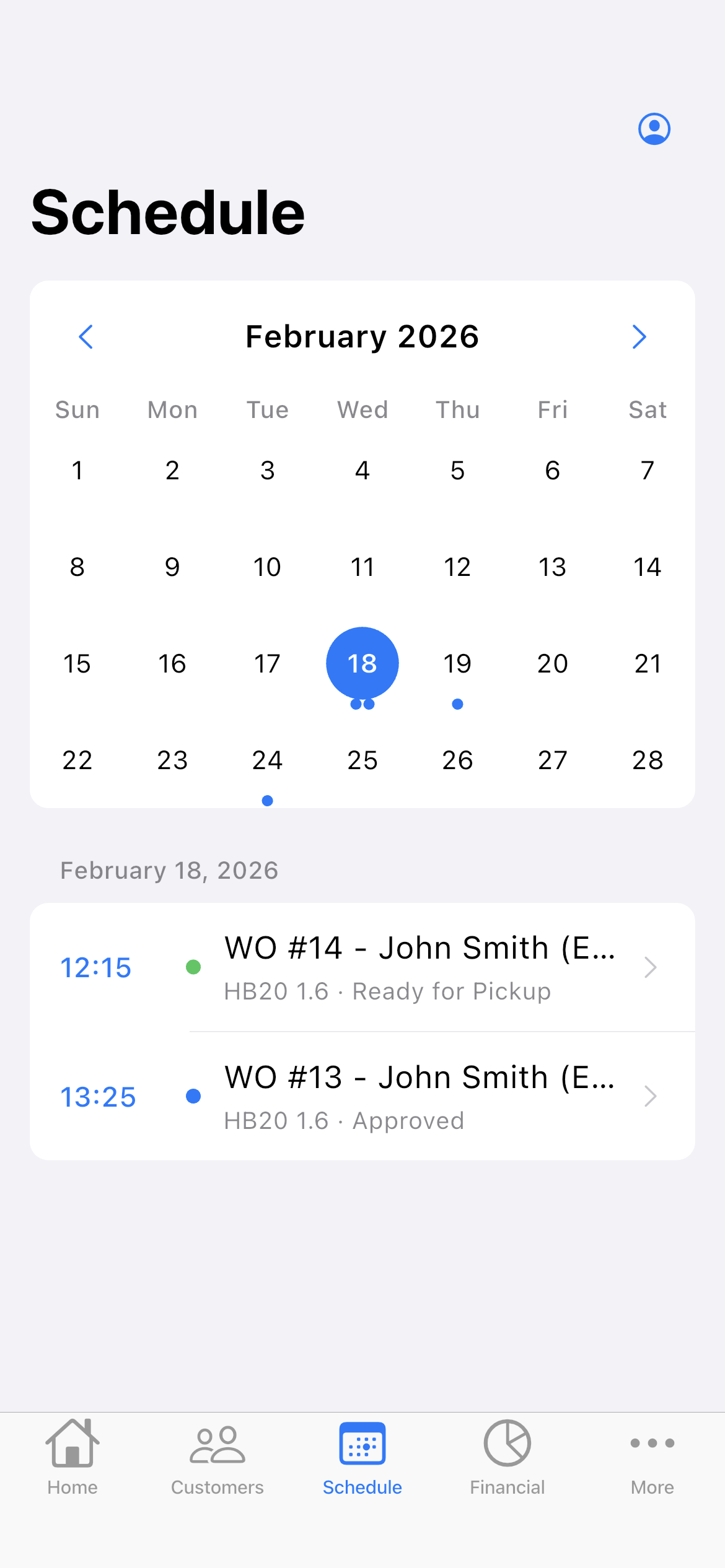
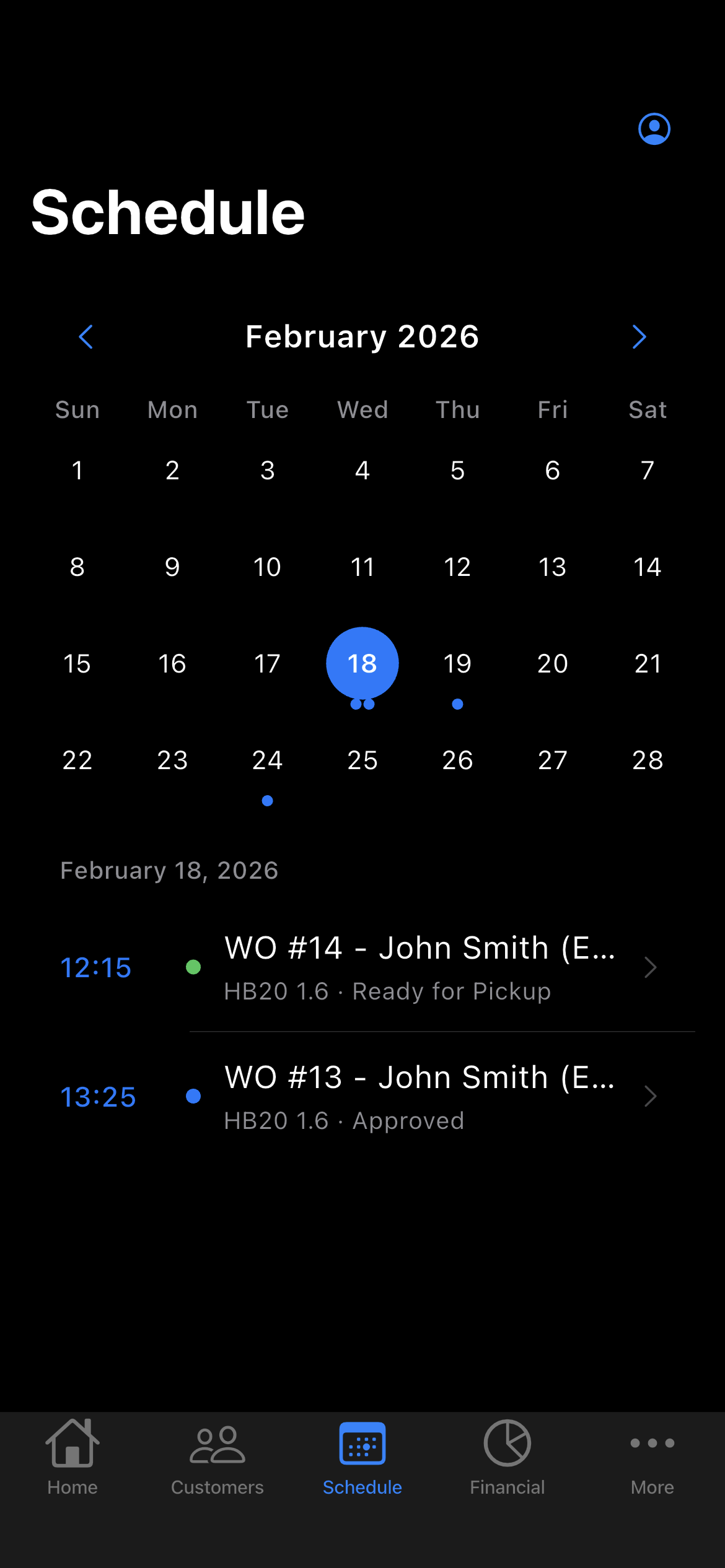
The job on the schedule
With a date and time on the work order, the job goes on the Schedule. If someone on your crew is doing it, it shows on that person’s schedule, and the phone reminds them before the time.
- The week on top, the day’s jobs below
- Phone reminder before the job
- With a crew, schedule filtered by person
-
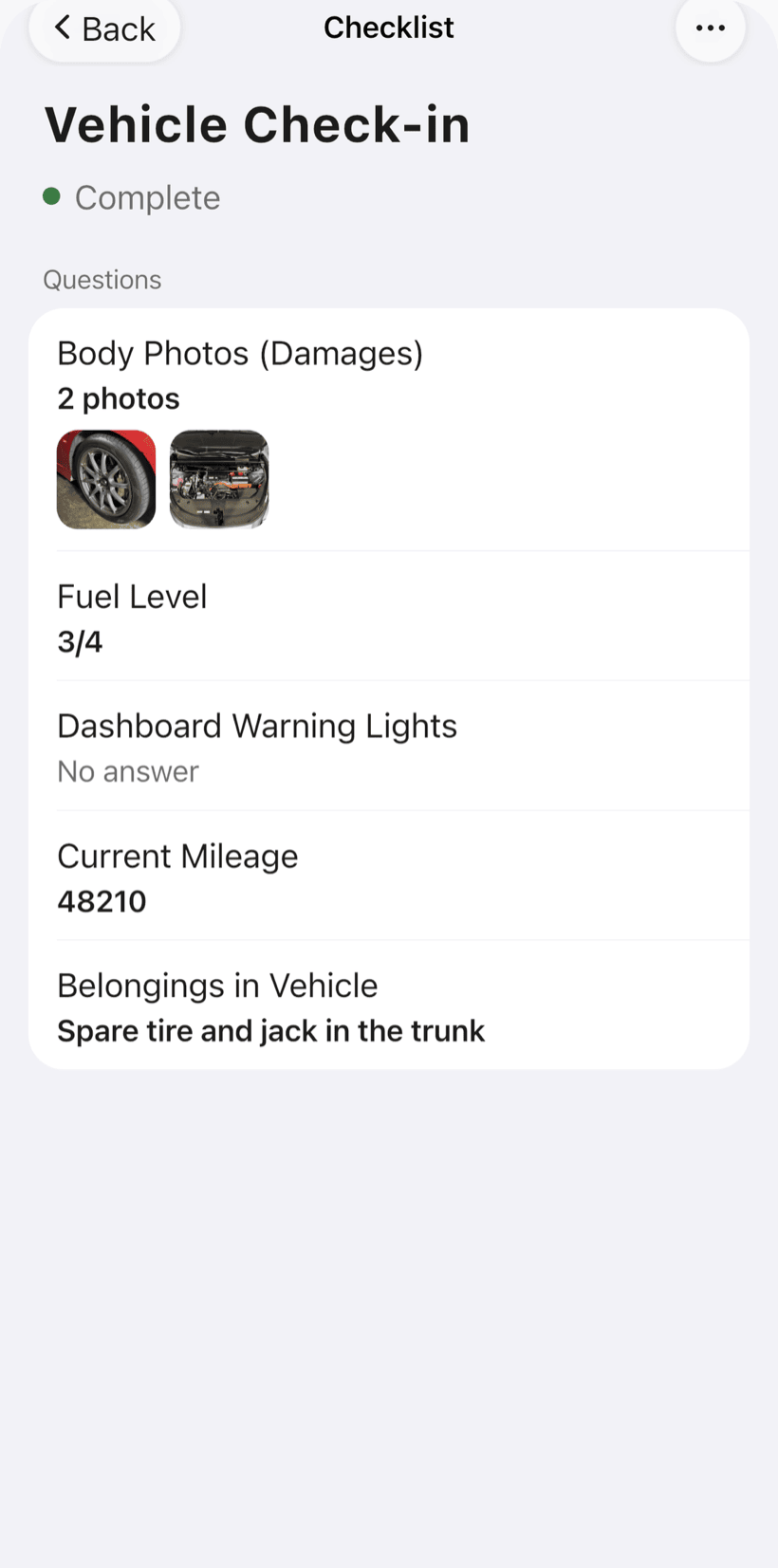
Follow the checklist with photos
On site, open the work order and follow the checklist for that type of job, room by room, with before and after photos.
- Items with a check, text or photo
- One template per type of cleaning
- Completed checklists reopen only for Admin, Manager or Supervisor
-
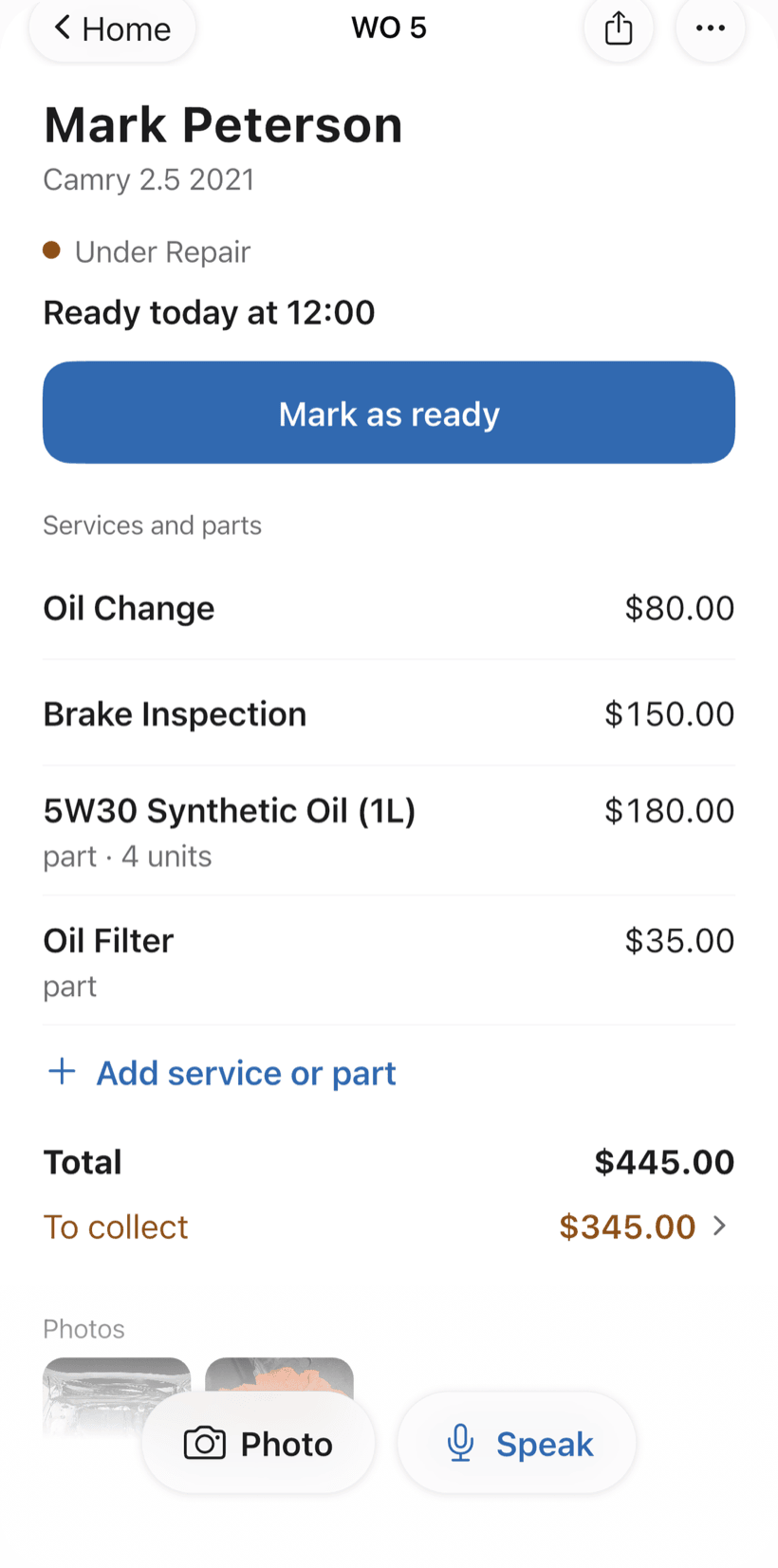
Send the link to the customer
The customer opens the work order in the browser, with nothing to install. They approve the quote, follow the status, see the photos and leave comments.
- Approval recorded on the work order
- Customer rating after completion
- Work order PDF with checklist and photos
-
Get paid for the job
Receive the full amount or in parts, with a discount if needed. Financial shows how much is left to collect and from whom, with a button to send the payment request.
- Partial payments and discounts in the same order
- Whoever has owed the longest shows up first
- Monthly report of what came in
Questions from people in the cleaning business
If yours isn't here, send us an email — the PraticOS team answers it.
Do I have to pay to use it?
You can start free, with no limit on work orders or customers. The free plan has a monthly limit on photos and AI use, and one checklist template. Paid plans, subscribed in the app, raise those limits and unlock your team.
Does the app track my crew's location?
No. PraticOS doesn't do GPS tracking or time clocks. What it records is the work order: scheduled time, checklist items marked and before and after photos.
Can I have different checklists for each type of clean?
Yes. Create a template for each service — residential, commercial, post-construction, windows — and pick the right one when you open the work order. You can reorder and edit the items any time.
Can my crew use it on their own phones?
Yes, if you work with a crew. Tap the profile button at the top of Home, go to Team and invite each person with an invite code, which you can send over WhatsApp. They sign in with their own account on their own phone, with a role such as Technician or Manager, and see their jobs on the Schedule. Inviting someone requires a paid plan, subscribed inside the app.
Does the customer need to install an app?
No. They get a link, open it in their phone's browser and see the work order with photos and prices. They approve the quote and leave comments right there.
Download it and open your first order today.
Start free. Paid plans available in the app.
Questions? Talk to us on WhatsApp praticos@rafsoft.com.br FAQ