
Contract, measurement, inspection on one screen.
PraticOS helps public works departments, and the people who build the work, keep track of each contract. Each contract has the project, the contractor and the inspector; measurements and inspections are done on a phone, with photos, and the balance left to release is always in view.
Start free · iOS and Android · paid plans in the app
- Contractor
- Greenvale Construction LLC
- Project
- Repaving of Acacia Street
- Bid type
- Electronic auction
- Current milestone
- Drainage · 45% complete
- Contract inspector
- Mark Turner, P.E.
- Contract value
- $640,000.00
- Bidding
- Contracted
- In execution
- Accepted
Where public works tracking falls apart
The work moves forward, but the information lags behind: measurements in a spreadsheet, photos on the inspector's phone and the contract balance worked out the night before the audit.
-
Measurements in loose spreadsheets
Each inspector uses a different template. Planned and actual percentages don't match what was paid.
In PraticOSThe measurement form records milestone, % planned, % complete, quality, materials and photos. The financial measurement updates the amount released and the balance on the contract.
-
Inspections with no record
The inspector went to the site, but nobody wrote down how many workers were there, which machines or whether the schedule was on track.
In PraticOSThe progress inspection records site access, workers, equipment, schedule compliance, reasons for delay and photos.
-
Photos scattered across phones
The site photos are on the inspector's phone. When they go on leave, nobody can find them.
In PraticOSPhotos live inside the contract, on each item of the measurement or inspection, and don't depend on anyone's phone.
-
Contract details in different folders
The bid number in one file, the contract deadline in another, the assigned inspector in an email.
In PraticOSThe contract holds bid type and number, contract number, deadline, legal basis, assigned inspector and current milestone.
-
Contractors who don't know what was measured
The contractor calls to ask what was approved in the measurement, and the answer depends on who picks up.
In PraticOSSend the contract link: the contractor follows progress, sees the photos and comments from a browser, with nothing to install and without seeing other contracts.
-
Handover with no acceptance form
The project was delivered, but nobody recorded whether the scope was met or which fixes were still pending.
In PraticOSThe acceptance form records whether it's provisional or final, scope and specifications met, pending fixes and final assessment.
How a public works contract moves through PraticOS
From signing to acceptance, every measurement and inspection stays on the contract.
-
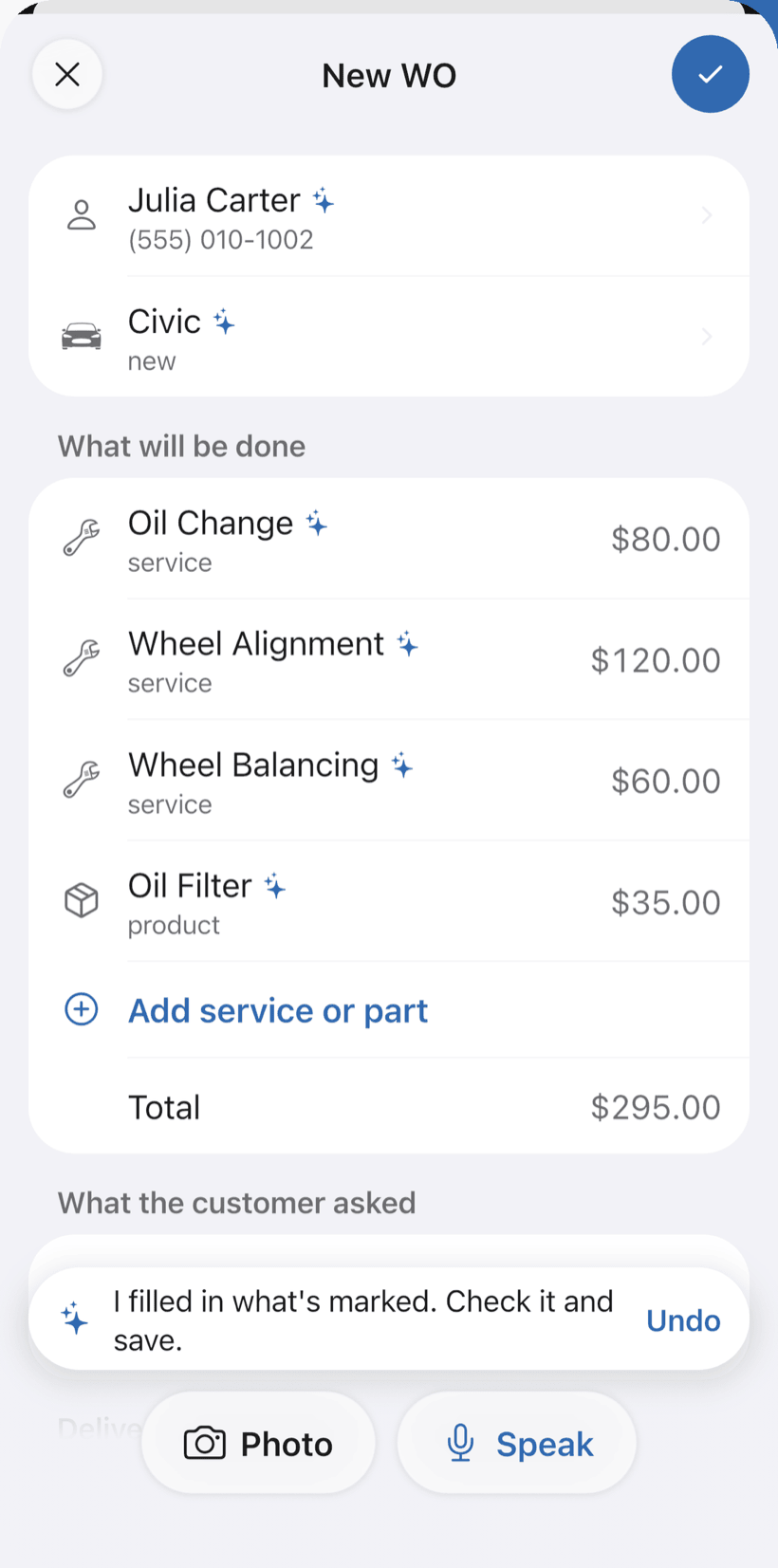
Say the contract and the AI opens the order
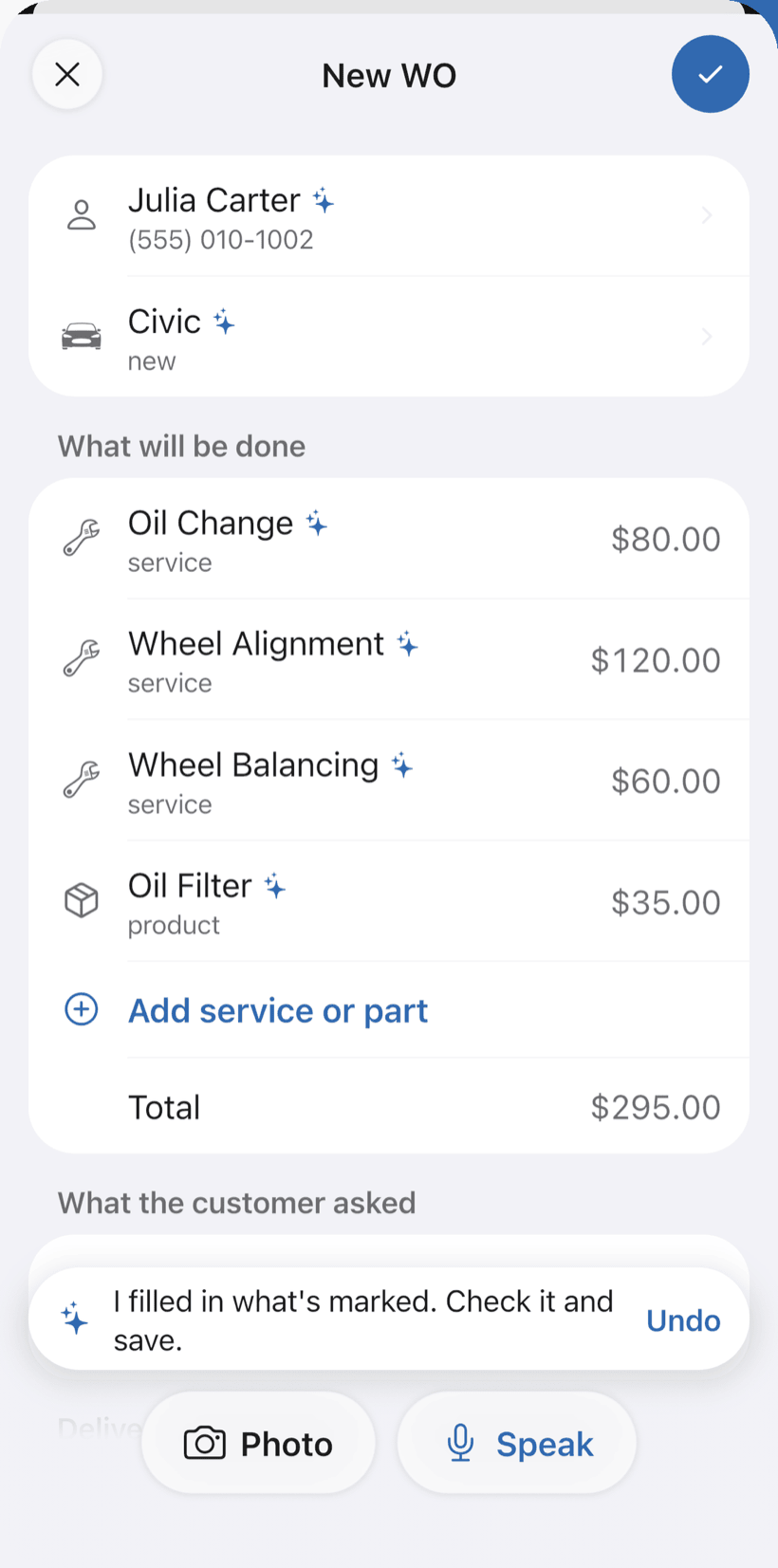
Tap Speak and say something like: “Greenvale Construction, repaving of Acacia Street, drainage milestone measurement”. Or photograph the paper work order. The AI fills in contractor, project and catalog items and marks what it filled with ✦.
- Bid type and number, contract number, deadline and legal basis
- Responsible department, location and project scope
- Nothing is saved until you check it
-
Run site inspections
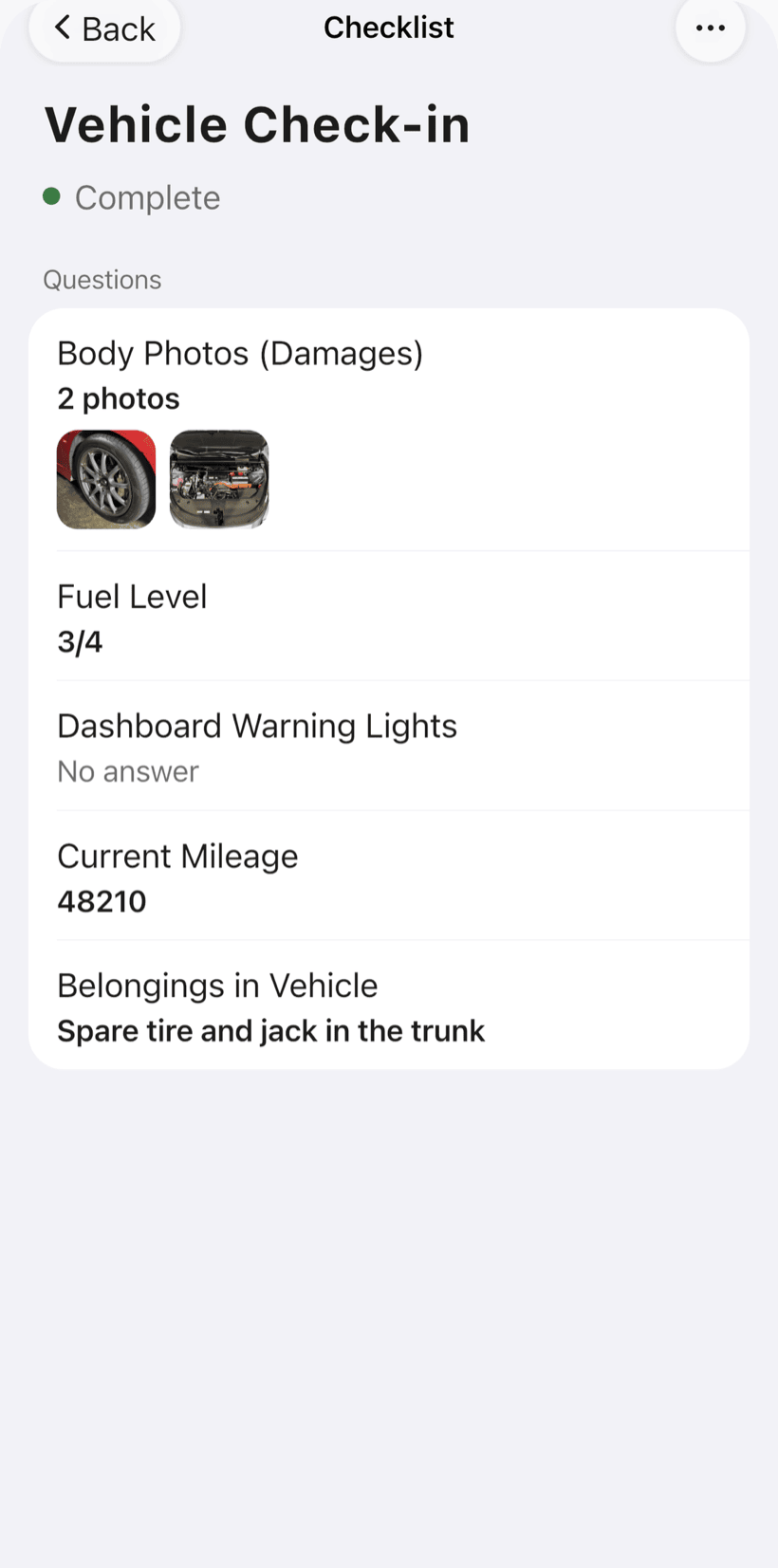
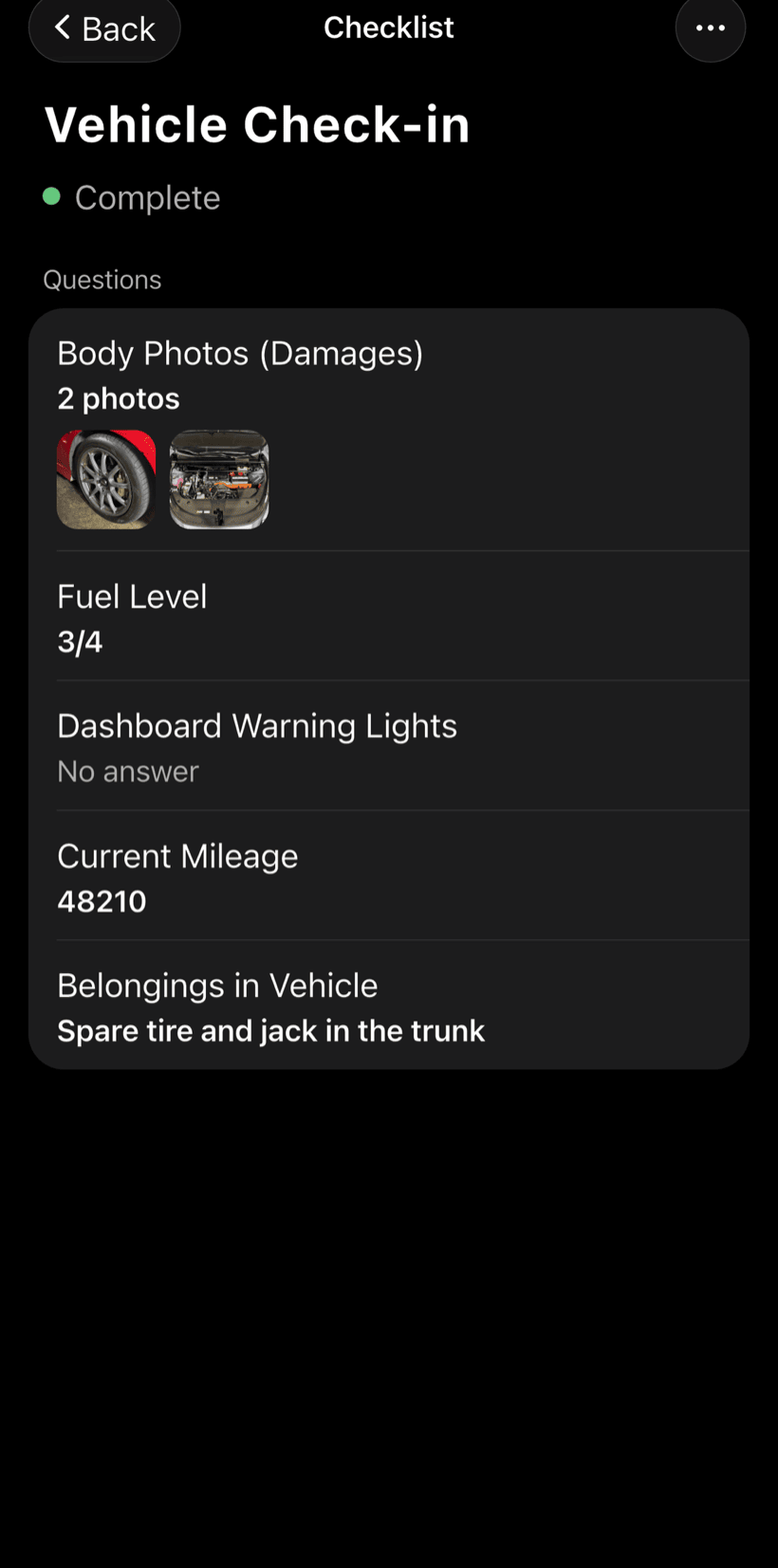
The inspector fills in the progress inspection on a phone, on site. The legal compliance checklist checks the contractor's paperwork.
- Workers and equipment on site
- Schedule on time, late or ahead
- Insurance, tax clearance certificates and environmental permit
-
Record measurements
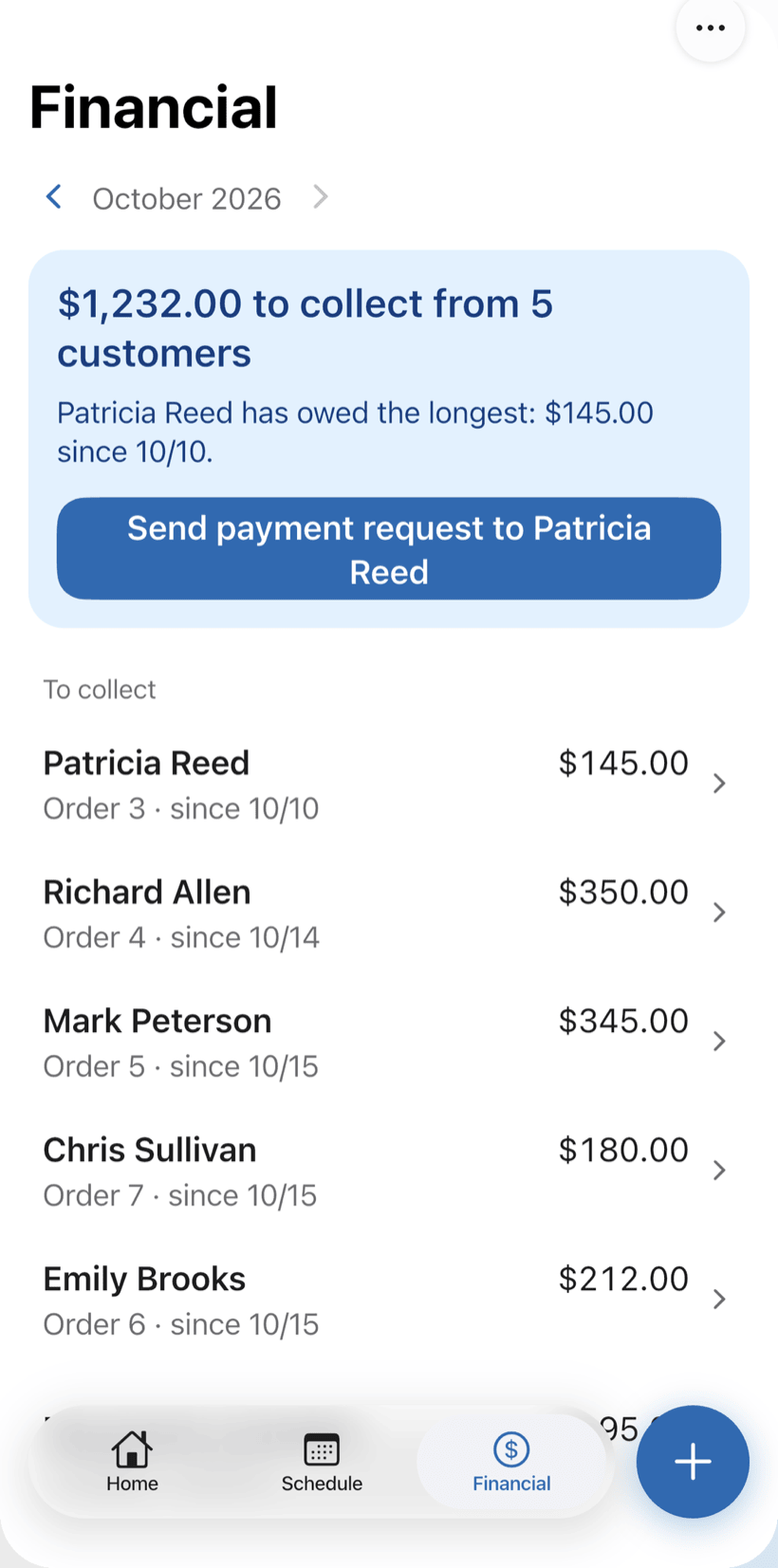
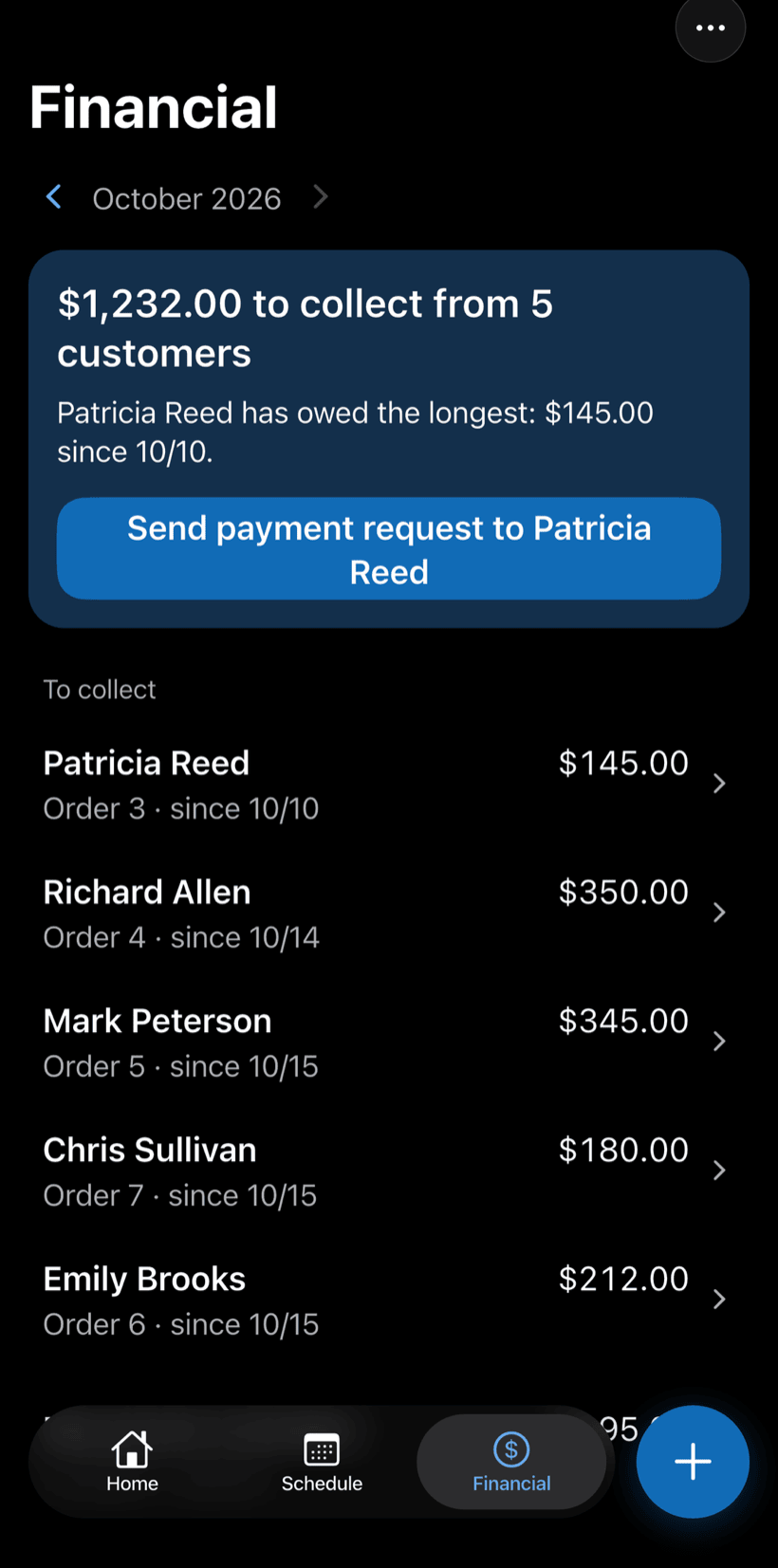
The physical measurement goes on the form, with photos. The financial measurement is entered on the contract and updates the balance.
- % planned and % complete per milestone
- Deductions recorded when they apply
- Contract value, amount released and balance to release
-
Accept the work and see the big picture
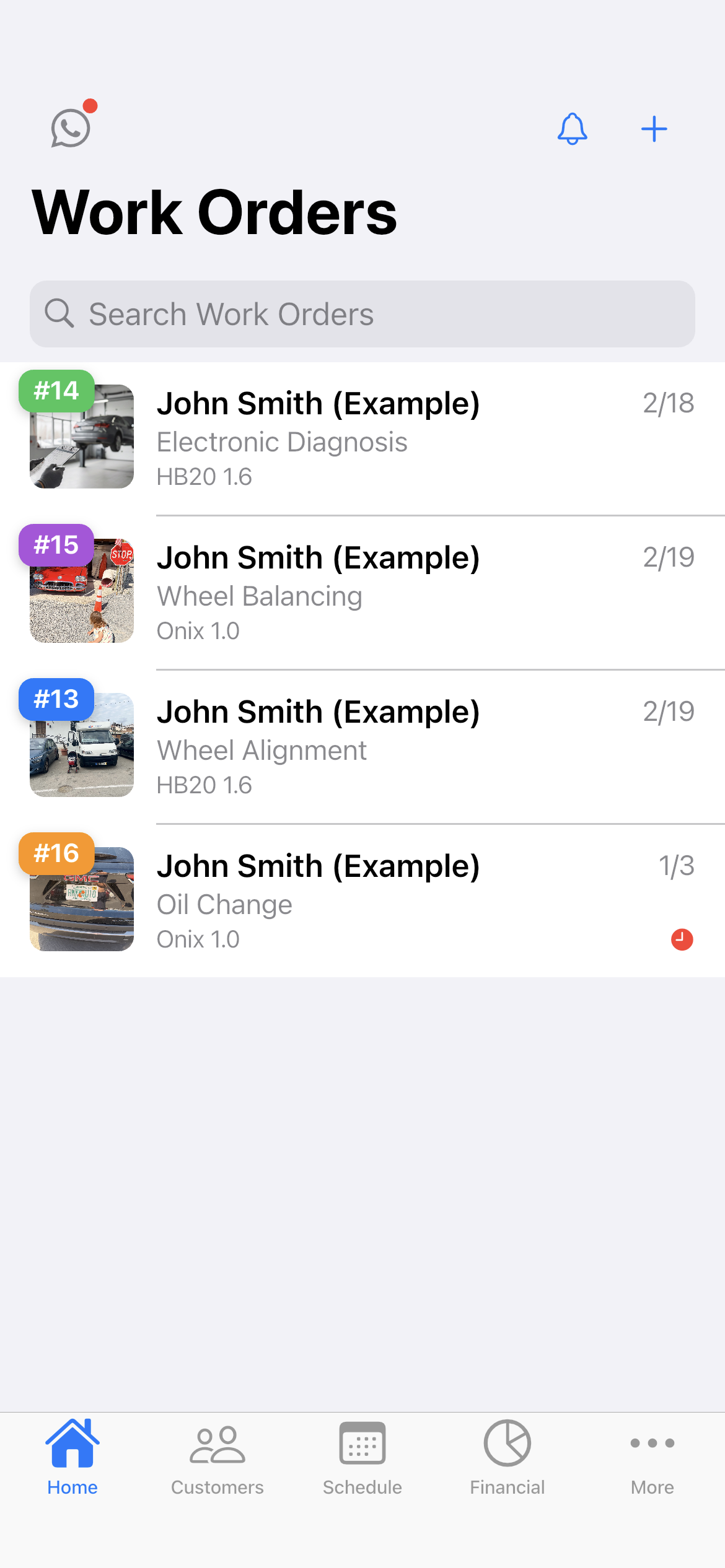
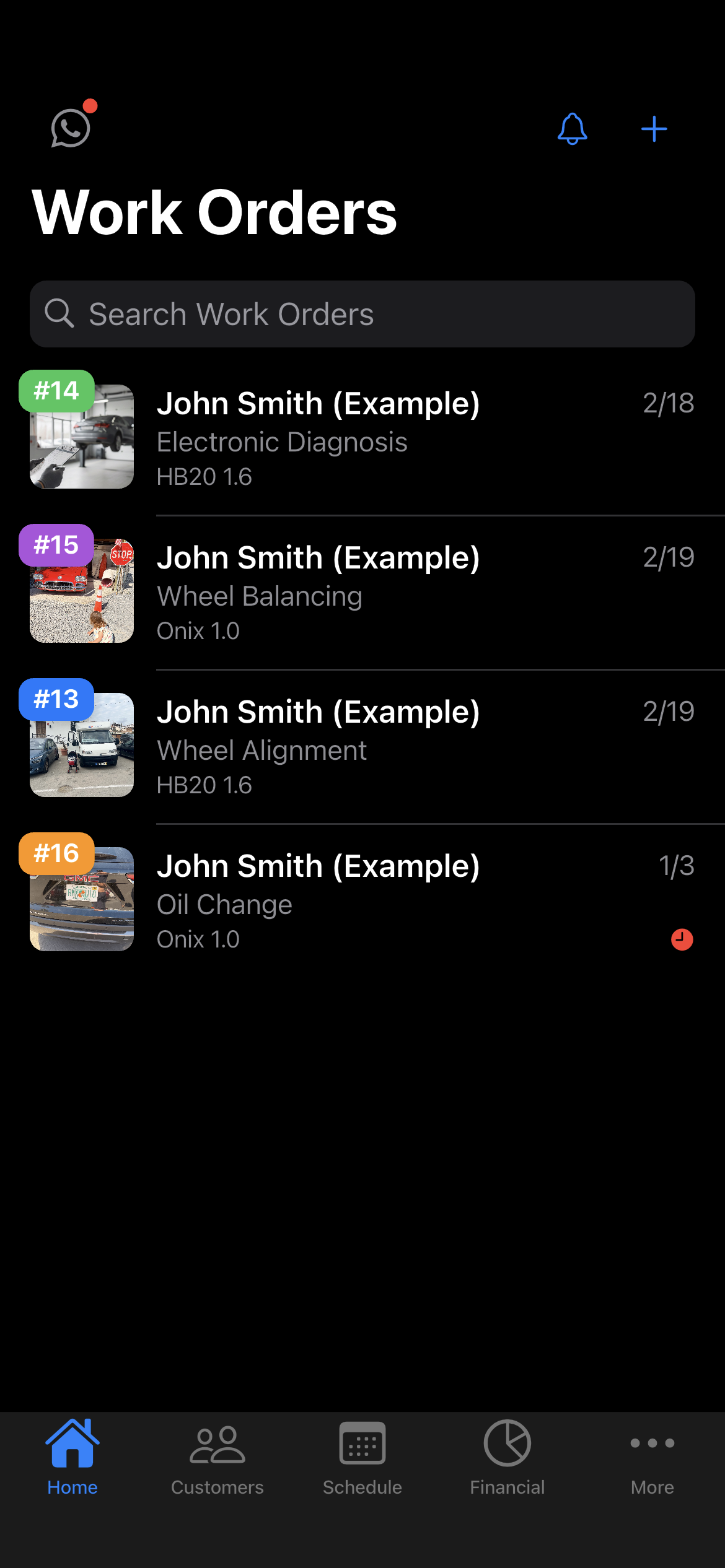
Close the contract with the acceptance form. On Home, the Open and Completed filters show where each contract stands.
- Provisional or final acceptance
- Contract PDF with the measurement history
- Monthly report in Financial
Questions from people who track public works
If yours isn't here, send us an email — the PraticOS team answers it.
Does PraticOS replace our procurement system?
No. It tracks how the contract is carried out after the bid: measurements, inspections, acceptance and balance. The bidding process stays in the system you already use.
Can I add contracts that are already underway?
Yes. Add the contract with its value and the percentage already completed. Tracking starts from there.
Can the site inspector see contract values?
Not if they join your Team (profile button at the top of Home) as a Supervisor: they run inspections and physical measurements without seeing figures. Adding other people to the Team takes a paid plan, subscribed inside the app.
Can the contractor use the app?
Yes, without an account: send them the contract link and they follow progress, see photos and comment from a browser. If they also use PraticOS for their own projects, each of you keeps your own account.
How much does it cost?
You can start free, with no limit on work orders or customers. The free plan has a monthly limit on photos and AI use, and one checklist template. Paid plans, subscribed in the app, raise those limits and unlock your team.
Download it and open your first order today.
Start free. Paid plans available in the app.
Questions? Talk to us on WhatsApp praticos@rafsoft.com.br FAQ