
Every elevator visit on a work order.
PraticOS is the work order app for elevator maintenance technicians. Schedule the visit, run the maintenance checklist with photos on your phone, log replaced parts and send the property manager a link to review the job and approve extra repairs.
Start free · iOS and Android · paid plans in the app
- Customer
- Maple Court Condominiums
- Equipment
- Passenger elevator · Tower B
- Scheduled
- Oct 14 · 8:30 AM · callback
- Service
- Car door roller replacement
- Photos
- 8 attached
- Total
- $540.00
- Quote
- Approved
- In progress
- Completed
Where an elevator company loses money
The contract is signed. What slips is the visit with no record, the extra repair that never got billed and the history that lives only in one technician's head.
-
Maintenance with no proof
The property manager asks whether this month's visit happened, and all you have is the technician's word.
In PraticOSThe technician fills in the checklist on the work order, with photos of the machine room, car and hoistway. You send the manager a link and they see what was checked.
-
Extra repairs that never get billed
A roller was replaced during the routine visit, but the part never made it onto an invoice.
In PraticOSOut-of-contract parts and services go on the work order with prices. The manager approves the quote by link and the approval is recorded.
-
History in one technician's head
Another technician takes the callback and has no idea what was already replaced on that elevator.
In PraticOSRegister each elevator with manufacturer, model and serial number. On the customer screen you see the building’s equipment and the recent work orders for each one.
-
A scattered schedule
Routine visits and callbacks noted in spreadsheets, on paper and in group chats.
In PraticOSEach visit is a work order with a date and time. The Schedule shows the week and the day, your phone reminds you before the visit and, with a team, you can see each technician’s schedule.
-
Buildings with several elevators
Passenger, service and freight elevators in one building, each with its own issues.
In PraticOSOne work order can hold more than one unit for the same customer, and each elevator keeps its own record.
-
Reports typed up at night
After hours, someone writes up what the technicians reported during the day.
In PraticOSThe work order PDF comes out with services, a page per checklist and the photos, ready to send to the manager or file.
How a visit moves through PraticOS
From scheduling to the report, every visit is recorded on the building's work order.
-
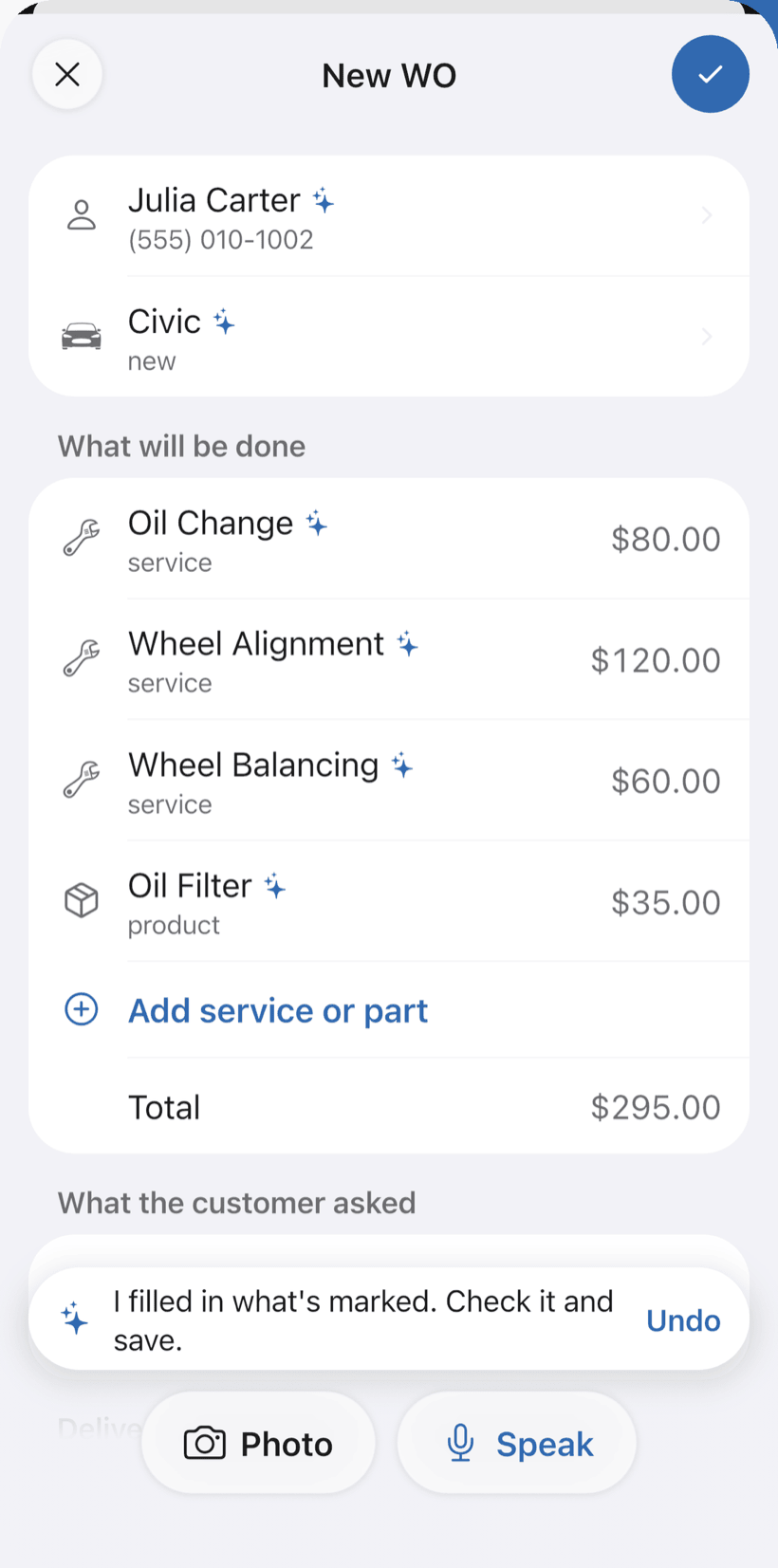
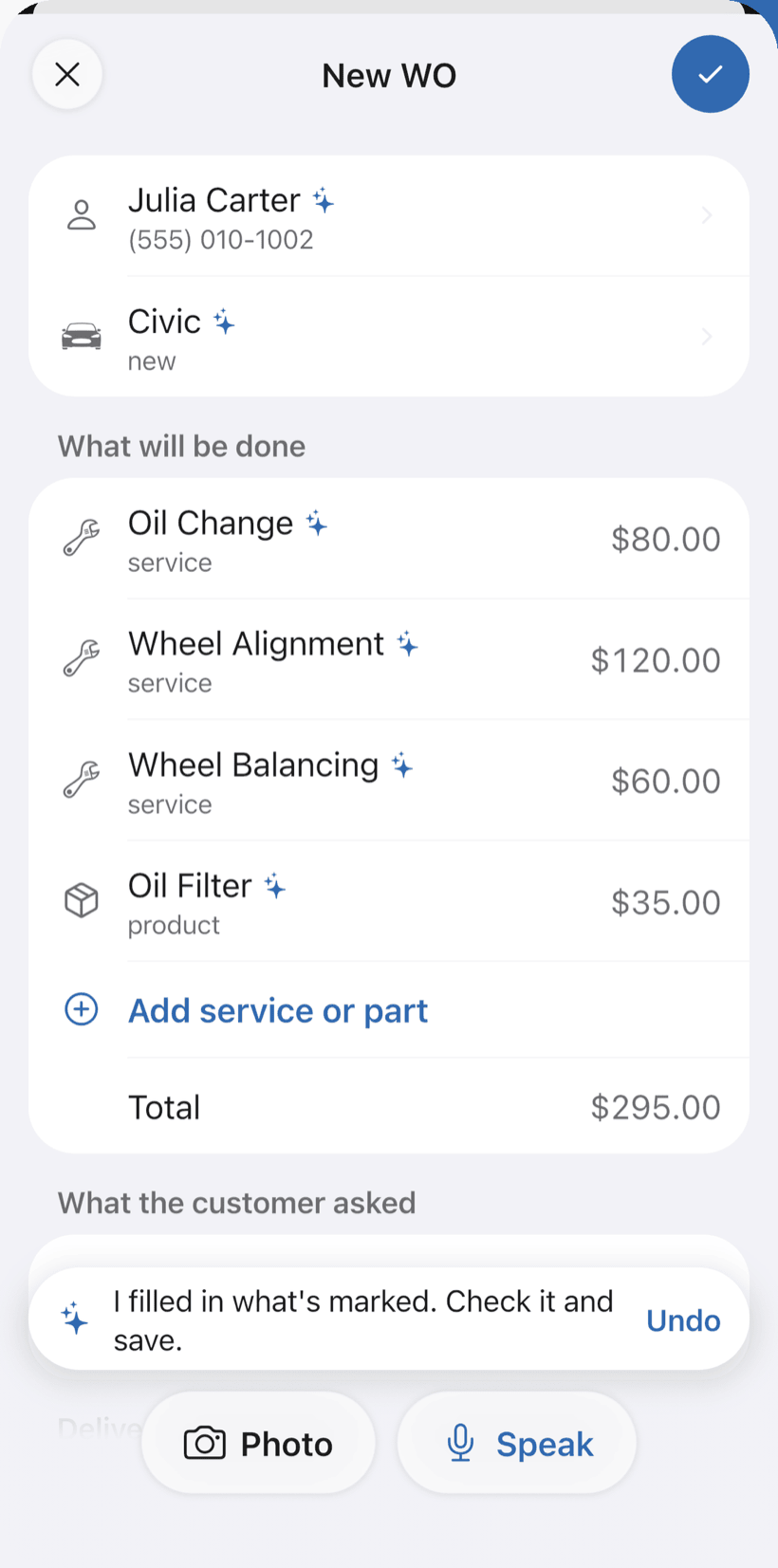
Say the visit and AI opens the order
Tap Speak and say: “Solar Building, elevator 2, monthly maintenance on Thursday at 8.” AI fills in the customer, equipment, service and the price from your catalog. You check it and save.
- What AI filled in is marked with ✦
- Fix it by speaking: “door contact replacement, 350”
- Or take a photo of the written order
-
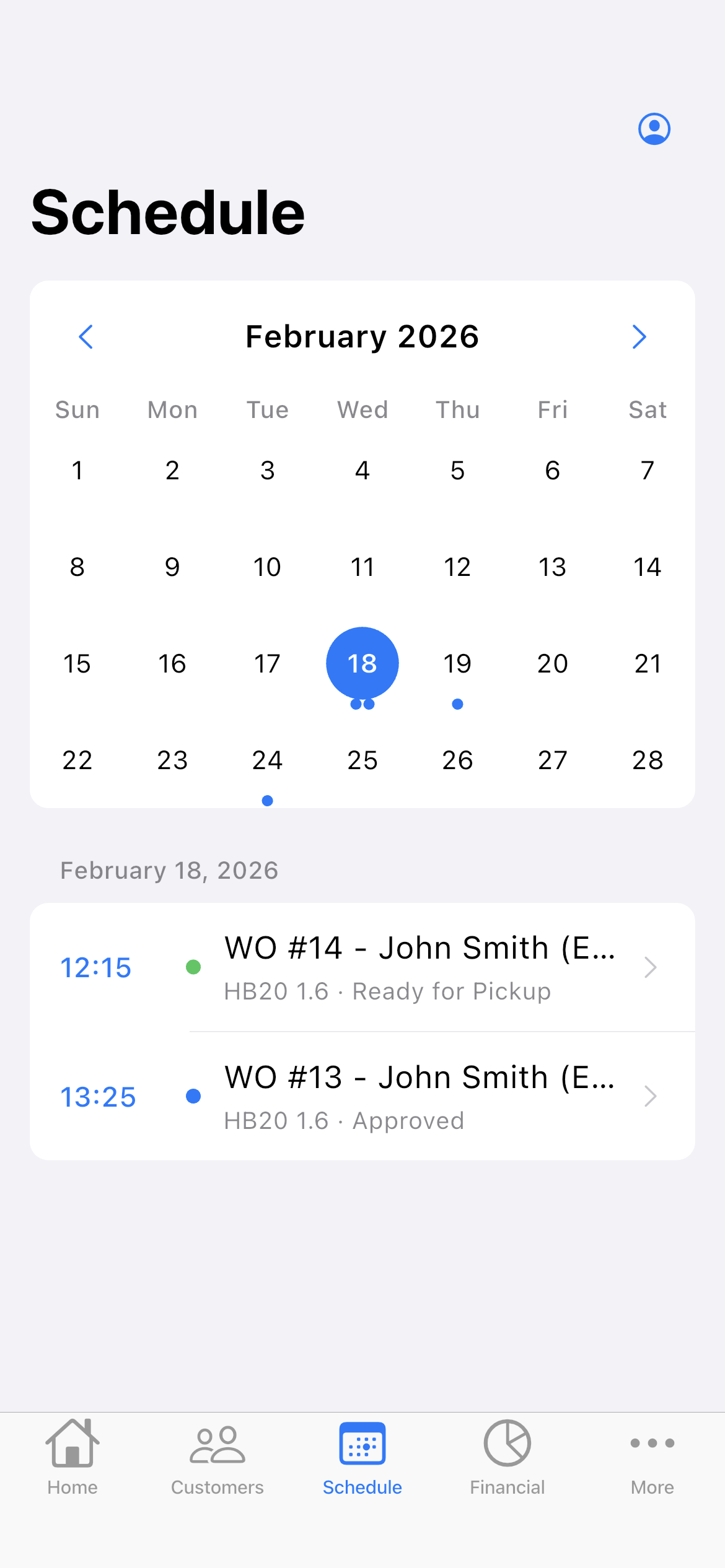
The visit on the schedule
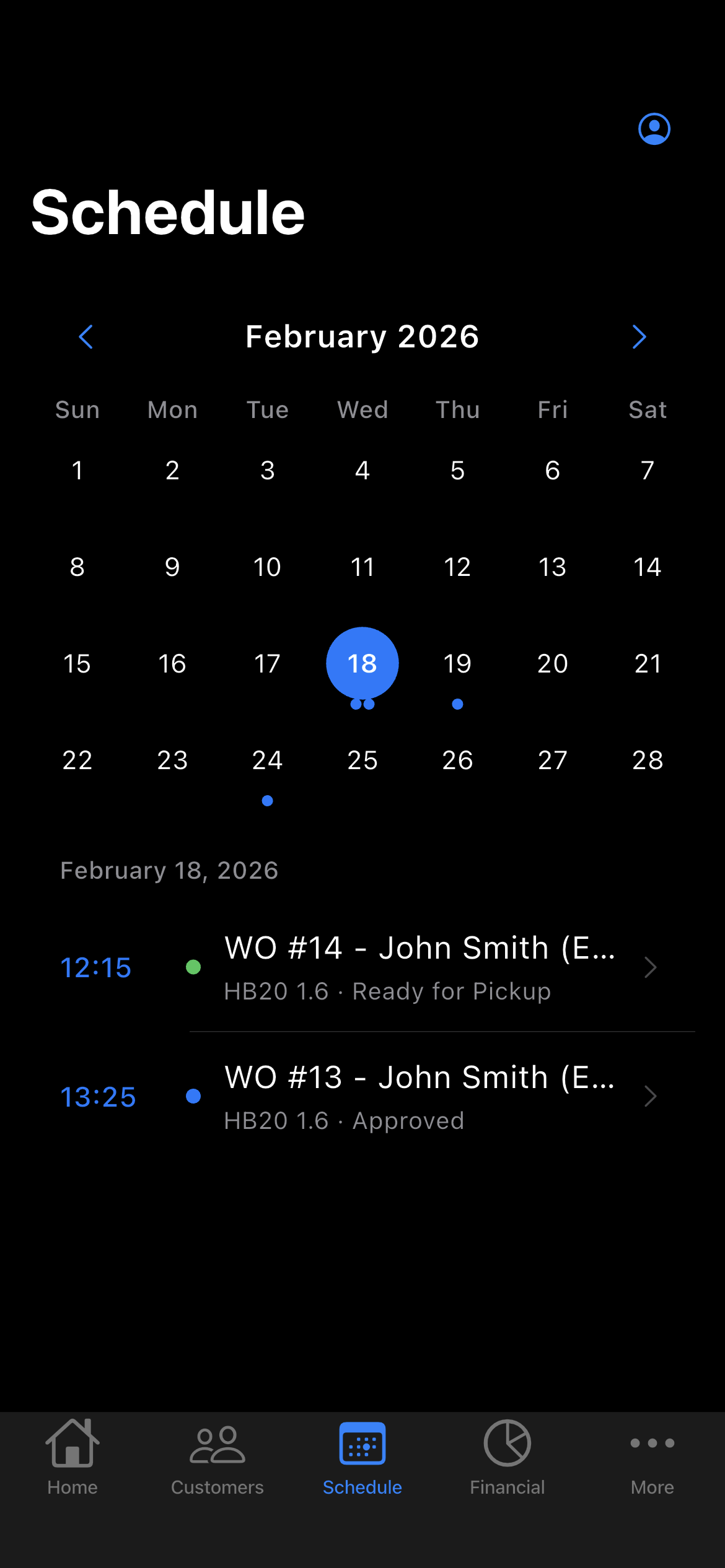
With a date and time on the work order, the visit goes on the Schedule. Maintenance and service calls sit in the same place, and your phone reminds you before the appointment.
- The week on top, the day’s visits below
- Reminder 15 minutes to 2 hours before
- With a team, schedule filtered by technician
-
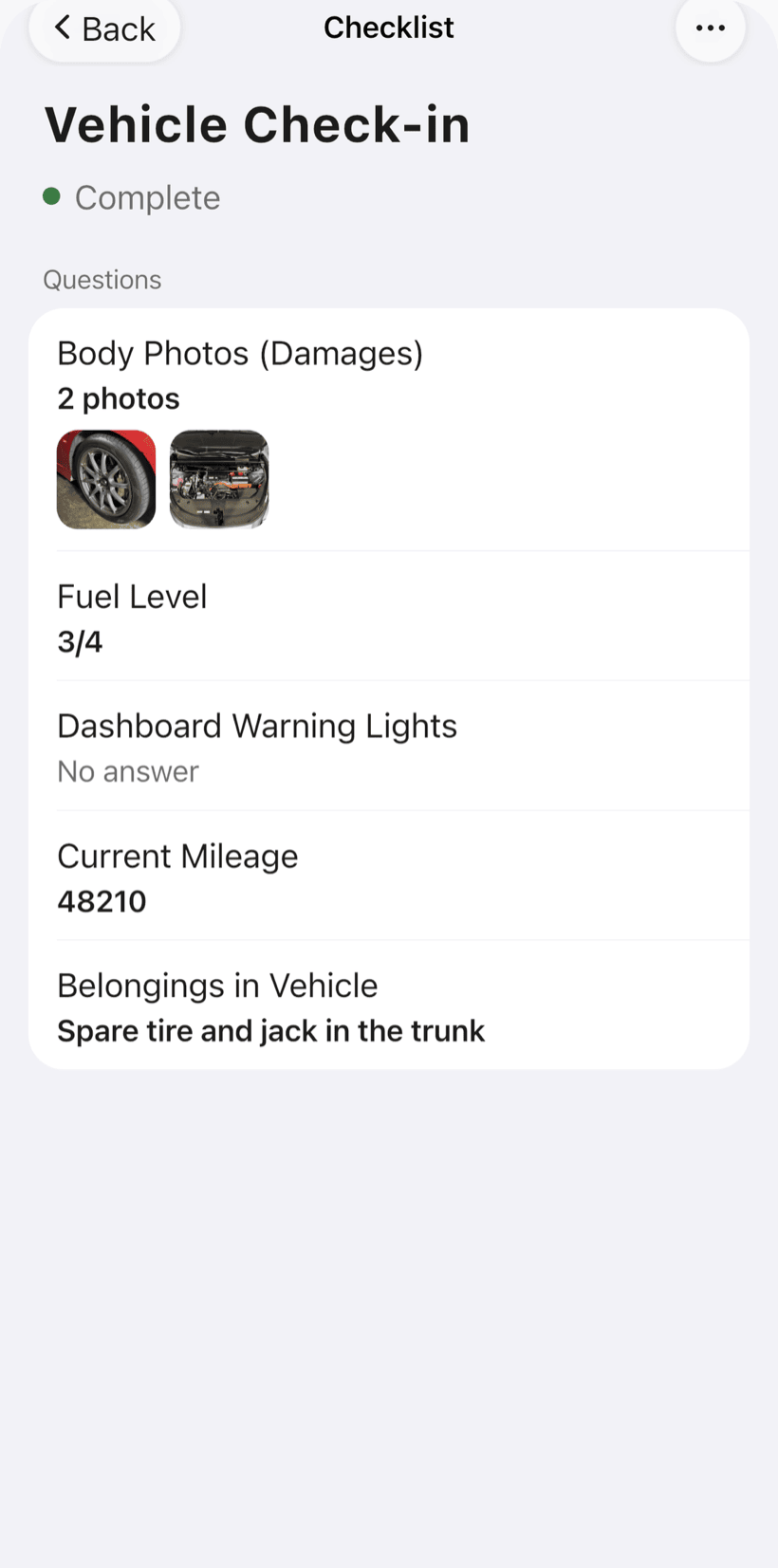
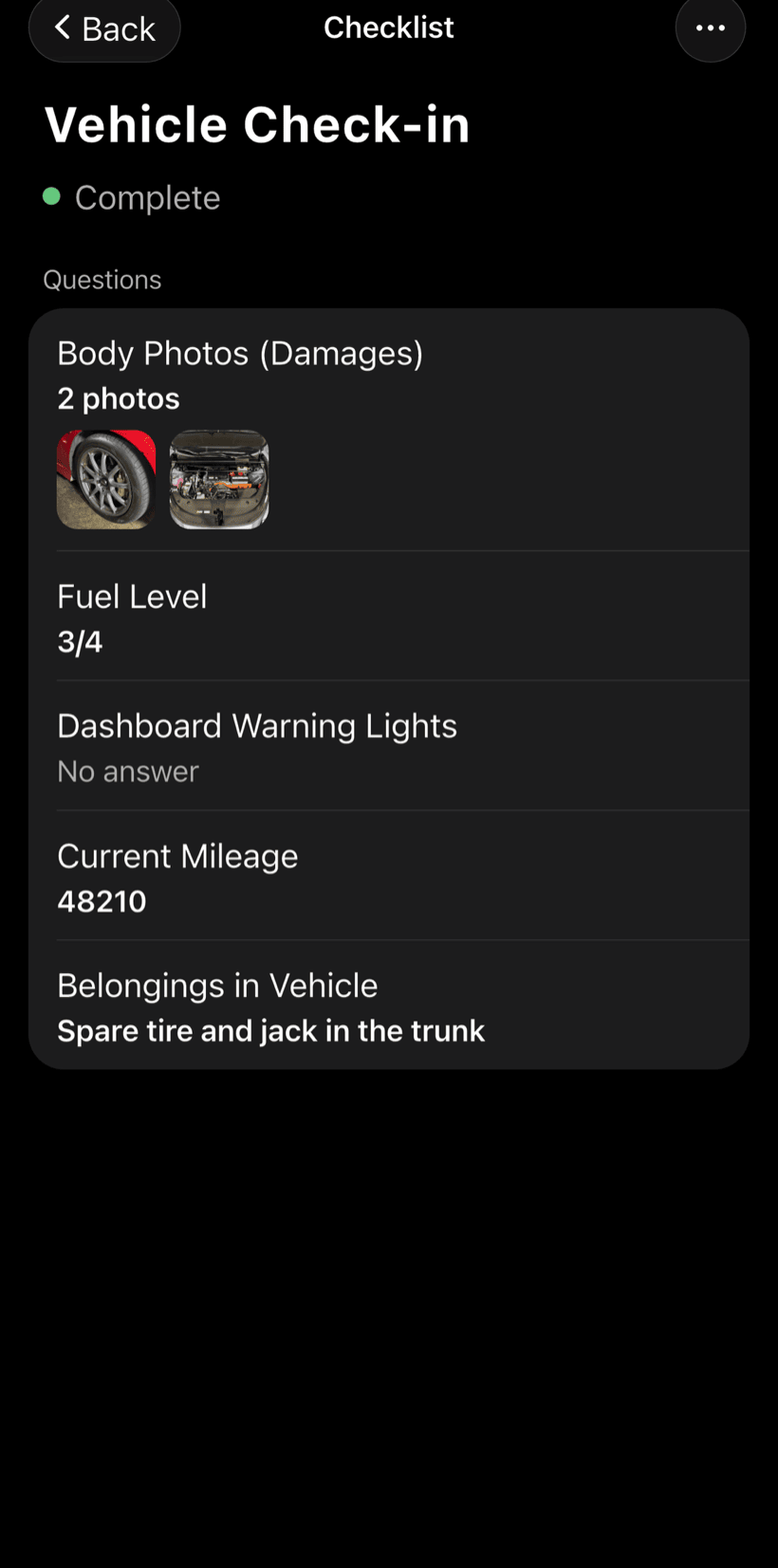
Run the checklist on site
Build your maintenance checklist once and use it on every visit. Mark yes, no or not applicable and photograph what you found in the machine room, the car and the shaft.
- Items with a check, text or photo
- The same items on every visit
- Completed checklists reopen only for Admin, Manager or Supervisor
-
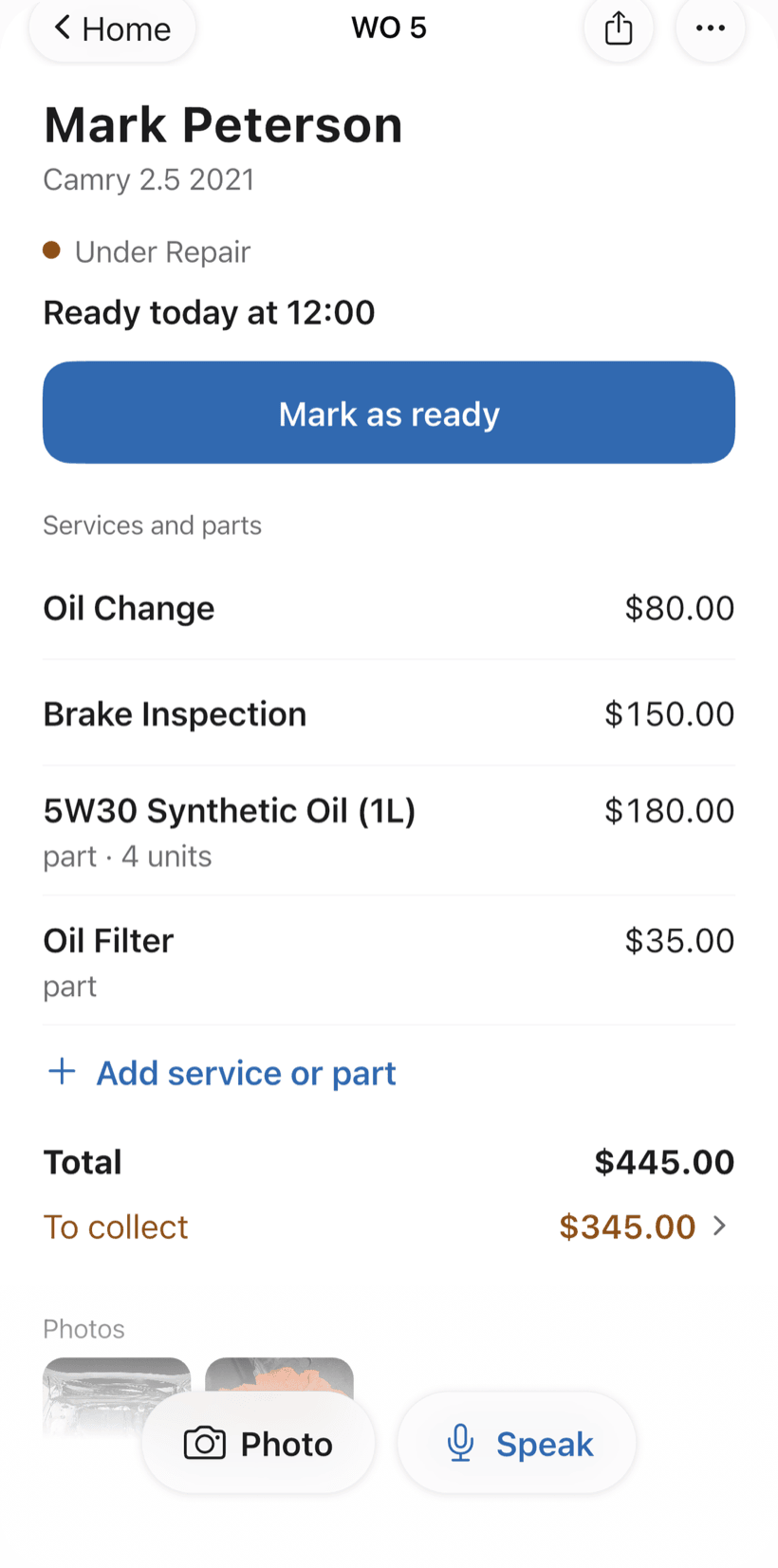
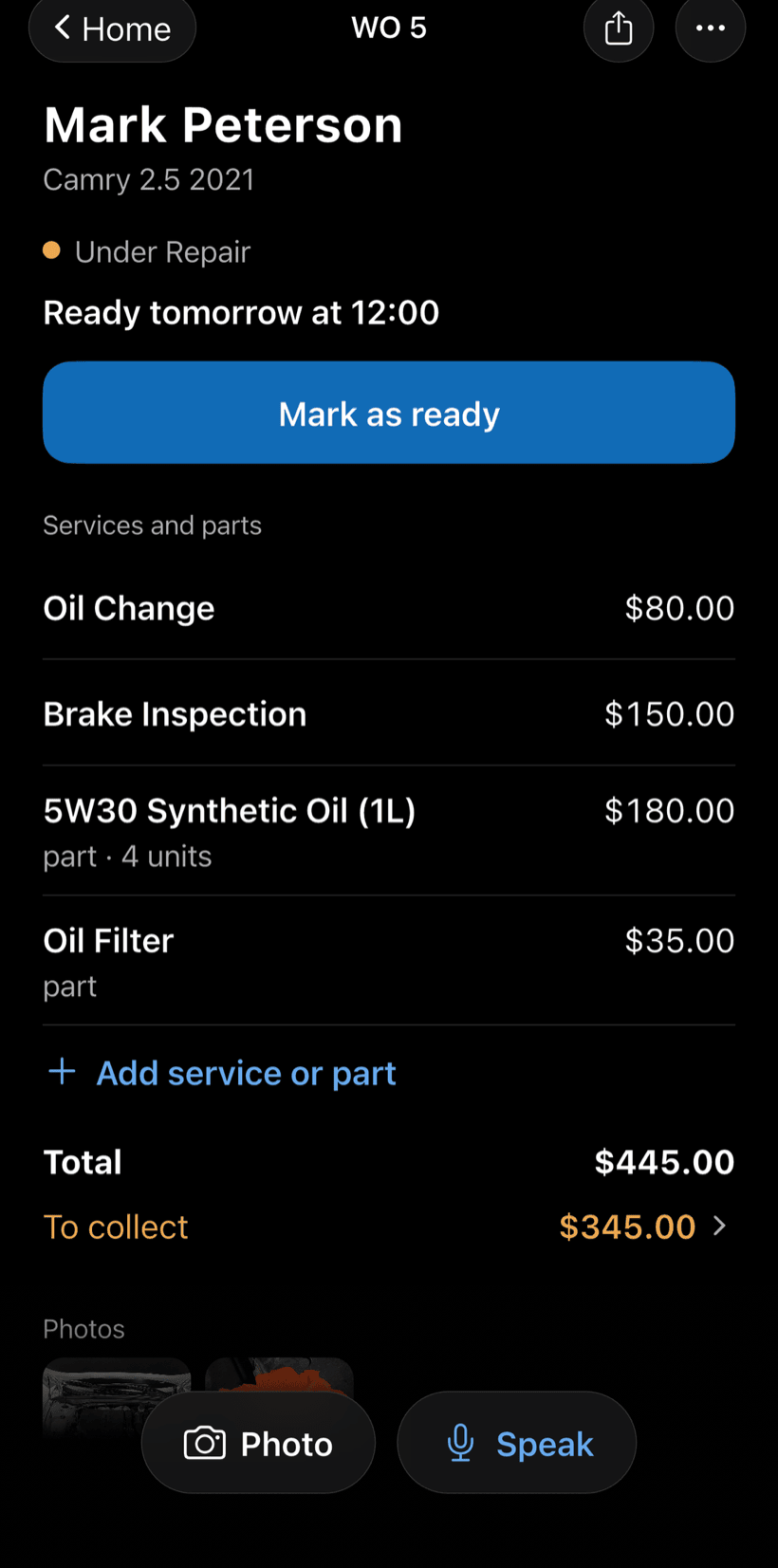
Send the link to the property manager
The property manager opens the work order in the browser, with nothing to install. They see photos and the checklist, approve extra repairs when needed and leave comments.
- Approval recorded on the work order
- Work order PDF for the building’s records
- Manager comments in the order history
-
Get paid for the work
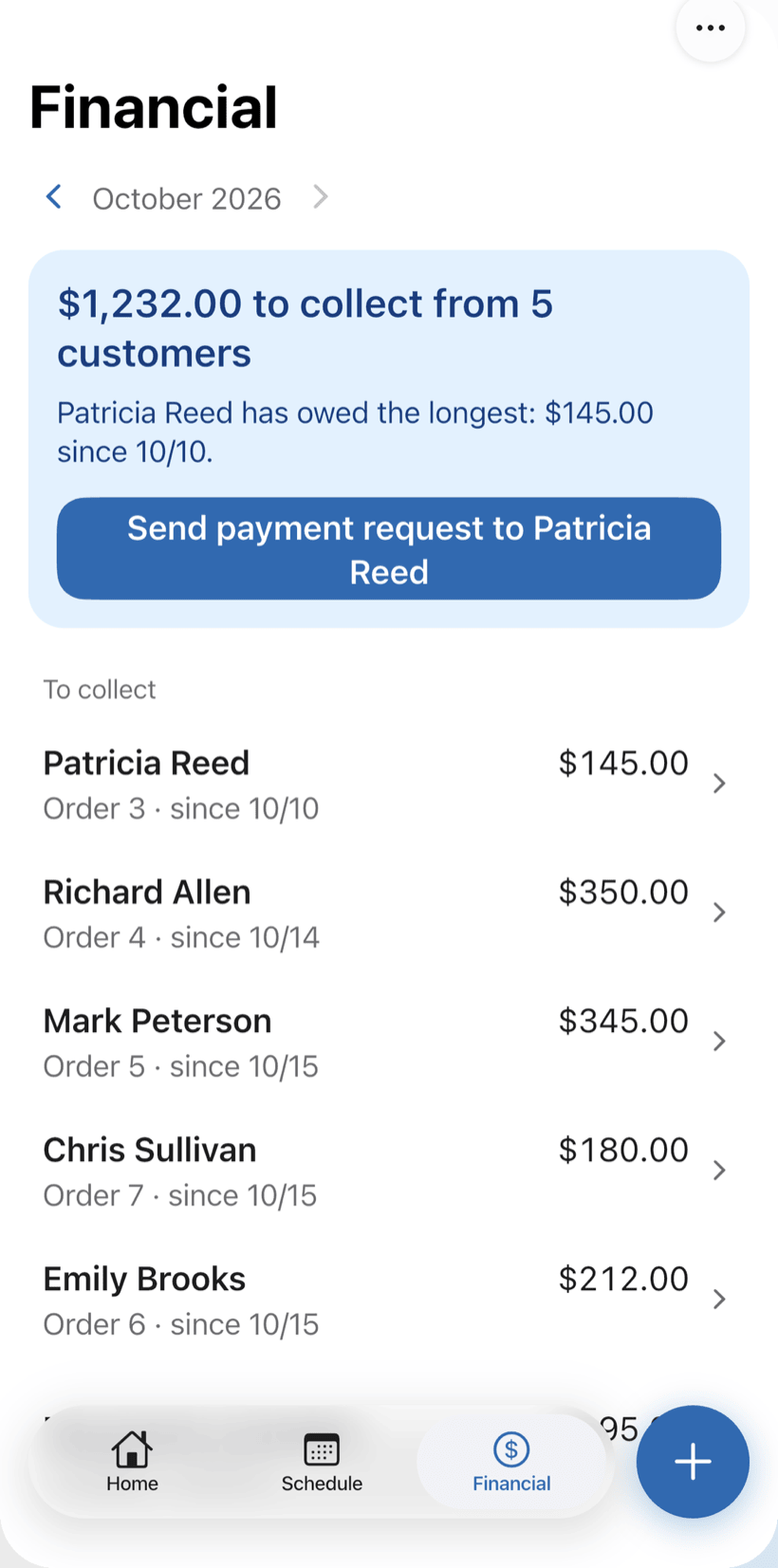
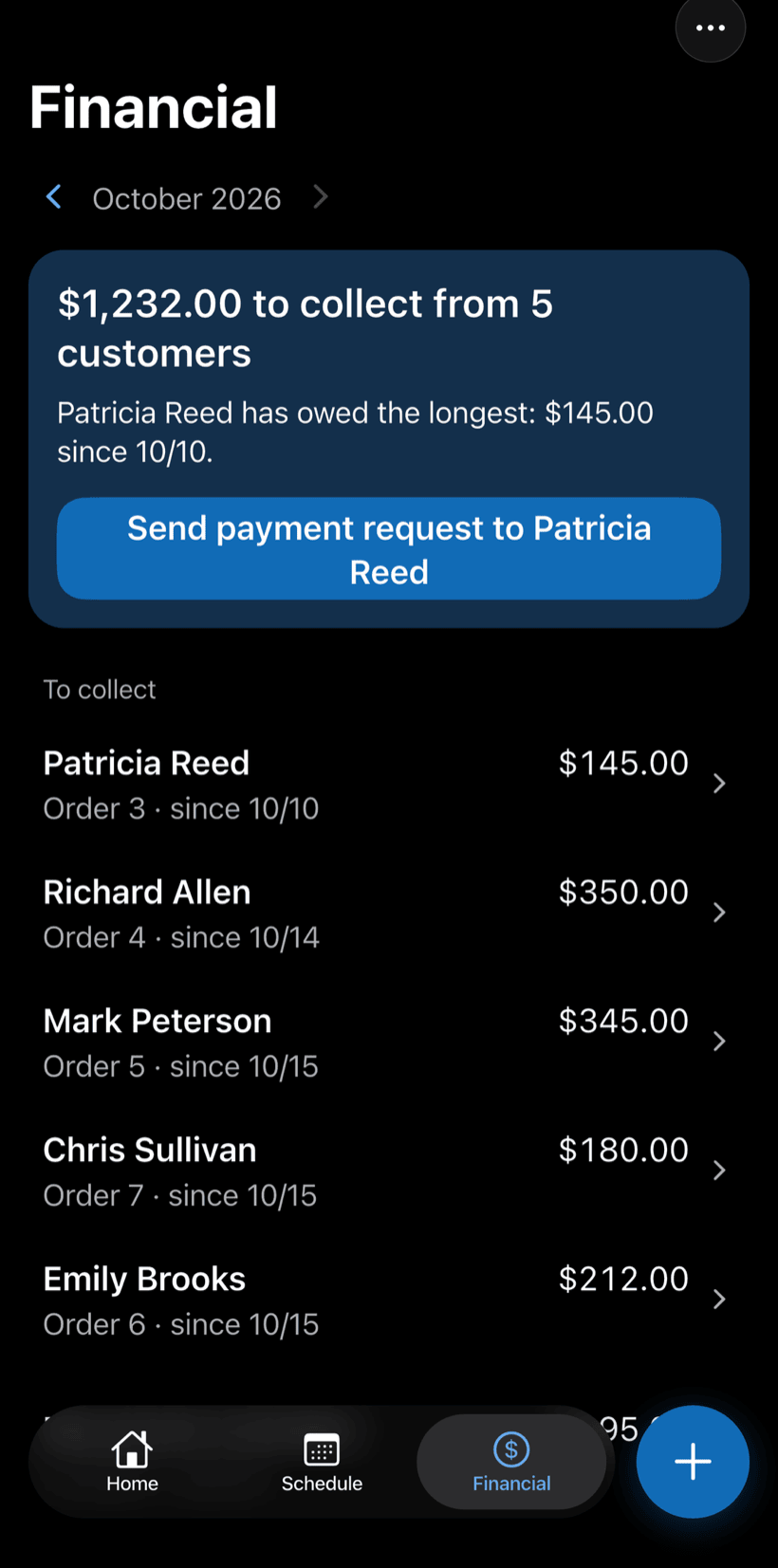
Receive repairs and parts in full or in parts. Financial shows how much is left to collect and from which buildings, with a button to send the payment request.
- Partial payments and discounts in the same order
- Whoever has owed the longest shows up first
- Monthly report of what came in
Questions from elevator companies
If yours isn't here, send us an email — the PraticOS team answers it.
Do I have to pay to use it?
You can start free, with no limit on work orders or customers. The free plan has a monthly limit on photos and AI use, and one checklist template. Paid plans, subscribed in the app, raise those limits and unlock your team.
Does the app create monthly maintenance visits on its own?
No. Each visit is a work order with a scheduled date: you create the order (by speaking, if you like), it goes on the Schedule and your phone reminds you before the appointment. The maintenance checklist is the same template on every visit.
Can I use my own checklist?
Yes. You build the checklist with the items you check (machine room, car, doors, shaft) and it is available on every work order. Templates are in Checklists, from the profile button at the top of Home. The technical content is up to you.
Can my technicians use it on their own phones?
Yes, if someone works with you. Tap the profile button at the top of Home, go to Team and invite them with an invite code, which you can send over WhatsApp, and they sign in with their own account on their own phone, with a role such as Technician or Manager. Inviting someone requires a paid plan, subscribed inside the app.
Does the property manager need to install an app?
No. They get a link, open it in their phone's browser and see the work order with photos, checklist and prices. They approve the quote and leave comments right there.
Download it and open your first order today.
Start free. Paid plans available in the app.
Questions? Talk to us on WhatsApp praticos@rafsoft.com.br FAQ